

How to Add a Vertical Line to an Email Signature: Outlook, Gmail, and HTML Guide
A vertical line in an email signature helps visually separate contact information, logos, and other details. You can add a vertical line by typing the vertical bar character (|) or by using HTML to create a divider with a table cell or border.
This guide explains three ways to add a vertical line: text separators, HTML dividers, and using a professional email signature generator. It also provides specific steps for Outlook and Gmail, ready-to-use code, design tips, troubleshooting advice, and ways to keep company signatures consistent. By the end of this guide, you will know how to add, customize, test, and maintain a vertical line that looks professional in major email clients.
1. What Is a Vertical Line in an Email Signature?
2. How to Add a Vertical Line to an Email Signature: 3 Methods
3. How to Add a Vertical Line to an Outlook Email Signature
4. How to Add a Vertical Line to a Gmail Signature
5. How to Design a Professional Email Signature with a Vertical Divider
6. Common Problems with Vertical Lines in Email Signatures and How to Fix Them
7. How to Test an Email Signature with a Vertical Line
8. Frequently Asked Questions
What Is a Vertical Line in an Email Signature?
A vertical line (also called a vertical divider) divides signature content into clear sections, making it easier to scan without adding clutter.
Vertical line vs. vertical divider
These terms describe different ways to separate and highlight information:
- Vertical Bar (|). A simple text character that separates information and matches the surrounding text.
- HTML border. A line created with CSS to add a border to a table cell.
- Table-cell divider. A narrow table cell with a background color, used as a vertical line.
The text character is the quickest option. The two HTML methods offer more control over thickness, color, height, and spacing.
When should you use a vertical line?
Here are some common ways to use dividers in email signatures:
- Separate a company logo from contact information.
- Divide a person’s name and job title from their phone number, email, and website.
- Underline contact blocks from social media icons or links.
- Organize a compact corporate signature into clear columns.
The divider should make the text easier to read. It shouldn’t be the main focus or make the signature too wide.
How to Add a Vertical Line to an Email Signature: 3 Methods
Pick the method that suits your technical skills and design goals.
Use the vertical bar character (|)
- Open your email signature editor.
- Put the cursor between the two elements you want to separate.
- Type the vertical bar symbol: | (usually found by pressing Shift + backslash on most keyboards).
- Add spaces around the vertical bar if you want more room between elements.
- Save your signature and send a test email to check how it looks.
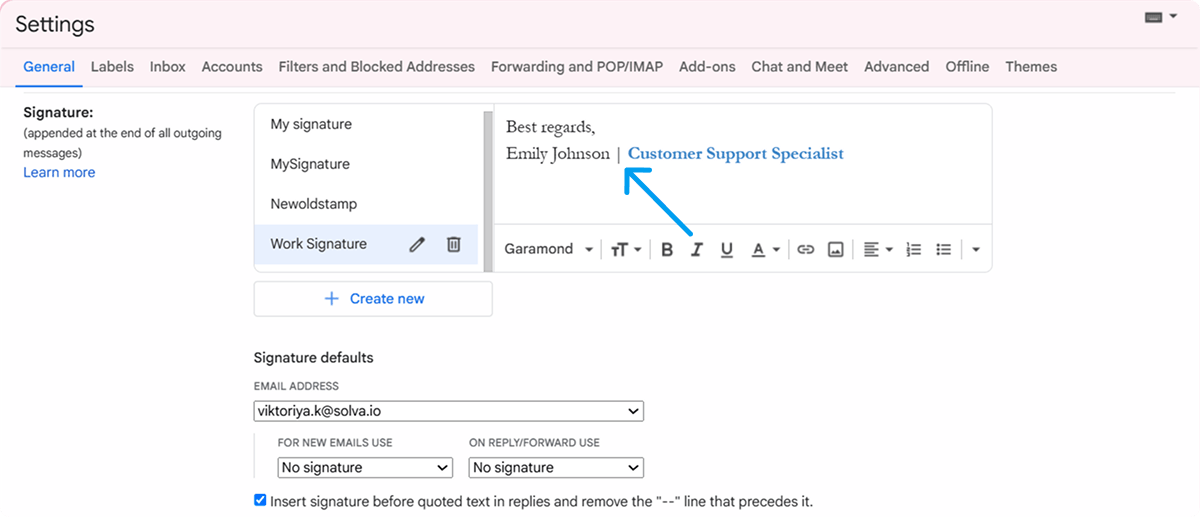
This is effective for simple text-only signatures. The character stays linked to the text size and style, so it doesn't become a tall design element.
Add a vertical line using HTML
Create a two-column table. Add a left border to one cell or use a narrow cell with a background color. This design divider works well with logos and contact information. Detailed code will be in the HTML section.
Use an email signature generator
An email signature generator lets you create columns, set borders, choose colors, and set spacing without HTML. Tools like Newoldstamp simplify building professional email signature layouts and ensure teams use the same templates.

|
Method |
Best for |
Technical knowledge |
|
Vertical bar character |
Simple text separation |
None |
|
HTML table divider |
Custom layouts with logos and contact blocks |
Basic HTML or a compatible editor |
|
Border-based divider |
A line beside an existing column |
Basic HTML or a compatible editor |
|
Email signature editor |
Creating and maintaining branded signatures |
None |
How to Add a Vertical Line to an Outlook Email Signature
Exact steps vary by Outlook version. Always test the final signature in a real outgoing message rather than relying solely on the editor preview.
How to add a vertical line in classic Outlook for Windows
- Open Outlook and create a new message.
- Go to the Insert or Message tab and open Signature settings (or navigate via File > Options > Mail > Signatures).
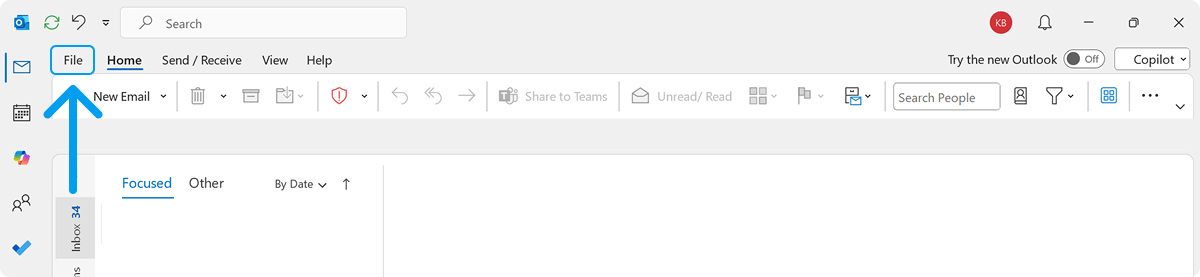
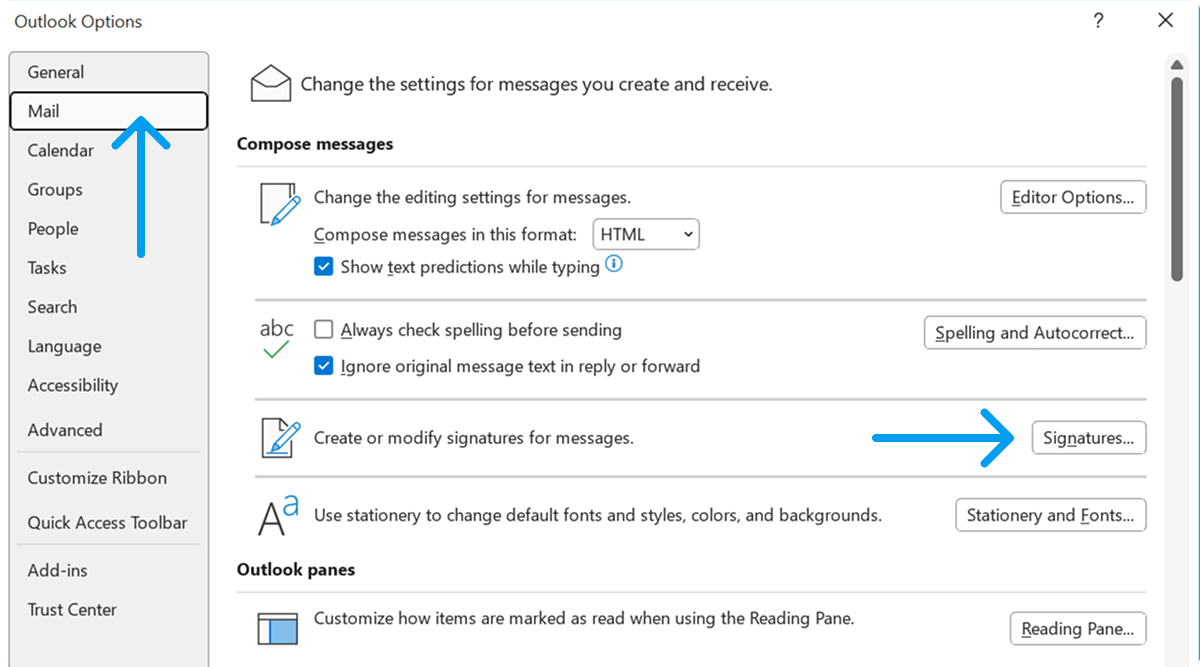
- Create a new signature or edit an existing one.
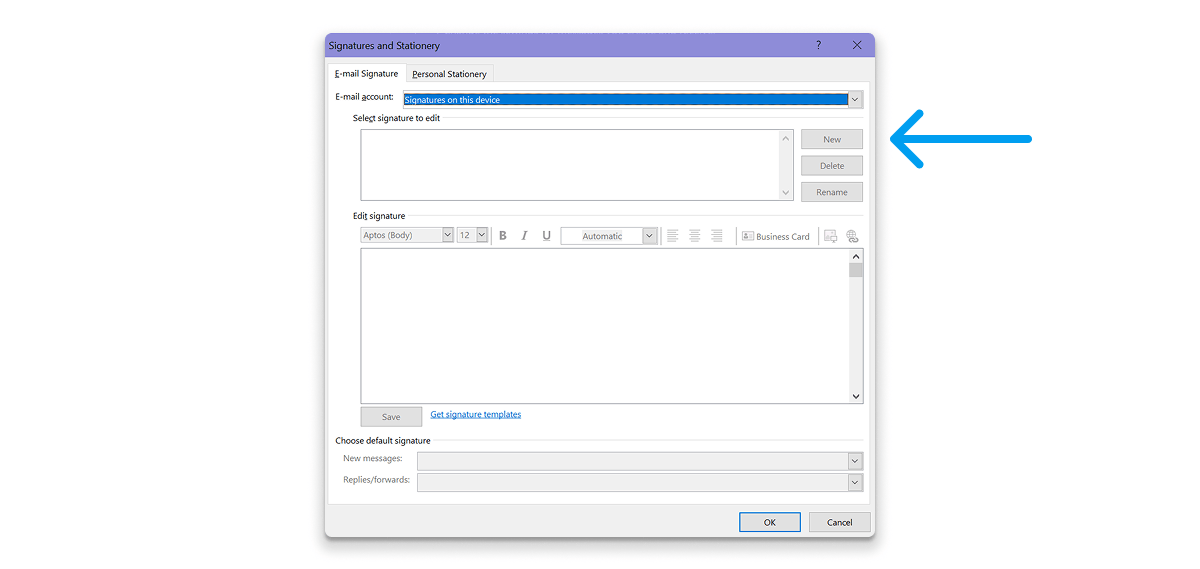
- For a simple divider, type | between elements.
- For a styled divider, build or paste a table-based signature that uses a cell border or background-color divider.
- Save the signature and send a test email.
If you haven’t set up a signature yet, follow our guide on how to add an email signature in Outlook.
Classic Outlook’s built-in editor does not have a button for adding vertical dividers. To create styled results, you usually need to prepare HTML outside the editor or carefully build tables within it.
How to add a vertical line in new Outlook for Windows
- Open the Settings menu.
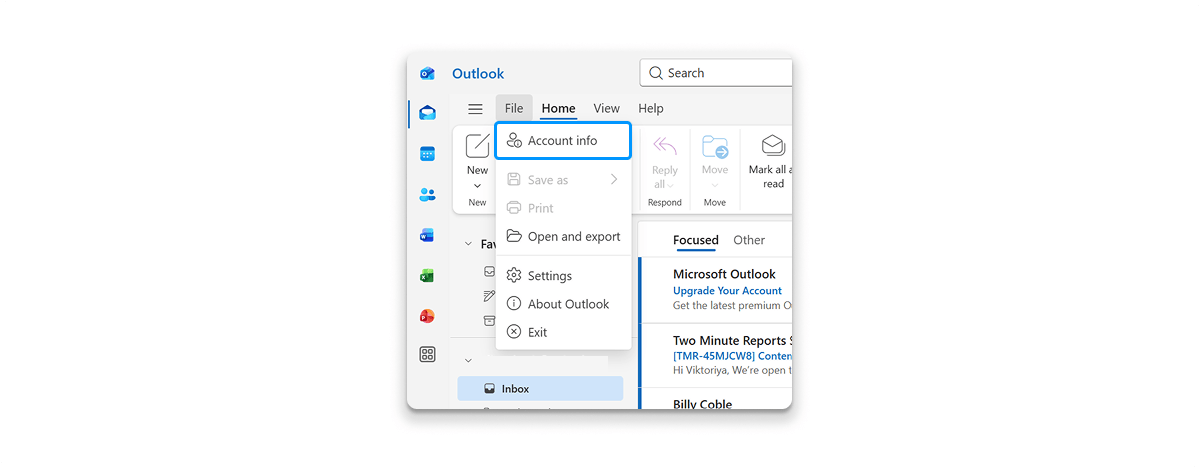
- Go to the signature settings for your account.
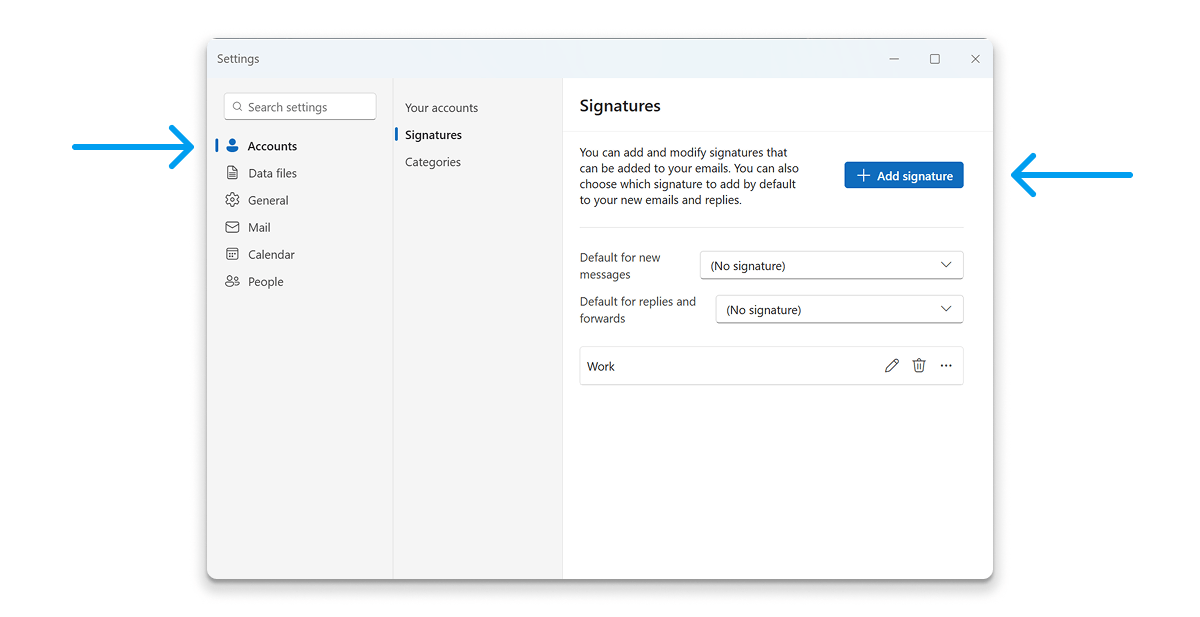
- Create a new signature or edit an existing one.
- You can add a text separator (|) or paste a formatted signature from a compatible editor.
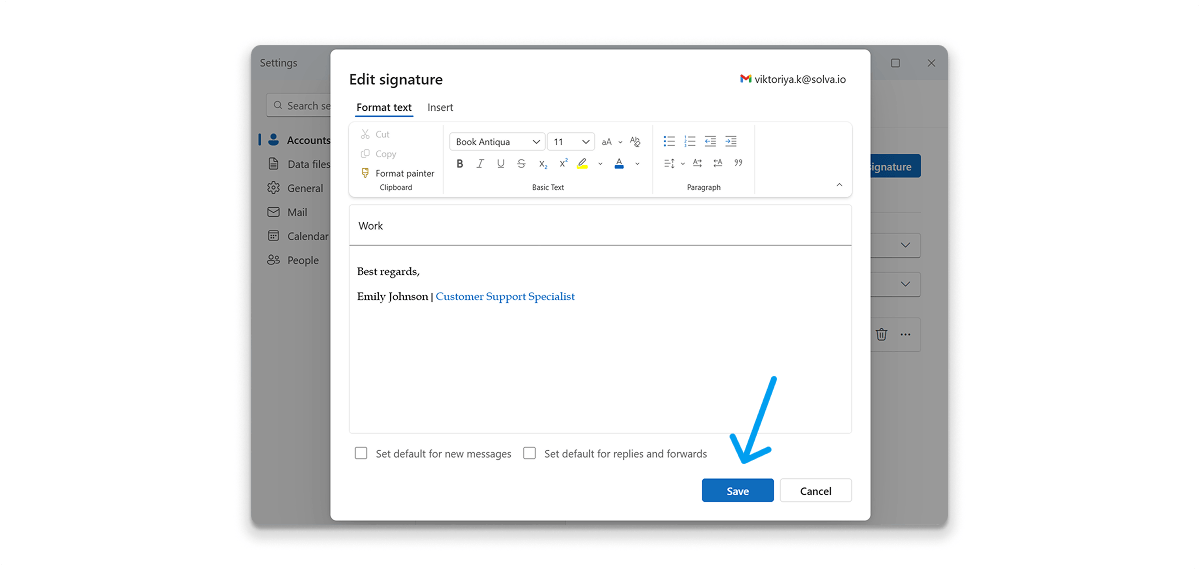
- Make sure the editor keeps the table format and border styles.
- Don't assume that pasting raw HTML will always work correctly. Check how it looks after you save your changes.
How to add a vertical line in Outlook on the web
Outlook on the web uses browser-based settings for signatures. To create a simple line, place the cursor and type the vertical bar (|). If you want more signature designs, prepare it in an HTML-compatible editor outside of Outlook. Then, paste the finished result into the web editor and test it thoroughly.
How to add a vertical line in Outlook for Mac
To change your email signature, go to your account's signature settings. You can create a new signature or edit an existing one. Choose either a simple text format or a table layout. Remember that the features available may vary depending on your version, so check how your signature looks in a test message.
How to Add a Vertical Line to a Gmail Signature
Add a simple vertical line in Gmail
- Open Gmail in a browser.
- Click the Settings gear and select See all settings.
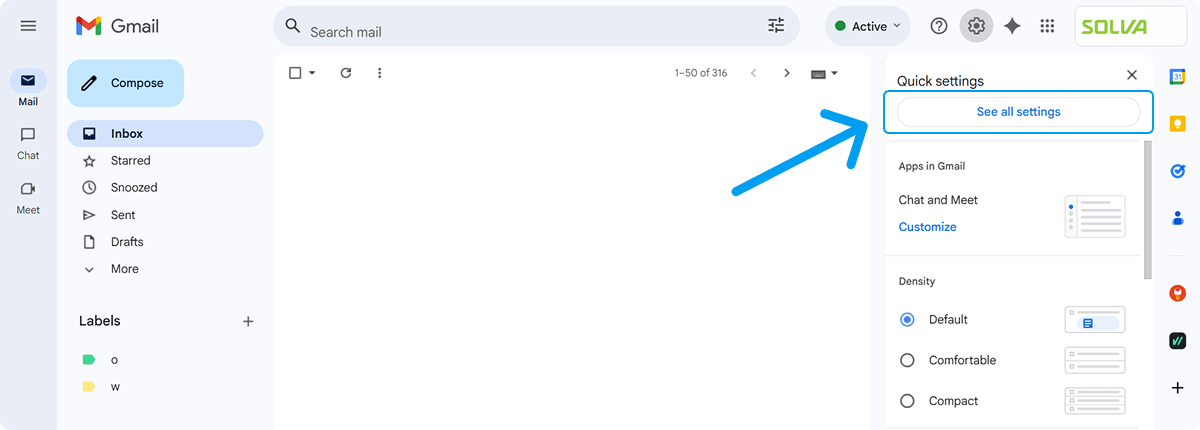
- Scroll to the Signature section.
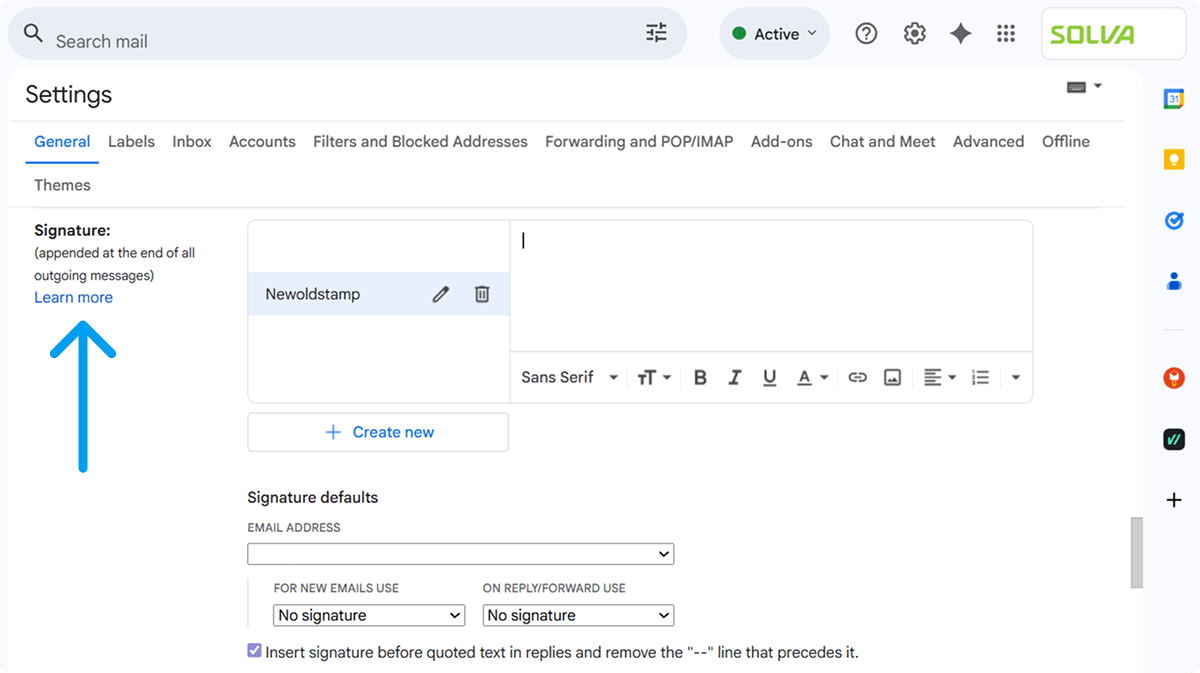
- Create a new signature or select an existing one.
- Place the cursor between the elements to separate.
- Type |.
- Scroll down and click Save Changes.
New to Gmail signatures? Follow our guide on how to create an email signature in Gmail first.
How to Create a Vertical Line in an HTML Email Signature with Newoldstamp
Newoldstamp lets you add a clean vertical line to your email signature without writing any HTML code. You use the visual editor to turn the line on, style it, and choose a ready-made layout.
Follow these steps:
- In the left menu, select Text/Style.
- Click the Design tab.
- Scroll down to Borderline style.
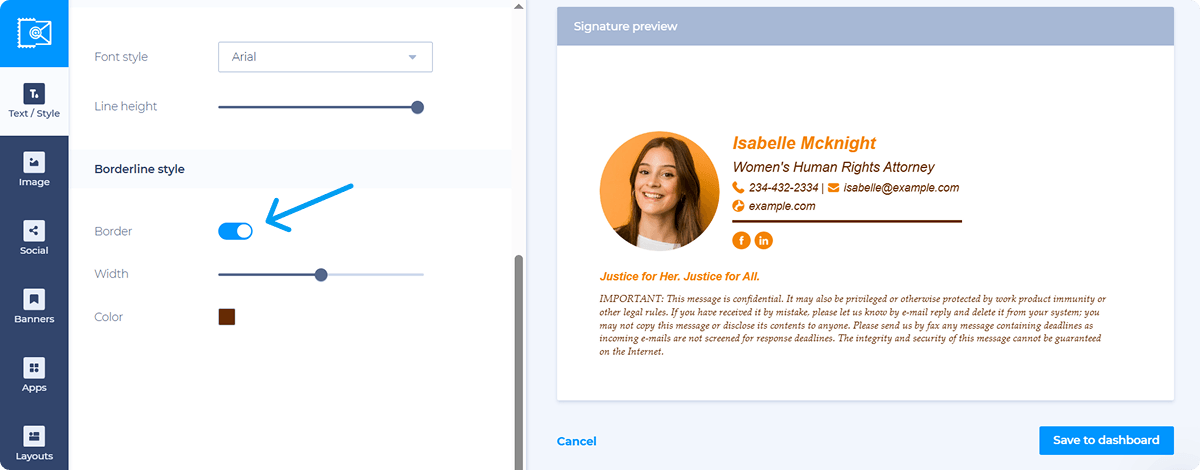
- Enable the line (turn on the borderline display).
- Customize the line by choosing its width (thickness) and color.
- In the left menu, select Layouts.
- Choose the layout that best fits your needs. Many layouts already include different ways to separate information with a vertical line (logo vs. contact details, name vs. links, etc.).
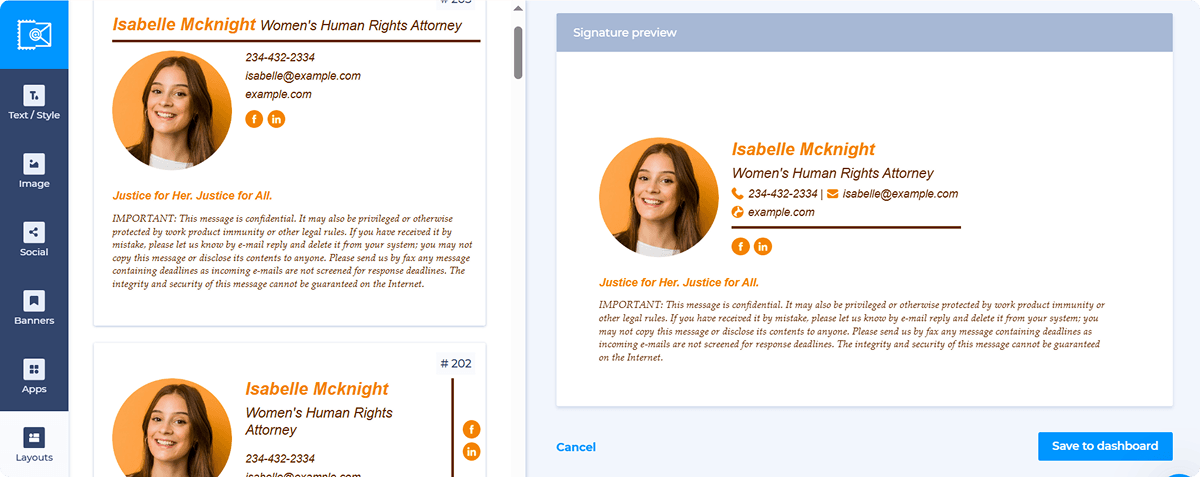
- Finish building the signature and install it in your email client (Outlook, Gmail, or others).
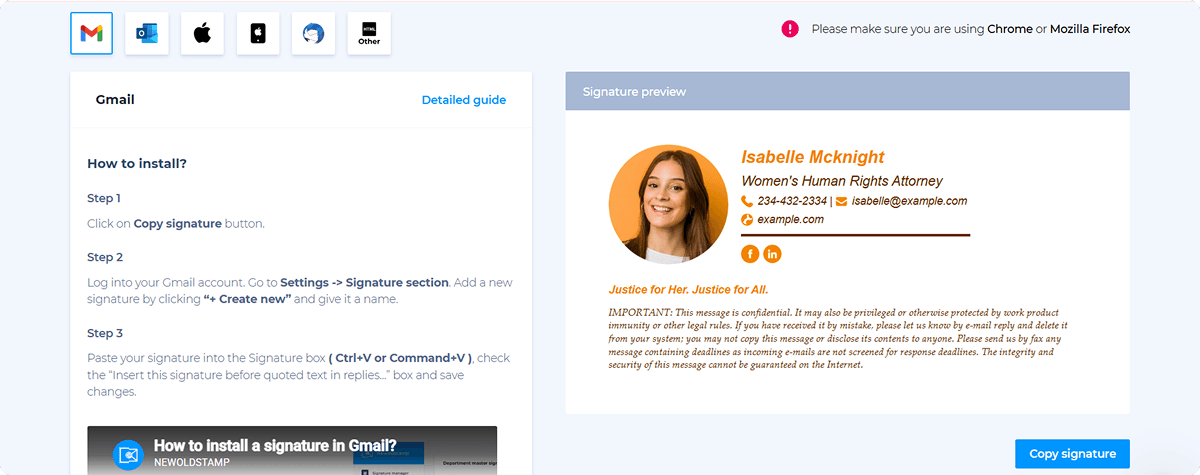
After saving, send a test email and check how the vertical line looks in Outlook, Gmail, and on mobile.
How to Design a Professional Email Signature with a Vertical Divider
Separate a logo from contact information
Place the logo in one column and the contact details in another column. Use a divider between them. Keep the overall width within the recommended email signature size so the signature doesn’t require horizontal scrolling.

Organize contact information
Use a divider to separate your name and title from your contact information and links. Keep the number of columns to a minimum so the signature is easy to read.
Match the divider to brand guidelines
- Use an approved brand color.
- Keep line thickness consistent across all employee signatures.
- Ensure enough contrast with the background.
- Use the same fonts and spacing throughout.
- Avoid adding decorative elements that clutter the design.

Keep the signature mobile-friendly
Mobile screens are narrow. Wide layouts with multiple columns or long lines can be hard to read. Always test your design on a phone. When needed, use a simpler stacked layout.
Common Problems with Vertical Lines in Email Signatures and How to Fix Them
- The vertical line does not appear
The line may not show up because the email editor strips out HTML, uses unsupported formatting, or applies a border to the wrong cell. Check the HTML, verify the width or border settings, and try a simple table layout.
- The vertical line is too short or too long
The height of the line depends on the table structure and surrounding content. Check the vertical alignment, cell setup, and any fixed height settings that may not fit the content.
- The line changes color or thickness
Email clients may change styles. Use simple inline styles with clear color values and aim for a line thickness of 1 to 2 pixels.
- The divider looks different in Outlook but works in Gmail
Different email programs display HTML and CSS differently. Use table-based layouts with inline styles, and always test how the message looks after sending.
- The signature breaks on mobile
Long text, large logos, or wide tables can cause awkward wrapping. Simplify the layout, reduce extra spacing, and check how the signature looks on a small screen.
- The line disappears after copying and pasting
Copying between editors can change the HTML. Always paste into the final editor, save the changes, send a test email, and make corrections in the live environment.
How to Test an Email Signature with a Vertical Line
Before you publish or deploy, use this checklist:
- Send a test email from the account you use.
- Check the signature in the version of Outlook or Gmail.
- Open the email in other major email clients.
- View the signature on a mobile phone.
- Verify the line color, height, and spacing.
- Make sure all links and contact details work.
- Check replies and forwards to see if they show a different signature.
- Ensure the divider stays aligned when text wraps.
Frequently Asked Questions
How do I insert a vertical line in an email signature?
Use the vertical bar character | to quickly separate elements. For a more stylish design, create an HTML table with a left border or a cell with a narrow background color.
How do I add a vertical line to an Outlook signature?
Open the signature settings in Outlook. You can either type your signature or use a ready-made table format with a border or a divider cell. Always test the sent message to ensure it looks right.
How do I add a vertical line to a Gmail signature?
In Gmail Settings, go to the Signature section. Use "|" for a simple separator. To create a proper divider, use an HTML editor to design the layout. Then, paste the result into Gmail and test it carefully.
How do I create a vertical divider in HTML?
You can add a left border to a table cell or create a narrow cell with a background color and a small font size and line height. Both options are shown earlier in this guide with complete examples.
What is the difference between | and an HTML vertical divider?
A text character changes size to match the surrounding font. An HTML divider is a design element you can customize in terms of thickness, color, height, and spacing.

