

How to Create a Professional HTML Email Signature: The Complete Guide
|
Quick Overview
|
1. What is an HTML email signature?
2. Top benefits of using an HTML email signature
3. Step-by-step guide to creating an HTML email signature
4. Manually Creating an HTML Email Signature
5. Creating an HTML Email Signature with the Generator
6. Add an HTML Signature in Gmail
7. Add an HTML Signature in Outlook for Windows
8. Add an HTML Signature in Apple Mail
9. Add an HTML Signature in Thunderbird
10. Manual HTML Signature vs Email Signature Generator: Which Option Is Better?
11. HTML Email Signature Best Practices for Gmail, Outlook, and Mobile
12. HTML Email Signature Design Checklist
13. Explore Professional Email Signature Templates with Newoldstamp
14. Common HTML Email Signature Mistakes and How to Fix Them
15. Managing HTML Email Signatures for Teams
An email signature is more than a digital business card; it is an important communication tool. It builds trust, strengthens your brand, drives traffic, and helps your outreach. Creating your email signature is easy with a professional HTML email signature generator.
This guide will teach you about HTML email signatures, explain their importance, and provide clear steps for creating one that fits your brand.
What is an HTML email signature?
An HTML email signature is a formatted block of text that shows up at the end of your emails. It uses HTML and CSS to create a clear and branded layout. This ensures that the signature looks the same across different email programs.
An HTML signature usually includes these key parts:
- Your full name and job title
- Your company name and logo
- Your contact information, such as phone number, email, and website
- Clickable social media icons
- Call-to-action buttons, like “Book a Call” or “Visit Our Website”
- Any legal disclaimers or certifications if needed
There are three common types of email signatures:
- Plain Text Signature: This is the simplest option. It contains only unformatted signature text. It loads quickly in all email clients, but it doesn’t look very appealing and lacks branding.
- Image-Only Signature: This type uses a single image for all your information. It looks consistent, but many email clients block images by default, and it does not allow for clickable links.
- HTML Signature: This signature uses real text along with rich formatting, colors, fonts, images, and clickable links and buttons. It is the most effective and professional choice.

Top benefits of using an HTML email signature
Email signatures are a crucial element of online communication. Here are the main reasons why:
- Builds a strong brand presence. Every email you send is a chance to promote your brand. Including your logo, brand colors, and an appropriate layout in your signature helps people recognize your brand and builds trust.
- Increase professionalism. A well-structured signature proves that you care about details - a small but significant trust signal in business.
- Easy access to contact information. Let people easily find another way to keep in touch with you. An HTML signature lets recipients find and use your contact details immediately, including your email address, phone number, and website URL.
- Boosts social engagement. Adding social media links to your email signature invites recipients to connect with your company on different social platforms, helping increase your brand visibility and engagement.
- Email signature marketing. Make your email signature a marketing tool. Add promotional banners, sales, or new company news. This way, your signature will reach your recipients daily.
- Centralized management for teams. Use the best HTML email signature generator to manage and deploy branded email signatures for your entire organization. This ensures consistency and saves time.
Step-by-step guide to creating an HTML email signature
You can create a professional HTML signature in two ways: by coding it yourself or using a free email signature generator like Newoldstamp. Let's look at both options.
- Manually Creating an HTML Email Signature
- Create a table-based structure
- Add your contact details
- Use inline CSS for styling
- Add images with fixed width and height
- Create a new set of clickable links (mailto, tel, https)
- Test across different email clients
- Creating an HTML Email Signature with Newoldstamp Generator
- Go to Newoldstamp and start a new signature
- Choose a template
- Fill in your contact info
- Add branding elements and images
- Add CTAs, banners, and social icons
- Copy and install into your email client
Manually Creating an HTML Email Signature
If you know some basic HTML and CSS and want complete control over your email signature, you can create it manually by following these simple steps:
1. Create a Table
Start with an HTML table. Tables are the best way to arrange email signatures because they display consistently across different email programs. Avoid using `<div>` tags.
<table cellpadding="0" style="max-width:570px; font-family:Arial; font-size:14px; border-collapse:collapse;">
  <tr>
    <td style="padding-bottom:5px;">
      <span style="font-size:16px; color:#000;">Rex Hastings</span>

      <span style="font-size:16px; color:#000;">Lawyer at NEUROTECH</span>
    </td>
  </tr>
  ...
</table>
2. Add Your Contact Information
Include your name, job title, company, phone number, email address, and website. Organize this information clearly within the table cells.
3. Use Inline CSS
Apply all styles directly with the `style` attribute. Use only inline CSS; do not add external CSS files or `<style>` tags in the head, as most email programs ignore them.
4. Add Images with Fixed Sizes
Use direct links for your logo and social media icons. Always specify the width and height for images. This aspect helps avoid layout shifts and improves loading speed. Use PNG format for icons and avoid SVG files, as they are not well-supported.
5. Add Clickable Links
Make all contact details clickable:
- Use `mailto:` for email addresses.
- Use `tel:` for phone numbers.
- Use `https://` for websites and social media profiles.
6. Choose Common Fonts
Use common fonts like Arial, Helvetica, Verdana, or Georgia to ensure your text looks the same everywhere.
7. Test Your Signature
Always test your signature in different email programs such as Gmail, Outlook, and Apple Mail, as well as on mobile devices. Check how it looks in replies and forwards.
8. Copy and Paste
When your signature is ready, copy the complete HTML code and paste it into your email program’s signature editor (switch to HTML/Source mode if needed).
⚠️ Note: Creating your email signature this way gives you full control, but it can take time and needs careful checking. Many people actually use tools or generators to save time and avoid compatibility problems.
Creating an HTML Email Signature with the Generator
For those who prefer a more user-friendly solution with advanced features, the Newoldstamp signature maker is the ideal tool. Follow these steps to see for yourself how easy it is:
Step 1: Go to Newoldstamp
Open your web browser and navigate to the Newoldstamp. Sign up or go to the HTML email signature generator and choose Create Free Signature.
.png?1747339928)
Step 2: Choose a template
Select from various professionally designed HTML email signature templates with options to edit all fields or start the signature from scratch.
.png?1747340163)
Step 3: Fill in your contact information
Include your name, job title, email address, phone number, and company name.
.png?1747340317)
Step 4: Add branding elements
Upload your logo or a professional photo. Choose template colors and fonts according to your brand style.
.png?1747340403)
Step 5: Add Call-to-Action
You can easily add links, buttons, links to calendars, image banners, disclaimers, and social media profiles with just a few clicks. No coding skills are required.
.png?1747341735)
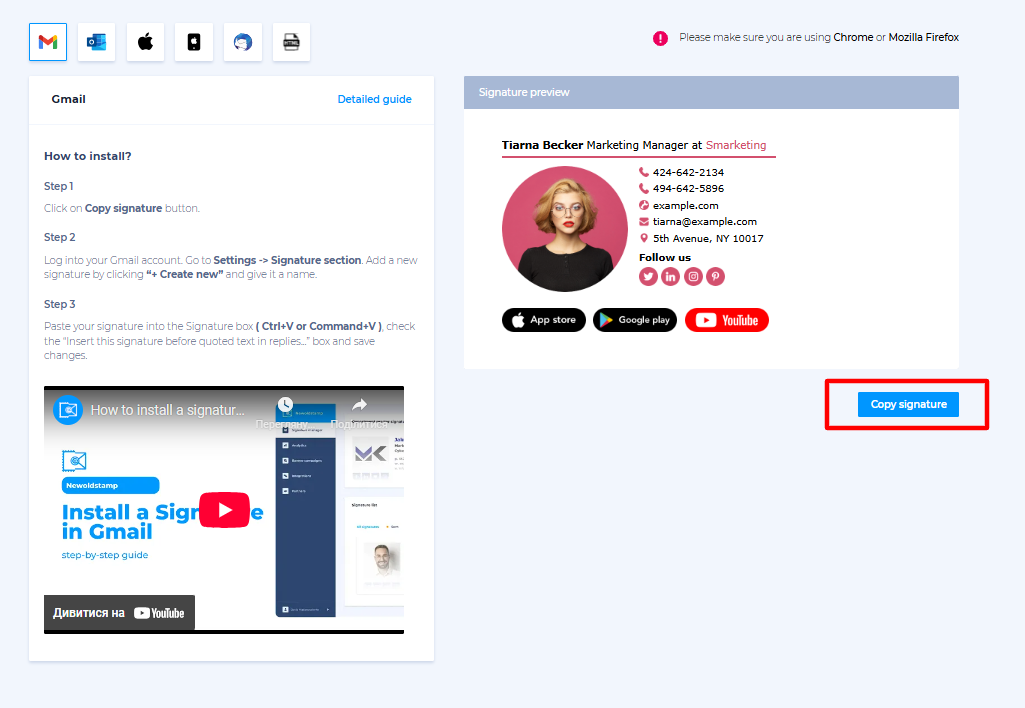
Step 6: Copy and install
Choose your email client, click “Copy Signature.” Newoldstamp provides specific guides for installing in popular email services: Outlook, Gmail, Apple Mail, and others.
Step 7: Manage Team Signatures
With Newoldstamp's Google Workspace and Microsoft 365 integrations, you can set up the same email signatures for everyone in your organization. You can also track how these signatures perform with built-in analytics and ensure your team always presents a professional image.
💡Pro tip: Newoldstamp signatures work well on mobile devices. They display correctly and have a good layout on all screens.
When to Use a Signature Generator like Newoldstamp
You should use a signature generator in these situations:
- You want a professional-looking email signature design quickly, without writing any HTML code.
- You need the same branding for everyone on your team.
- You want features like clickable buttons, image banners, or calendar links.
- You need to manage email signatures for your whole team, especially if you use Google Workspace or Microsoft 365.
- You want to make sure your signatures work well with Gmail, Outlook, mobile devices, and email replies.
- You plan to add disclaimers, track analytics, or update banners and promotions regularly.
Add an HTML Signature in Gmail
- Click on Copy signature button.
- Log into your Gmail account. Go to Settings - Signature section. Add a new signature by clicking “+ Create new” and give it a name.
- Paste your signature into the Signature box ( Ctrl+V or Command+V ), check the “Insert this signature before quoted text in replies...” box, and save changes.
If you want a step-by-step guide with tips, check out our article How to Add an HTML Signature to Gmail.
Add an HTML Signature in Outlook for Windows
- Open Outlook for Windows.
- File - Options - Mail - Signatures.
- Click New, name it, paste HTML.
- Click OK.
Add an HTML Signature in Apple Mail
- Click on Copy signature button.
2. Open your Mail App and go to Mail - Settings - Signatures. Choose which account you want to use the signature for and click "+" button to add a new signature and give it a name.
3. Uncheck the “Always match the default font” box. Paste ( Ctrl+V or Command+V ) the signature into the signature box, and close the Preferences window.
💡Pro tip: You can easily design and customize your signature beforehand with a Mac email signature creator like Newoldstamp to make it look professional and consistent across all Apple devices.
Add an HTML Signature in Thunderbird
- Click on Copy signature button.
- Open the Thunderbird app and go to Tools -> Options -> Account Settings.
- Choose your account, check the "Use HTML option" box, paste the code ( Ctrl+V or Command+V ), and Save Changes. Alternatively, you can download the HTML file and upload it as a signature.
Manual HTML Signature vs Email Signature Generator: Which Option Is Better?
If you want to create an HTML email signature, choosing between creating an HTML email signature manually or using a generator depends on your needs, technical skills, and goals. Here’s a clear comparison:
| Criteria | Manual HTML Signature | Email Signature Generator (e.g. Newoldstamp) |
|---|---|---|
| Coding skills required | Yes | No |
| Design control | High | High |
| Best for teams | Not ideal | Yes |
| Brand consistency | Hard to maintain | Easier |
| Setup speed | Slower | Faster |
| Risk of broken formatting | Higher | Lower |
| Advanced features (CTA, banners, analytics) | Limited | Fully supported |
HTML Email Signature Best Practices for Gmail, Outlook, and Mobile
Even the best tools can't save a poorly designed signature. Keep these best practices in mind:
- Use Tables for Layout: Tables help keep your email signature looking the same in all email programs.
- Keep the Width Between 500 and 600 px: This recommended size works well on both desktops and mobiles, preventing horizontal scrolling.
- Use Inline CSS: Style your email signature directly in the HTML to avoid problems in Gmail and Outlook.
- Choose Common Fonts: Use basic fonts like Arial, Helvetica, Verdana, or Georgia for the best display.
- Host Images Securely and Use Actual Text: Use text for your contact details instead of images. This makes it easier for people to read and loads faster.
- Set Fixed Sizes for Images: Give all images a set width and height to stop any shifting in the layout.
- Make Sure Links Work: Use proper links like https://, mailto:, and tel: for email and phone contacts.
- Keep the Design Simple and Relevant: Avoid adding too many links, icons, or buttons. Aim for a clean and simple email signature design.
- Ensure Good Contrast: Don’t use a black background unless you’ve tested it for readability, as it may cause issues in some email programs.
- Follow Your Brand Style: Use colors, logos, and images that match your brand identity.
- Make it Mobile-Friendly: Ensure your signature looks good on small screens.
- Test Your Signature: Check that it works well in Outlook, Gmail, Apple Mail, and on mobile devices.
- Include Legal Disclaimers: Add any required warnings or disclaimers for your industry.

HTML Email Signature Design Checklist
Use this checklist to make sure your HTML email signature looks professional and works well before you use it:
1. Use a larger font size and bold your full name.
2. Ensure your job title and company are easy to see and in the right place.
3. Use the tel: protocol.
4. Use HTTPS for your website URL. Include the complete, secure link for it to function properly.
5. Use clear, properly sized images with defined width and height.
6. Use the same style, size, and color for all icons.
7. Place buttons thoughtfully without cluttering the design.
8. Avoid clutter by keeping good spacing and padding.
9. Include legal disclaimers if required by your industry or company policy.
10. Check how it appears in Gmail, Outlook, Apple Mail, and on both iOS and Android devices.
Explore Professional Email Signature Templates with Newoldstamp
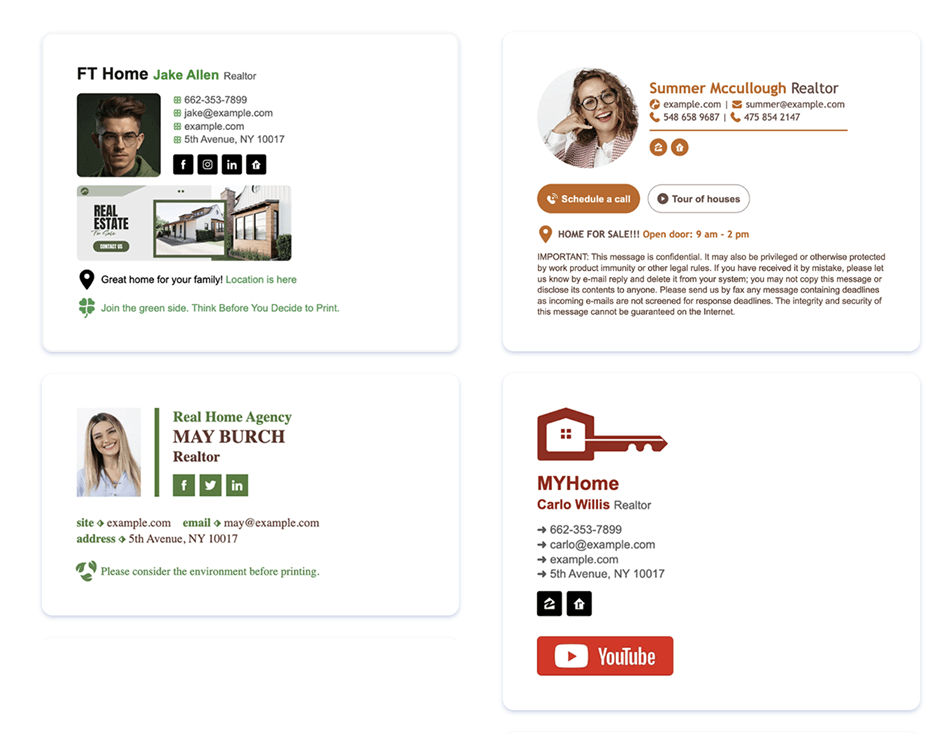
If you want your email signature to look professional and match your brand without spending much time coding or making margin adjustments, check out Newoldstamp’s HTML email signature templates.
Each template is designed for modern business processes and needs and offers various design elements, layouts, and style options to suit your preferences. You can choose from many different template types.


With Newoldstamp, you can create a signature that looks good and works well as a marketing tool. Our solutions fit everyone, from solopreneurs to large companies.
Minimal HTML signature for consultants.

Legal email signature with disclaimer

Real estate email signature with photo and CTA
Student or job seeker email signature

Common HTML Email Signature Mistakes and How to Fix Them
Many HTML email signatures break or look unprofessional due to common technical mistakes. Here are the most frequent issues and how to solve them:
| Problem | Why it happens | How to fix |
|---|---|---|
| Signature looks broken in Outlook | Using <div> tags or complex CSS | Use a table-based layout and only inline CSS |
| Images don’t show or shift layout | Missing width and height attributes | Always set fixed width and height for all images |
| Inconsistent fonts across clients | Using custom or Google Fonts | Stick to web-safe fonts (Arial, Helvetica, Verdana, Georgia) |
| Signature is too wide / horizontal scroll on mobile | No max-width set | Keep total width between 500–600 px |
| Links are not clickable | Using plain text instead of proper links | Use mailto:, tel:, and full https:// links |
| Poor readability / low contrast | Bad color combinations or black background | Ensure strong contrast and avoid dark backgrounds unless thoroughly tested |
| Signature breaks in replies/forwards | Overly complex design | Keep design clean and test in reply chains |
| Slow loading or large file size | Heavy or unoptimized images | Use optimized PNG images and host them on a reliable CDN |
| Design looks different in Gmail | External CSS or <style> tags | Use only inline CSS — Gmail strips almost everything else |
💡Pro tip: After making any changes, always test your signature in Gmail, Outlook, Apple Mail, and on mobile devices before using it professionally.
Managing HTML Email Signatures for Teams
Managing email signatures for a team is often more challenging than it seems. Companies frequently face inconsistent branding, outdated contact details, incorrect logos, missing disclaimers, and employees who break brand guidelines.
Centralized signature management solves these problems effectively. Tools like Newoldstamp let you control all signatures from one place - apply unified templates, support different roles and departments, and update logos, banners, or disclaimers instantly for the entire team.
It also enables campaign banners, ensures legal compliance, provides click analytics, and integrates smoothly with Google Workspace and Microsoft 365.
For any growing company, centralized management is the most efficient way to maintain brand consistency and marketing control.

FAQ
Can I use HTML in my email signature?
Yes, you can and should use HTML in your email signature. Most modern email clients like Gmail, Outlook, and Apple Mail support HTML signatures. This allows you to add formatting, colors, images, and clickable links. Using plain text limits your branding opportunities, while HTML helps create a professional and functional signature.
What is the best size for an HTML email signature?
The recommended width for an HTML email signature is 500–600 pixels. This size ensures your signature looks good on both desktop and mobile devices without causing horizontal scrolling. Keep the total height under 200–250 pixels for the best user experience and faster loading.
Why does my HTML signature look different in Outlook?
Outlook is known for having strict rendering rules and often ignores certain CSS properties. The most common reasons are using <div> tags instead of tables, external CSS, or unsupported fonts. To fix this, always use a table-based layout and inline CSS only.
Should I create an HTML email signature manually or use a generator?
It depends on your needs. If you have technical skills and need just one simple signature, manual creation works. However, for most users and teams, a generator like Newoldstamp is better, it saves time, ensures compatibility, offers advanced features (CTAs, banners, analytics), and provides consistent results across all email clients.

