

Gmail Mobile Signature: How to Set It Up on Android & iPhone
Many people forget to set up a mobile signature in Gmail. They create a nice signature on their desktop but leave their mobile device with just plain text or the default message, “Sent from my iPhone.” This is not good for your branding or customer experience.
Setting up a Gmail signature on your mobile device is a quick and easy process. If you want to learn how to add signature in Gmail in mobile, you can do it on Android, iPhone, or iPad using the Gmail app. Let’s go through the steps and see how to set it up.
ver feel overwhelmed by the email flood? Calm down! You're not the only one.
|
1. How to Set Up a Gmail Mobile Signature on iPhone or iPad
2. How to Set Up a Gmail Mobile Signature on Android
3. Gmail Mobile Signature Best Practices
4. Gmail Mobile Signature Not Working? Common Issues and Fixes
5. Can You Add an HTML Signature to Gmail Mobile?
6. Gmail Mobile Signature Examples
7. FAQ
How to Set Up a Gmail Mobile Signature on iPhone or iPad
The Gmail app on iPhone and iPad lets you create a separate mobile signature for emails sent from your device. These changes apply only to the account you choose, so make sure you update the correct Gmail address. Follow these steps to learn how to add a signature to Gmail on iPhone or iPad:
Step 1. Open the Gmail app
Open the Gmail mobile app on your iPhone or iPad and sign in if needed. Make sure you are using the account where you want to add a signature.
Step 2. Open Gmail settings
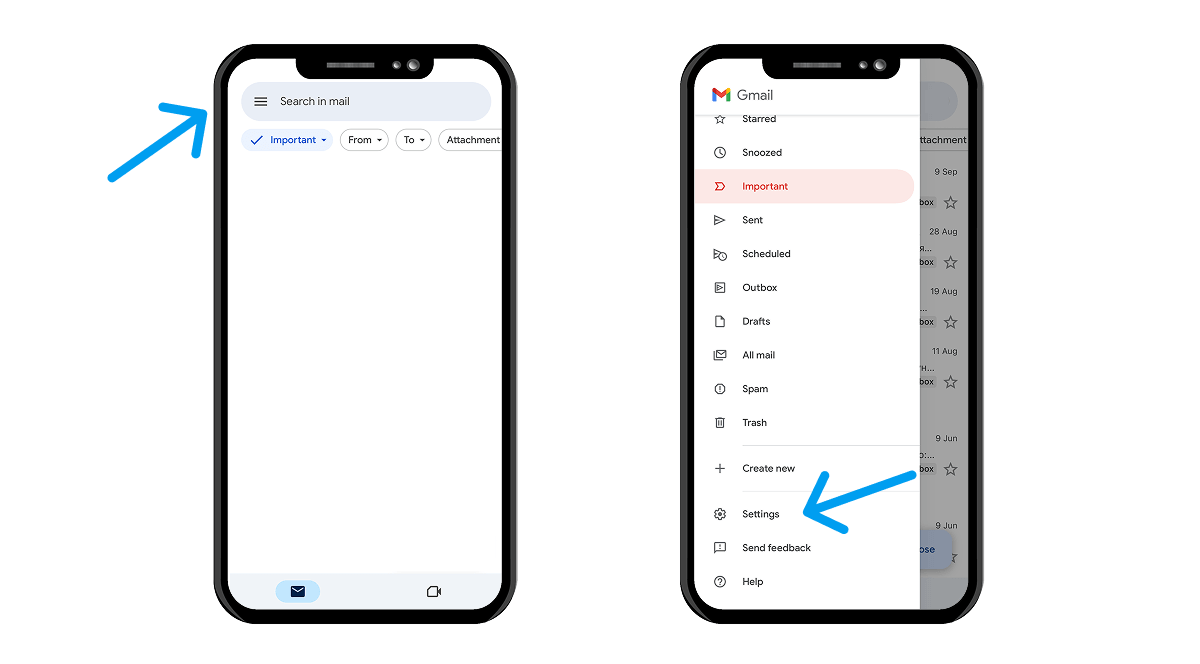
Tap the menu icon (three lines) in the top-left corner, then scroll down and select Settings.
Step 3. Select your account
In the Settings menu, tap select your account. If you use multiple Gmail accounts, choose the one where you want to add a mobile signature.
Step 4. Open mobile signature settings
Find the Mobile Signature option and turn it on. This will open the Gmail signature editor where you can add your signature text.
Step 5. Create your signature
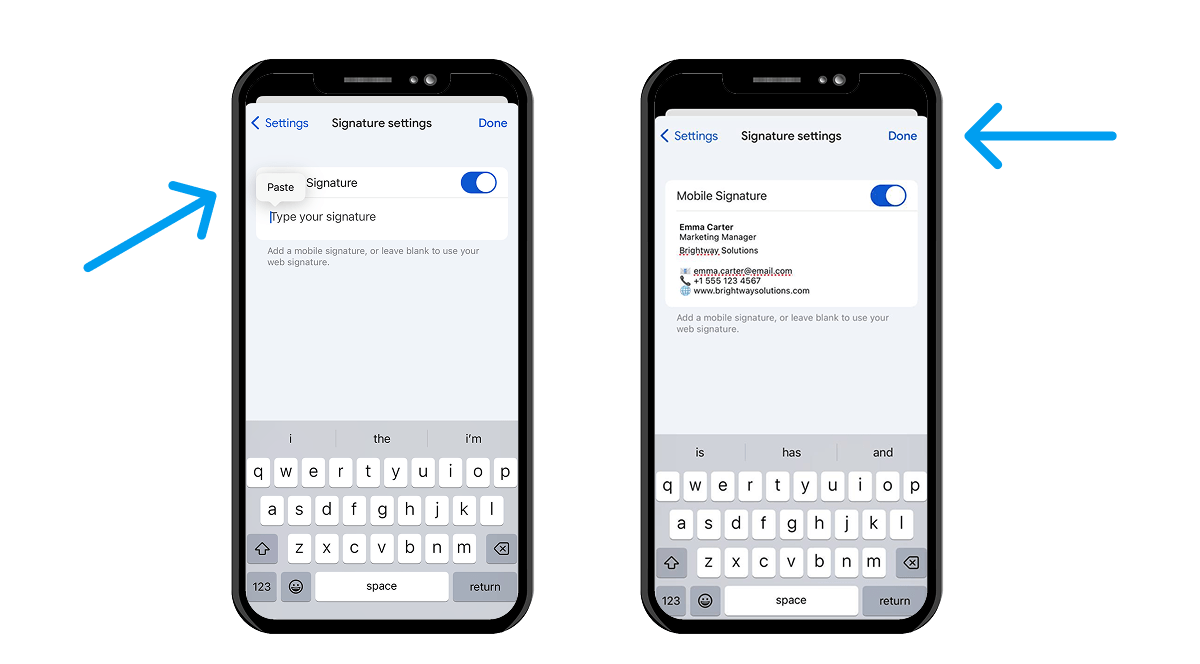
Enter your details in the signature field. You can use this space to create your signature with information like your name, job title, company, or contact details. If you need to change your Gmail signature on iPhone, you can return to this section anytime and update the text.
Tap Done or save the changes to apply your new signature.
Step 6. Test your Gmail mobile signature
Open a new email message in the Gmail app and check the bottom of the draft. Your new signature should appear automatically before you send the email.
How to Set Up a Gmail Mobile Signature on Android
You can create a separate mobile signature in Gmail for each account you use. Each Gmail account has its own signature settings, so you can customize the details depending on which address you send emails from. Follow these steps to create professional email signatures that will appear automatically when you send emails from your Android device.
Step 1. Open the Gmail app
Open the Gmail app on your Android device and sign in if needed. Tap the menu icon (three horizontal lines) in the top-left corner to access Gmail settings.
Step 2. Select your Gmail account
Scroll down and tap Settings. If you use multiple accounts, choose the Gmail account where you want to add a signature. The mobile signature settings apply only to the selected account.
Step 3. Open Mobile Signature settings
Find the Mobile Signature option and tap it. This is the main setting where you can create and manage your Gmail mobile signature.
Step 4. Add your signature text
Enter your details in the signature field, such as your name, job title, company name, website, or contact information. You can use this space to create a simple signature text that fits your needs.
If you need design ideas, a gmail signature generator can help you create a professional email signature format that you can adapt for mobile use.
Step 5. Save and test your signature
Tap OK to save your changes. Then open a new email in the Gmail app and check the bottom of the message draft. Your new signature should appear automatically.
These steps to create a Gmail mobile signature work directly in the Android app and help you learn how to add a signature without changing your desktop settings.
Gmail Mobile Signature Best Practices
A good mobile signature should be easy to read on a small screen and include only the details that matter. A well-designed professional Gmail signature helps your signature make your emails look more trustworthy while keeping your email communications clear and easy to follow.
Keep Your Mobile Signature Short and Readable
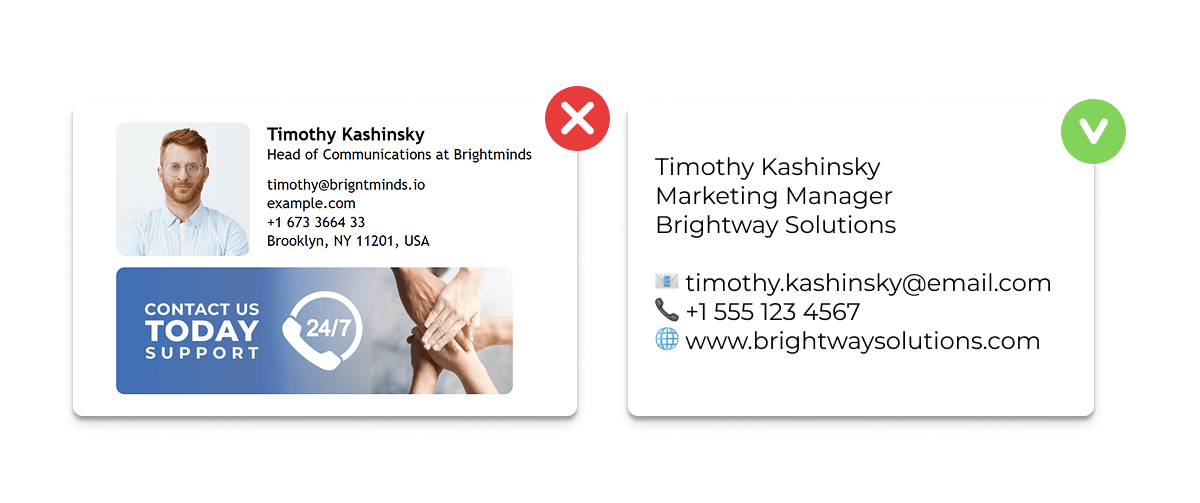
Mobile screens have limited space, so long signatures can look crowded and difficult to scan. Keep your signature simple with short lines and clear formatting.
|
Gmail mobile supports✅ |
Gmail mobile does not support❌ |
|
Plain text signatures |
Complex HTML designs |
|
Basic text formatting |
Advanced layouts |
|
Names and contact details |
Large image-based signatures |
|
Website links |
Embedded images and banners |
|
Short, simple signatures |
Multiple design elements |
|
Mobile-friendly formatting |
Desktop-level formatting options |
Include Only Essential Contact Information
Your mobile signature does not need to include every possible detail. Choose information that helps recipients contact you quickly.
A simple structure can look like this:
- Name
- Position
- Company
- Phone number
- Website link
You can also add social media profiles if they are relevant to your work, but avoid making the signature too long.If your team manages multiple Gmail accounts and shared business access, using a password manager for business can help keep account credentials organized and protected.
Use Mobile-Friendly Formatting
Focus on readability when formatting your Gmail mobile signature. Use short lines, simple spacing, and clear text that works well on different screen sizes.
Keep your signature consistent with the desktop version of Gmail, but remember that mobile signatures may have fewer formatting options.
Test Images, Logos, and Links Before Using Them
Gmail mobile signatures have some limitations compared to desktop signatures. You can add images, such as a company logo, but images may not always display correctly across email apps and devices.
If you include a logo, icons, or links:
- Check that images load properly
- Make sure links are clickable
- Confirm that the formatting does not break
Test the Signature on Android and iPhone
Your signature may look different depending on the device and email app. Before sending emails, use the Gmail app to compose a new email and check how the signature appears.
Gmail Mobile Signature Not Working? Common Issues and Fixes
Even after setting up your email signature, your Gmail mobile signature may not work as expected. These fixes cover common issues on iPhone and Android devices.
Gmail Mobile Signature Is Not Showing
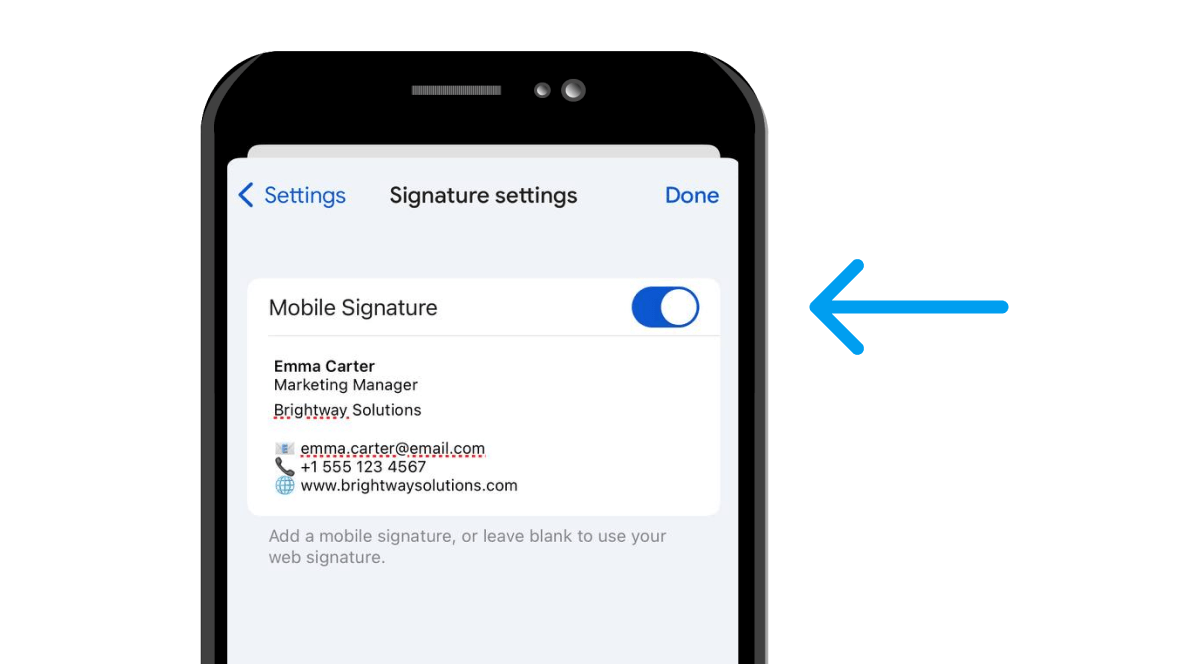
If your signature not showing, check that the mobile signature is enabled for the right account.
- Open Gmail → Settings → select your account.
- Turn on Mobile Signature.
- Save changes and create a new email to test it.
Signature Format Looks Broken on Some Devices
A formatted signature may look different because of formatting in Gmail limitations.
To fix it:
- Use simple text and short lines.
- Avoid complex formatting.
- Test your signature on different devices.
Images or Logos Are Missing From the Gmail Mobile Signature
Images may not display correctly in mobile signatures.
- Check if the image loads properly in a test email.
- Use a smaller image file if needed.
- Consider creating a text-only version for mobile.
Mobile Signature Changes Are Not Saving
Sometimes changes do not appear because the signature settings were not saved correctly.
- Open Gmail → Settings → your account.
- Update the signature.
- Save changes.
- Send a test email to ensure the mobile signature works correctly.
Can You Add an HTML Signature to Gmail Mobile?
No, Gmail mobile does not support adding a full HTML signature directly in the app. Unlike the desktop version, the Gmail app has limited formatting options for signatures.
If you use a gmail android signature, you can add text, links, and basic formatting, but you cannot insert custom HTML code, banners, or complex designs.
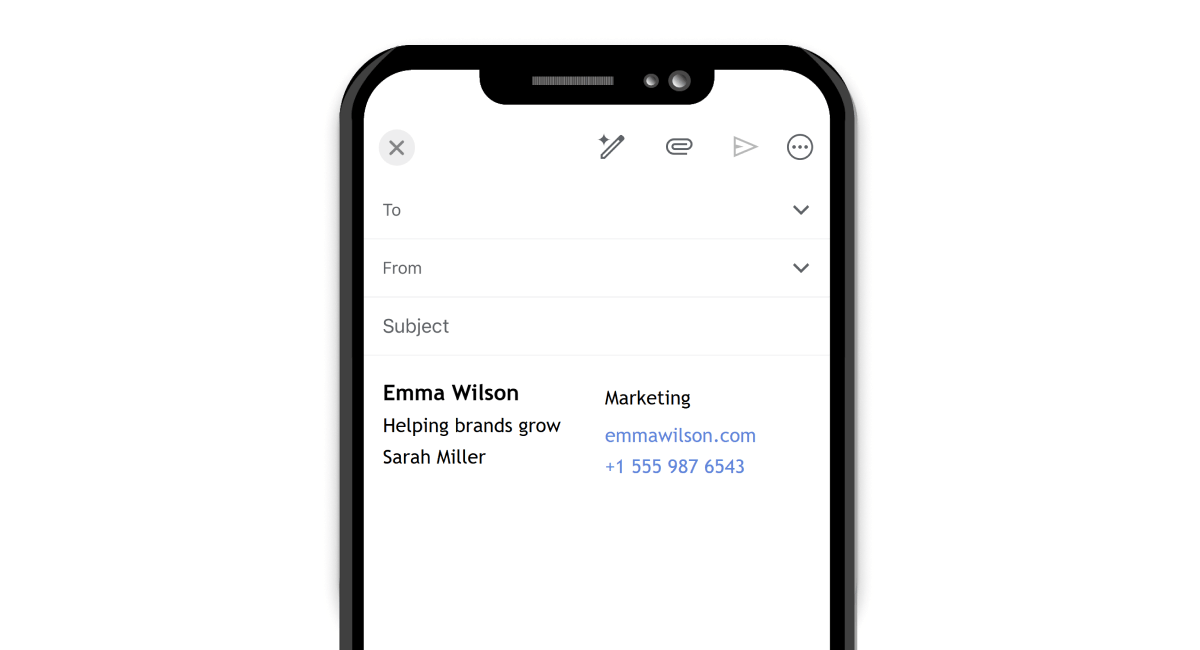
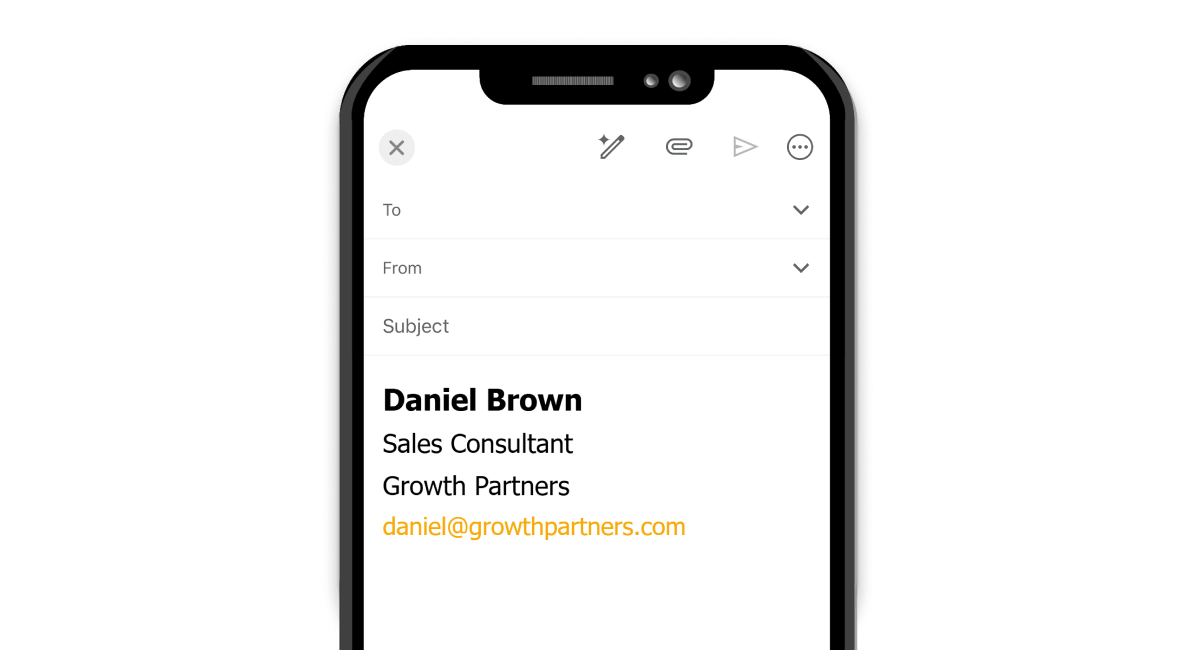
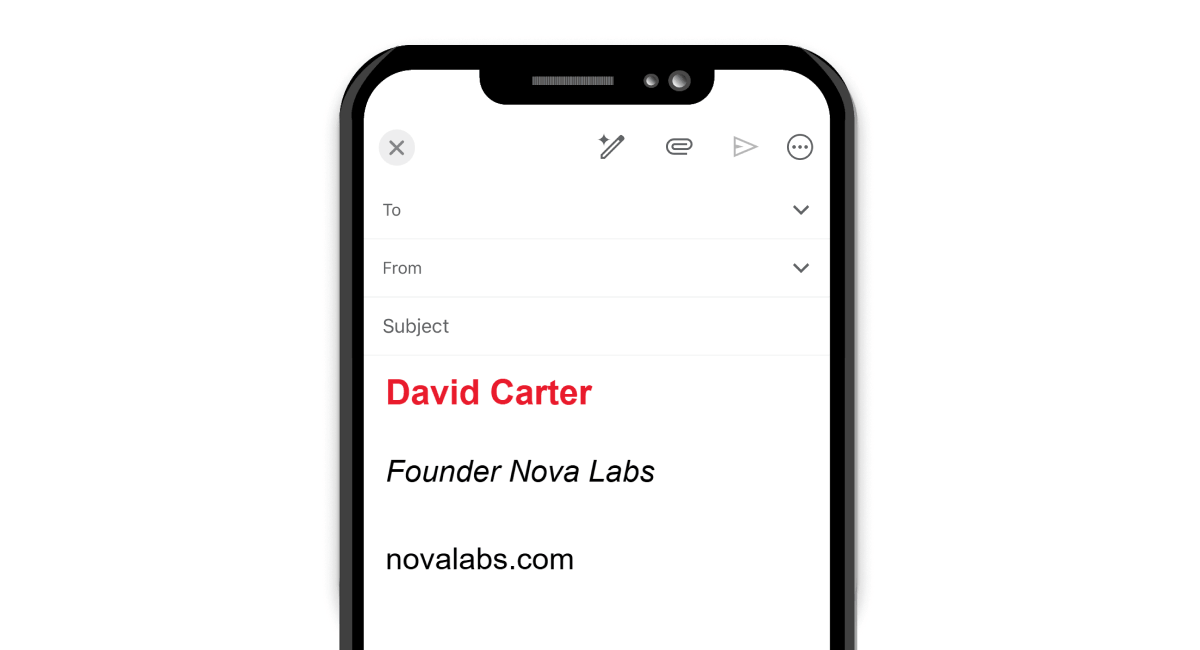
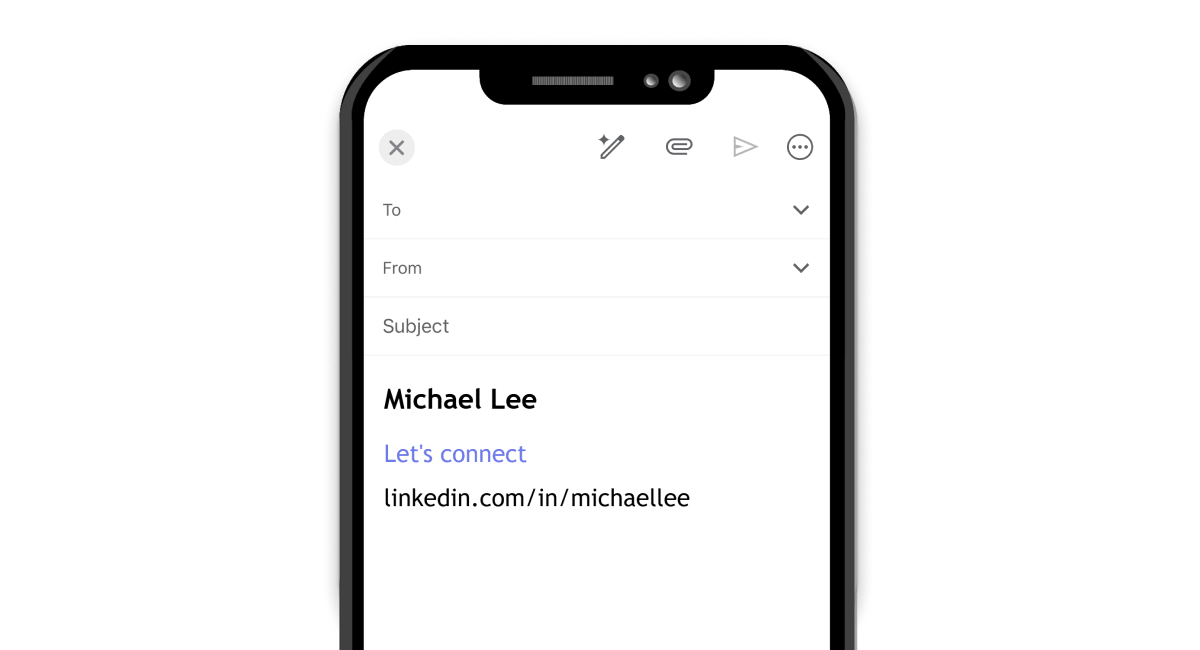
Gmail Mobile Signature Examples
A mobile email signature should be simple, readable, and easy to view on smaller screens. The best format depends on your needs, whether you want to share basic contact details, represent your company, or keep replies short.
If you manage multiple employee signatures, signature management tools like Newoldstamp can help create consistent signatures, update information easily, and maintain the same branding across all emails.
_(1).png?1785834041)
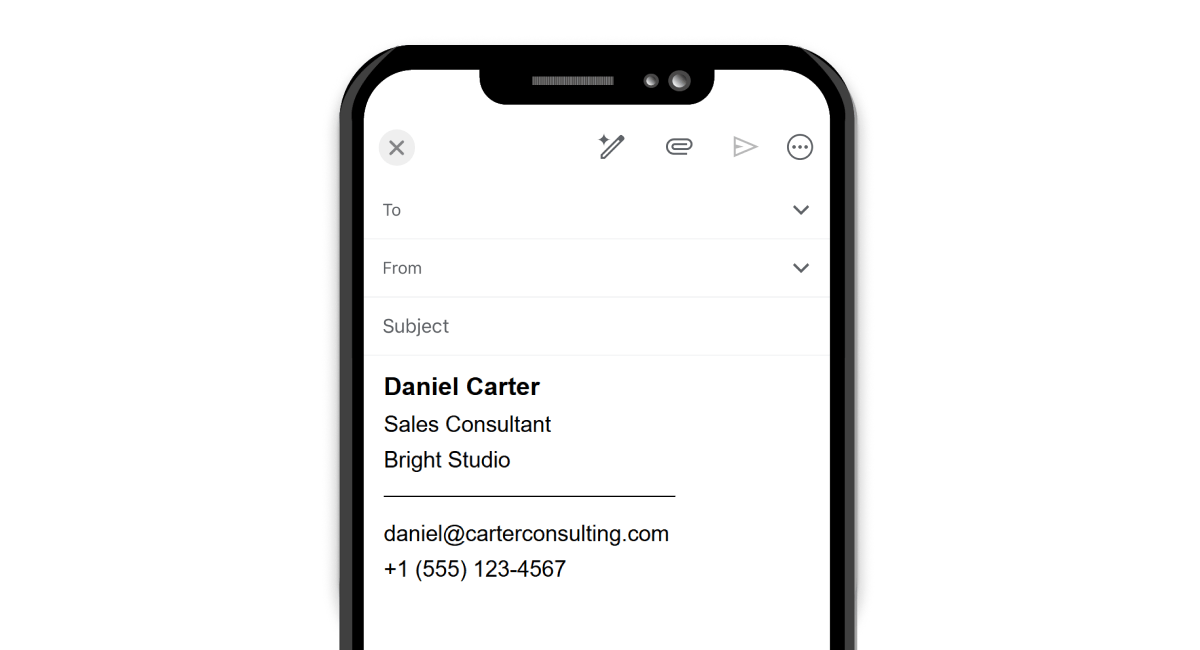
Simple Gmail Mobile Signature
A simple mobile signature includes only the most important details, such as your name, job title, and contact information. This format works well for everyday personal and business emails.
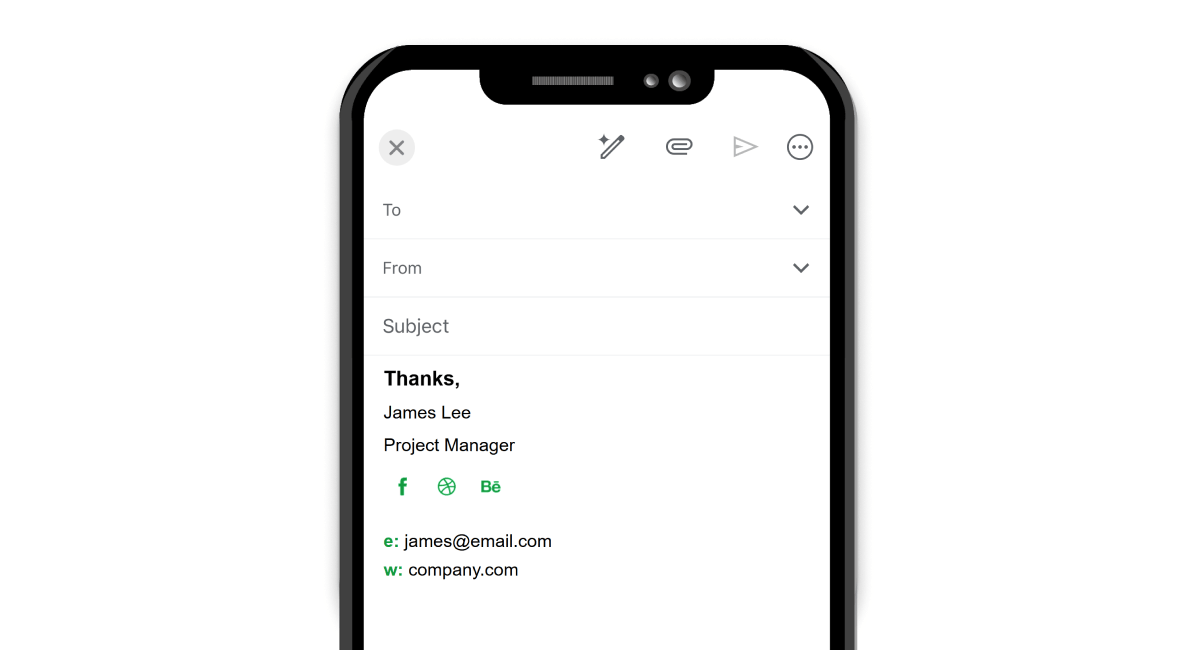
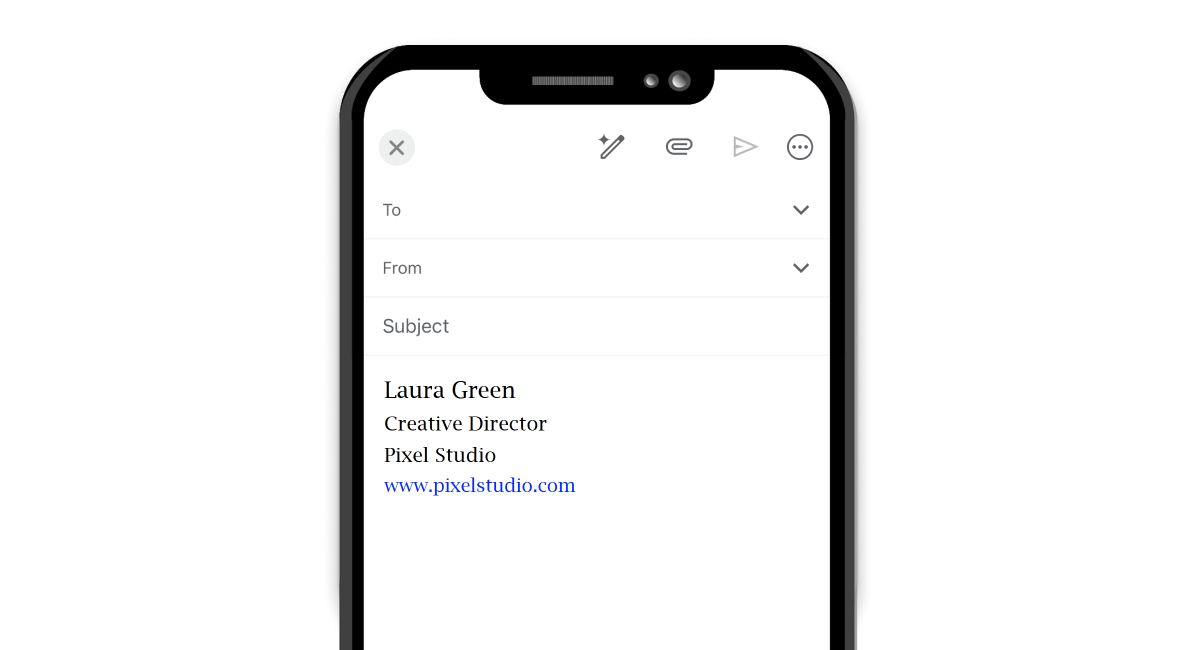
Professional Gmail Mobile Signature
A professional mobile signature adds company details, links, and contact options while keeping the layout clean. It helps recipients quickly understand who you are and how to reach you.
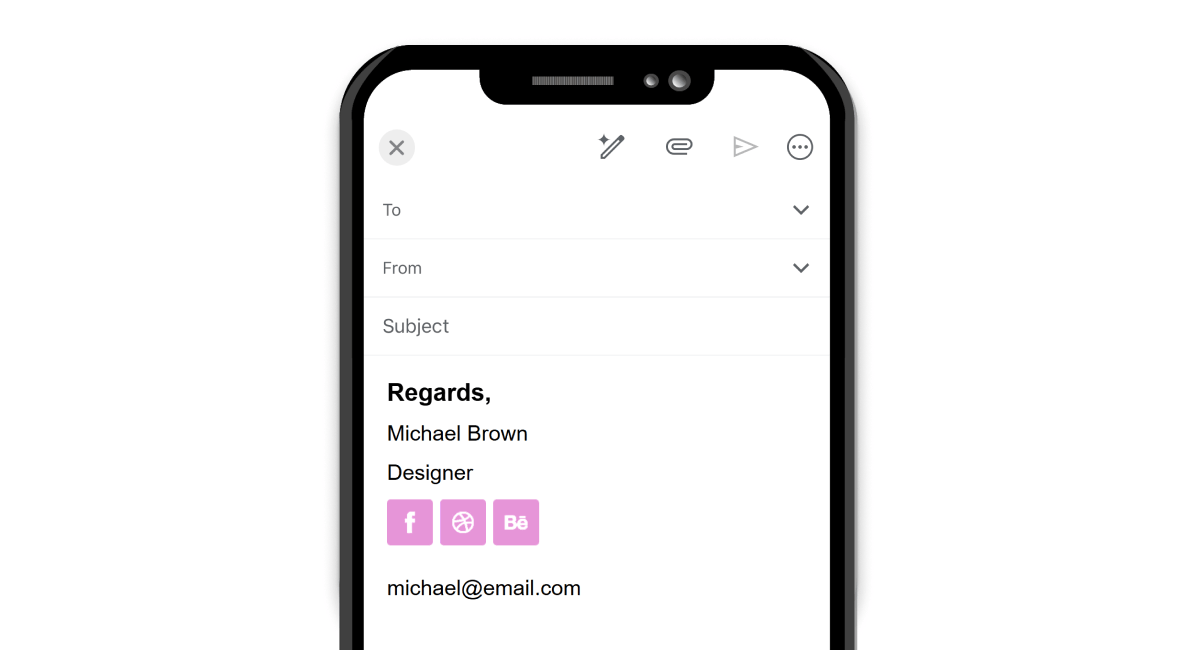

Short Mobile Signature for Replies
A short signature is useful for quick conversations and email replies. It keeps messages focused while still providing essential information like your name and company.
FAQ
Can I Use the Same Gmail Signature on Desktop and Mobile?
No. A desktop signature and a mobile signature are managed separately. To keep the same style, create your signature on a desktop and adjust it for mobile use.
Can I Add an Image or Logo to a Gmail Mobile Signature?
Gmail mobile app only supports basic formatting. Images and logos may not display correctly, so test your signature across all devices before using it.
Can I Use Different Mobile Signatures for Multiple Gmail Accounts?
Yes. Gmail allows you to create separate mobile signatures for different accounts. Go to Gmail settings, select the account, and update its mobile signature.
Does the Gmail mobile app support HTML signatures?
No. The Gmail mobile app only supports simple text signatures. For advanced designs, create your signature on a desktop and adapt it for mobile.
Where are Gmail mobile signature settings?
Open the Gmail app → Settings → Select your account → Mobile Signature. This is where you manage settings when creating a Gmail mobile signature.

