
How to Use a QR Code in Email Signature (With Examples)
An email signature is one of the most essential elements of professional email communication. A well-designed email signature includes several components, such as banners, company logo, contact information, disclaimers, and social links. Yet one element that remains surprisingly rare is the QR code in an email signature.
Adding a QR code email signature is not only a way to modernize your communications but also a strategy to boost brand awareness, improve customer engagement, and simplify the sharing of digital business cards. In this guide, we will explain what a QR code in email signature is, how it works, practical ways to use it, and how to implement it effectively using tools like signature generator platforms and external QR code generator for email signature solutions.
1. What Is a QR Code in an Email Signature?
2. Why You Should Add a QR Code to Your Email Signature?
3. How to Add a QR Code to Your Email Signature
4. Top 3 QR Code Generators Tools to Try
5. Use Cases for QR Codes in Email Signatures
6. Best Practices for QR Codes in Email Signatures
What Is a QR Code in an Email Signature?
A QR code for email signature is essentially a scannable image embedded into your signature that links recipients to additional information or digital resources. Depending on design, it can appear as a small standalone image next to your contact information or be integrated into a banner alongside your company logo and other branding elements. The QR code is versatile: it can link to a digital business card, a portfolio, a landing page, or even a special promotion.
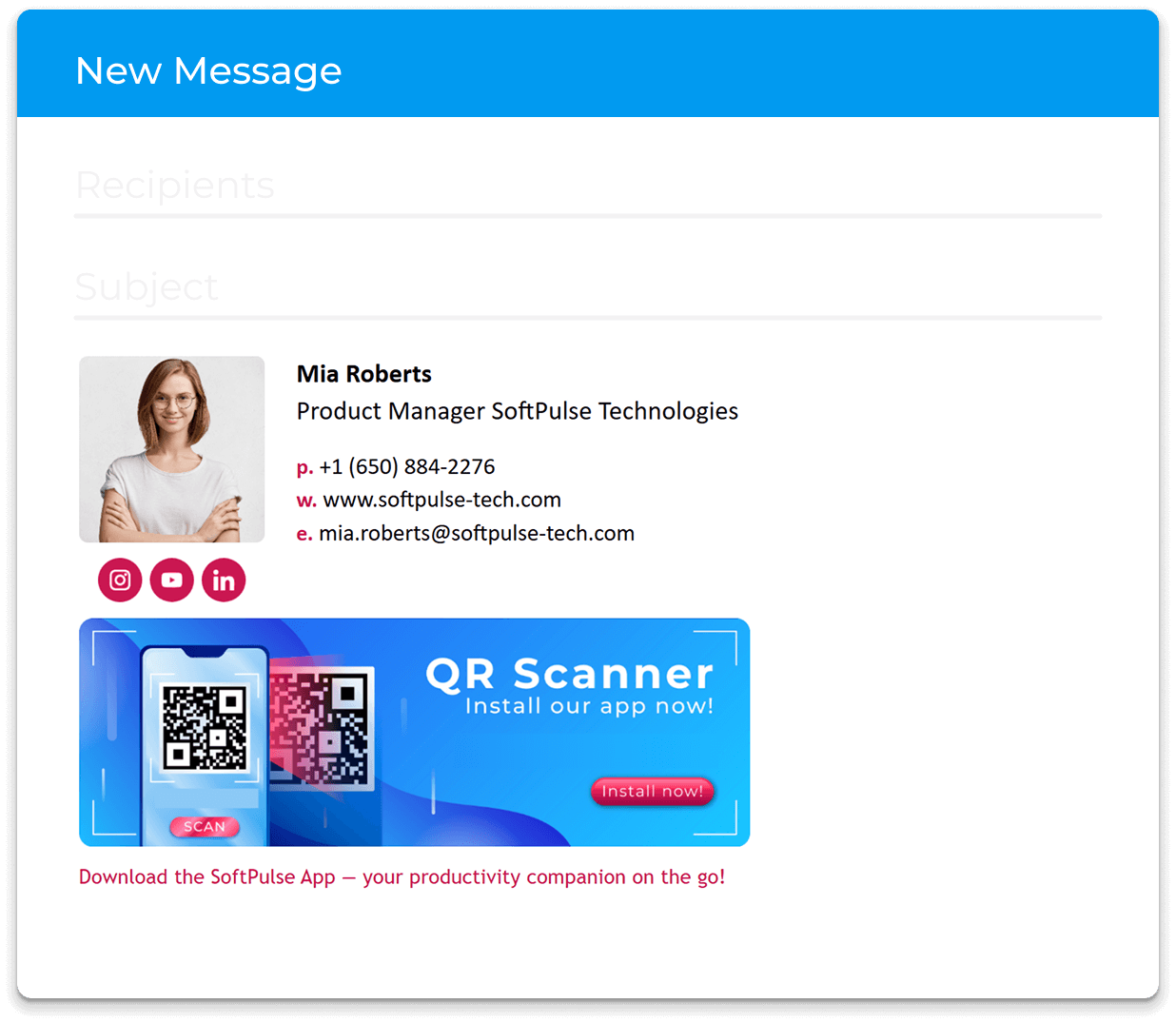
Most professional email signatures accommodate QR codes by placing them near the end of the signature block or integrating them within the signature banner. The key is to maintain a clean design while allowing recipients to easily scan the code with a mobile phone.
How Does a QR Code in Email Signatures Work?
A QR code on email signature works by storing information in a two-dimensional code that can be scanned by a mobile phone. When a recipient scans the QR code, it instantly directs them to the intended destination. This could be a personalized QR code linking to a digital business card, a landing page, a special offer, or contact information.

To attach a QR code to your email signature, you first generate it with a QR code generator for email signatures. Once created, the code is saved as an image file, which can then be inserted into your email using a signature maker or signature generator platform.
Why You Should Add a QR Code to Your Email Signature?
Embedding a QR code email signature may seem optional, but it offers several practical advantages:
- Instant access to contact information: A digital business card embedded in a QR code lets recipients save your details directly to their devices without typing or copying.
- Boosted brand awareness: Each scan reinforces your company logo and brand identity, enhancing customer engagement with your email communications.
- Seamless mobile interactions: A QR code lets recipients engage immediately via mobile phone, from visiting a website to downloading resources or connecting on social platforms.

How to Add a QR Code to Your Email Signature
Before adding a QR code to your email signature, you need to have the QR code image ready. Since Newoldstamp currently does not offer a built-in QR code generator for email signatures, you must generate it externally. Once you have the code saved as an image, you can easily embed it into your hyperlink email signature with a QR code using either Gmail or Outlook, or directly in the Newoldstamp editor.
Adding a QR Code in Gmail
- Open Gmail and navigate to Settings > See all settings.
- Scroll down to the Signature section and select your signature template or create a new one.
- Click the Insert Image icon and upload your QR code image.
- Adjust the size and placement so that the QR code aligns neatly with your contact information and other signature elements.
- Save changes and send a test email to ensure recipients can scan the code easily from a mobile phone.
Adding a QR Code in Outlook
- Open Outlook and go to File > Options > Mail > Signatures.
- Choose an existing signature template or create a new signature.
- Click Insert Picture and select your QR code image.
- Resize and align it with your company logo and text content.
- Save the signature and send a test email to check scan functionality.
Tip: If you’re new to creating email signatures in Gmail or Outlook, here might be helpful instructions on how to make an email signature in Gmail and how to make an email signature in Outlook.
In Newoldstamp, embedding the QR code is even simpler. You can add your saved image to the signature editor, see how it looks immediately, and adjust placement, size, and alignment to maintain a professional design. This ensures that your email signature with QR code remains functional, visually appealing, and fully integrated with your branding.

Top 3 QR Code Generators Tools to Try
Below is a short list of recommended platforms that make generating personalized QR codes professional and straightforward.
AI QR Code Generator by MySignature
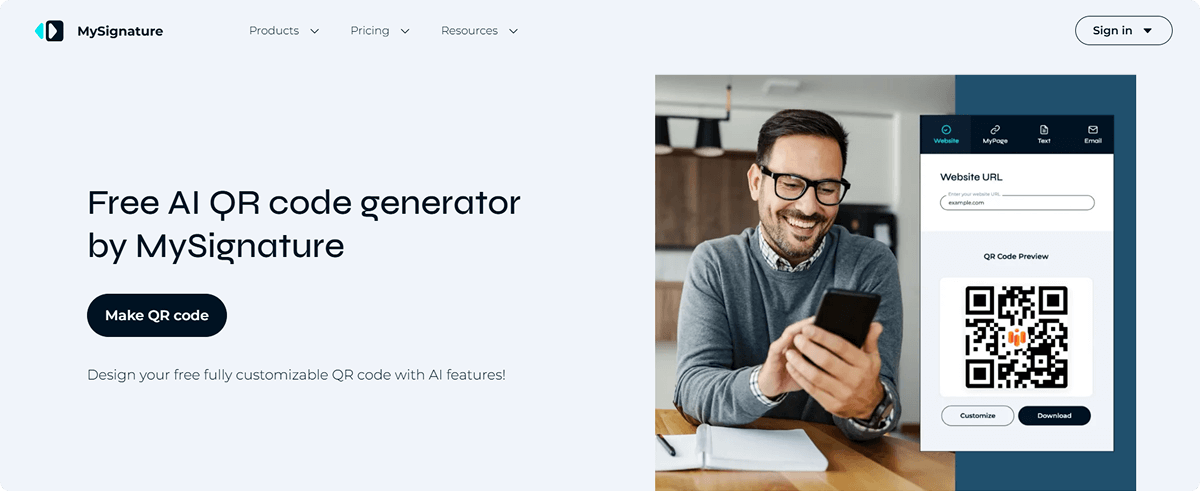
MySignature is an all-in-one branding solution that offers a free AI-powered QR code generator for email signature, along with digital business cards and link-in-bio pages. It allows users to create fully customizable QR codes for marketing, business cards, campaigns, and more. The platform supports inserting company logos, adjusting colors, and adding frames. Users can link QR codes to websites, PDFs, contact information, email, SMS, WiFi, or digital business cards, making it a versatile tool for email marketing and lead generation.
Key Features
- Digital business cards and link-in-bio tools included
- Contact info can be shared instantly via QR code, tap, or link
- Fully customizable QR codes with logos, colors, and frames
- High-quality, print-ready QR codes with transparent backgrounds
- Multiple QR content types: URL, text, email, SMS, WiFi, vCard
Pros
- Quick and easy setup
- Fully customizable branding options
- Simplified contact sharing
- Supports paperless networking
- Clean, intuitive interface
Cons
- No analytics available
Free plan: Yes
Cost: Starts from $6/month
QRCode Monkey
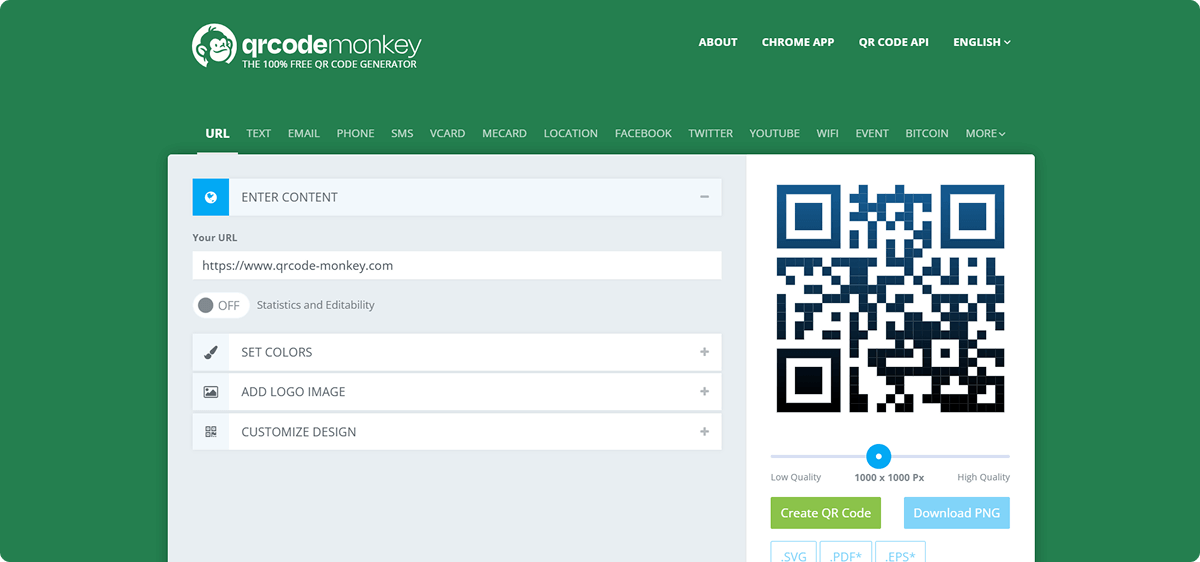
QRCode Monkey is a popular free platform for creating high-resolution static QR codes with unlimited scans. It allows you to add company logo, customize colors, shapes, and gradients, and download in multiple formats, including PNG, SVG, PDF, and EPS.
Key Features
- High-resolution static QR codes with unlimited scans
- Add logos and brand elements
- Customize colors, shapes, and gradients
- Multiple download formats
Pros
- Print-ready, high-quality QR codes
- Free for commercial use
- Supports logo insertion and custom designs
Cons
- No dynamic QR codes on free plan
- Interface can feel outdated
- Limited advanced customization without a paid plan
Free plan: Yes
QR TIGER
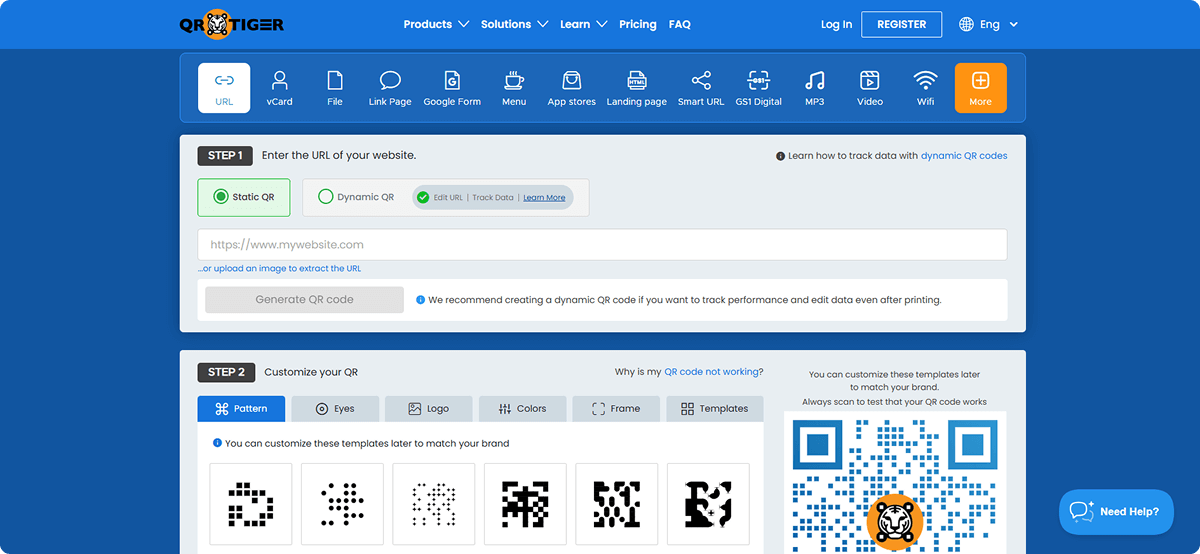
QR TIGER is a versatile generator for both static and dynamic QR codes. It offers extensive customization, editable dynamic codes, and analytics tracking. This tool is ideal for businesses integrating QR codes into campaigns or email marketing strategies.
Key Features
- Create static and dynamic QR codes with editable URLs
- Custom patterns, colors, frames, and company logo insertion
- Track scans by location and time
- Export in PNG or high-resolution SVG
- Pre-made templates for different purposes
- Integrates with Zapier and HubSpot
Pros
- Fully customizable QR codes
- Scan tracking and analytics are available
- Intuitive dashboard
- Free plan offered
Cons
- Free plan limited to 3 dynamic QR codes
- The interface may feel complex
- Post-generation edits limited
Free plan: Yes
Cost: Starts from $7/month
Use Cases for QR Codes in Email Signatures
Incorporating a QR code on email signature allows you to go beyond standard text links and deliver a richer, more interactive experience for your recipients. Below are four practical, high-impact use cases.
1. Share Your Digital Business Card
The space in a professional email signature is limited. Still, a digital business card embedded in a QR code can store all your contact information, including name, address, business phone, portfolio, website, and social media profiles. When a recipient scans the QR code using their mobile phone, they can instantly save your details and get in touch without typing anything manually. Scaling this across a team ensures consistent branding, strengthens brand identity, and improves customer engagement.

2. Instant Save-to-Phone Actions
Unlike a simple link, a QR code email signature enables direct mobile actions. Recipients can add you to their contacts, open a messaging app, or save a calendar event in a single scan. This is particularly effective for networking, sales, or client communications, making it faster and easier for recipients to interact with you.
3. Promote a Special Offer or Resource
A QR code can link to time-sensitive promotions, downloadable guides, or exclusive resources. Embedding these into your email signature ensures that every email contributes to brand awareness and marketing goals, transforming your signature into a mini email marketing channel.
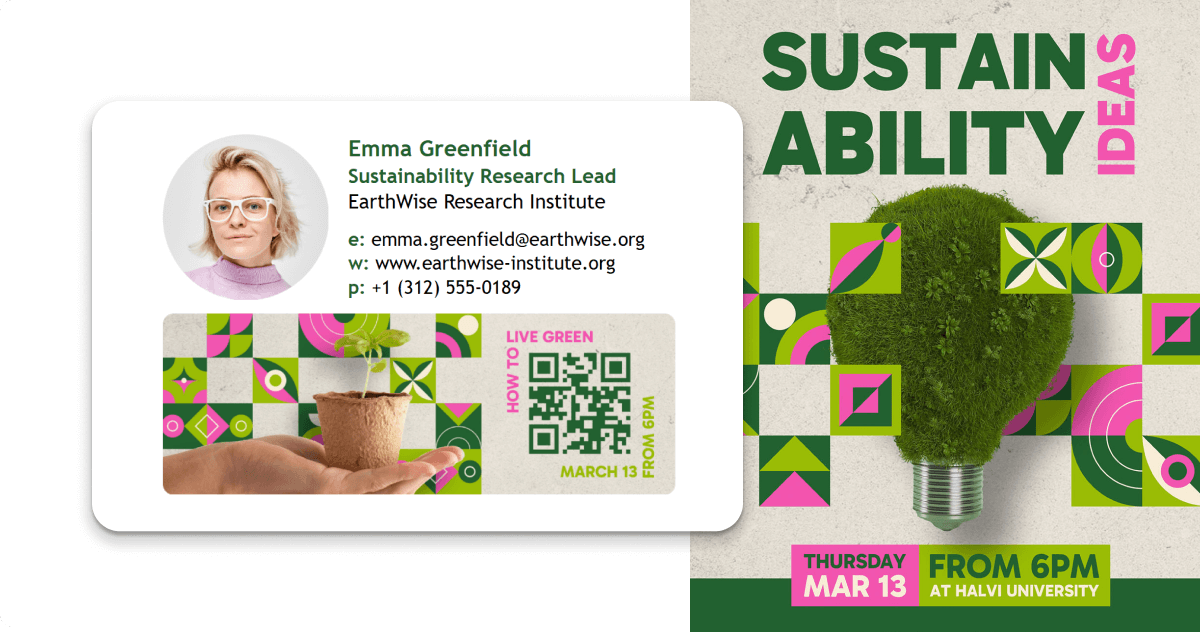
4. Collect Feedback, Reviews, or Support Requests
Including a QR code linking to a feedback form or support page allows recipients to take action immediately. It encourages customer engagement and simplifies data collection, all while keeping your email signature with QR code clean and professional.
Best Practices for QR Codes in Email Signatures
When adding a QR code in email signature, follow these essential practices:
- Ensure the QR code is scan-friendly on a mobile phone, with high contrast and adequate size.
- Integrate the code with your signature template for a consistent design.
- Incorporate your company logo for branding, making the QR code personalized.
- Avoid cluttering the signature,place the QR code thoughtfully alongside contact details or banner elements.
- Test the QR code across devices to ensure it works reliably.
- If using a dynamic QR code, update the target destination as needed without changing the QR code's signature.

Following these best practices maintains a polished look while maximizing the effectiveness of your QR code for engagement and marketing purposes.
Final Thoughts
A QR code in email signature transforms a static professional email into an interactive tool for sharing contact information, driving traffic, promoting resources, and enhancing brand identity. While Newoldstamp does not currently provide a built-in QR code generator for email signatures, it allows you to seamlessly integrate your pre-generated QR codes using its signature maker or signature generator.