
Instagram Icon for Email Signature: Step-by-Step Guide to Adding It
Adding an Instagram icon to your email signature is an easy way to grow your Instagram audience. Every email you send is an opportunity to promote your social media profile.
Why Use an Instagram Icon in Your Email Signature?
Adding a small Instagram icon for email signature makes it easy for recipients to access your Instagram profile. As the clickable icon leads them directly to your profile with one click. This looks professional and tidy, and it helps drive traffic to your social media platform, even when you're not working.
When you add social media icons like Instagram, LinkedIn, YouTube, and Pinterest, it shows that your brand is active on different platforms. It also makes it easy for people to connect with you where they prefer.

How to Add an Instagram Icon to Your Email Signature
Add an Instagram Icon in Gmail
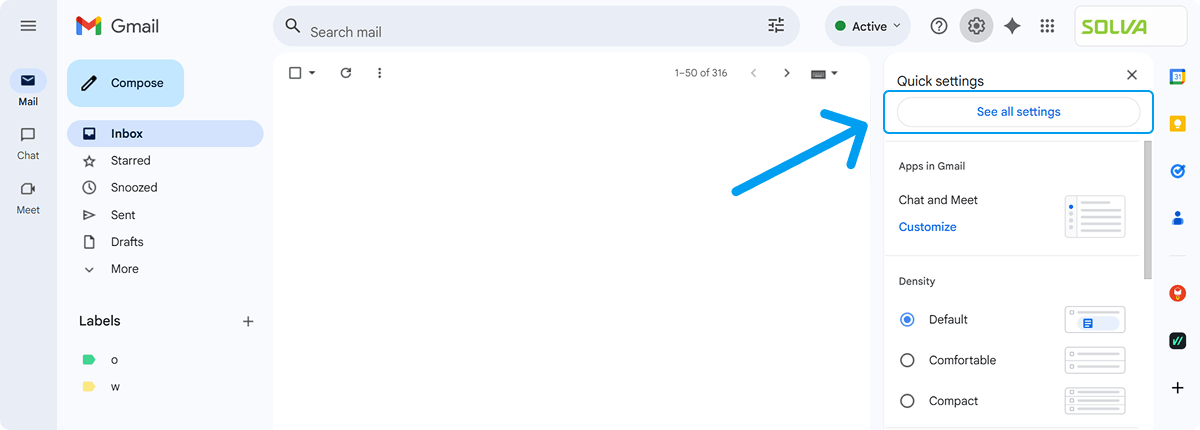
- Open Gmail → Settings (gear icon) → See all settings → General tab
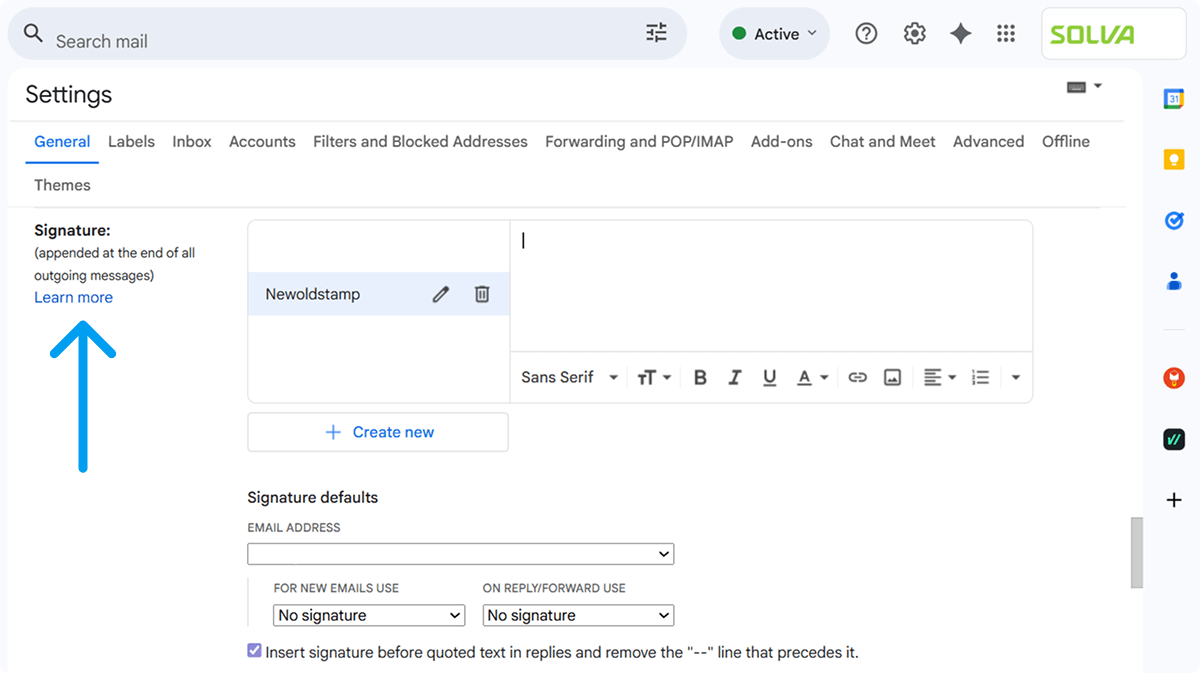
- Scroll to Signature and click “Create new”
- Give it a name and click Create
- In the signature editor, click the Image icon
- Choose “Web address (URL)” and paste the direct link to your Instagram icon (recommended: 32×32 pixel PNG or SVG)
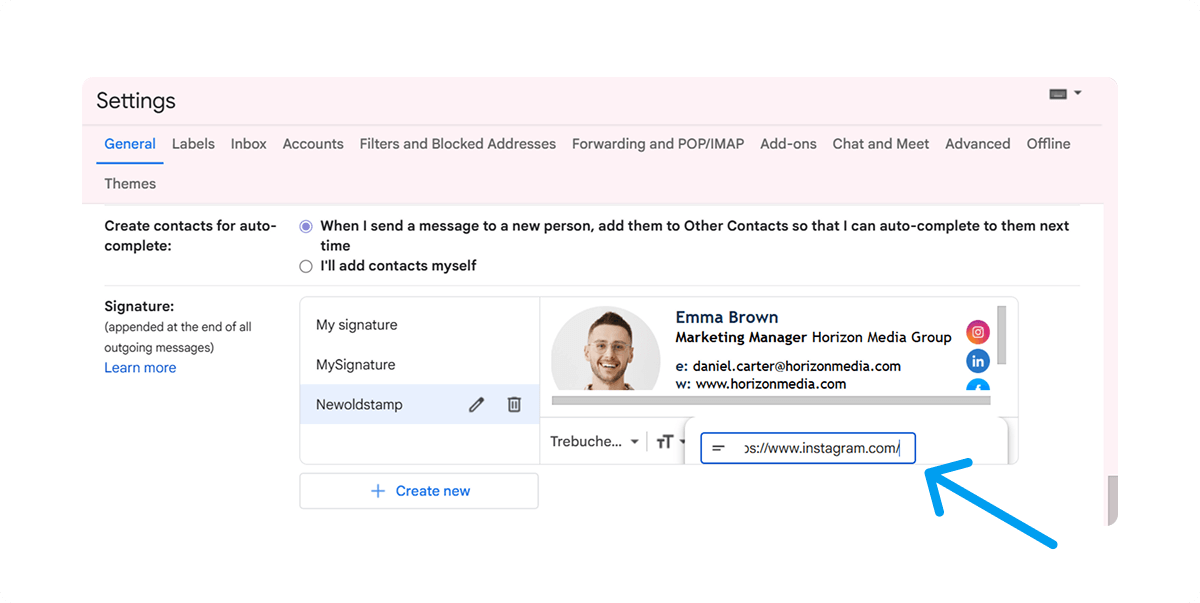
- Click the inserted image → click the link icon → paste your Instagram link
- Make sure “Link to Instagram profile” is selected so it becomes clickable
- Scroll down and click Save Changes
Your Instagram icon for email signature gmail is now live!
Add an Instagram Icon in Outlook (Desktop & Web)
Outlook Web
- Go to Settings → Account → Signatures
.png?1765181162)
- In the email signature box, click the image icon
- Upload or link your Instagram icon for email signature (PNG or SVG)
- Select the image → Insert hyperlink → paste your Instagram URL
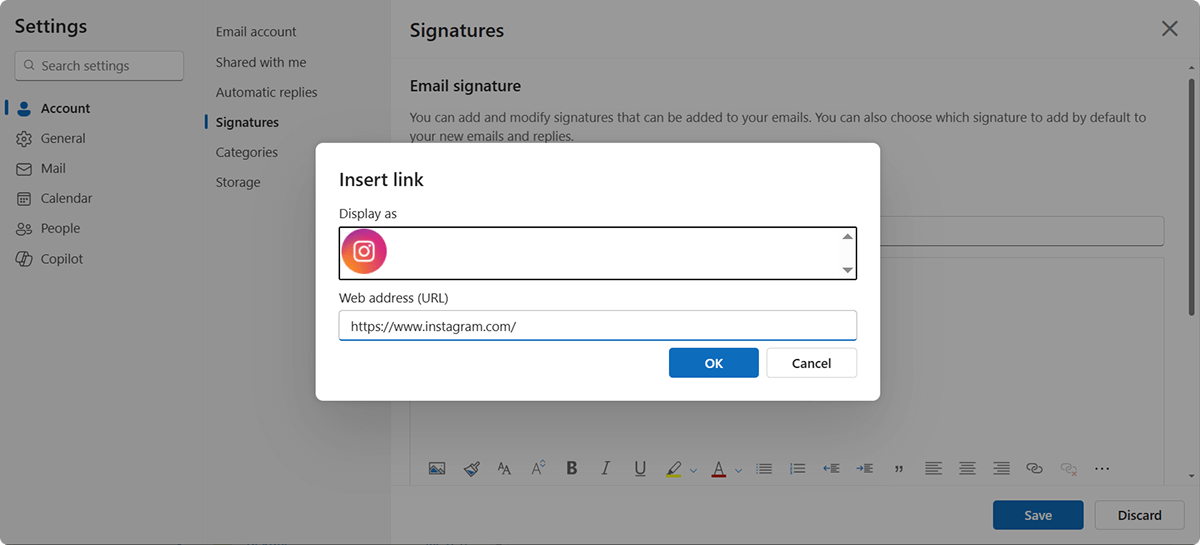
- Save
Outlook Desktop (Windows)
- File → Options → Mail → Signatures
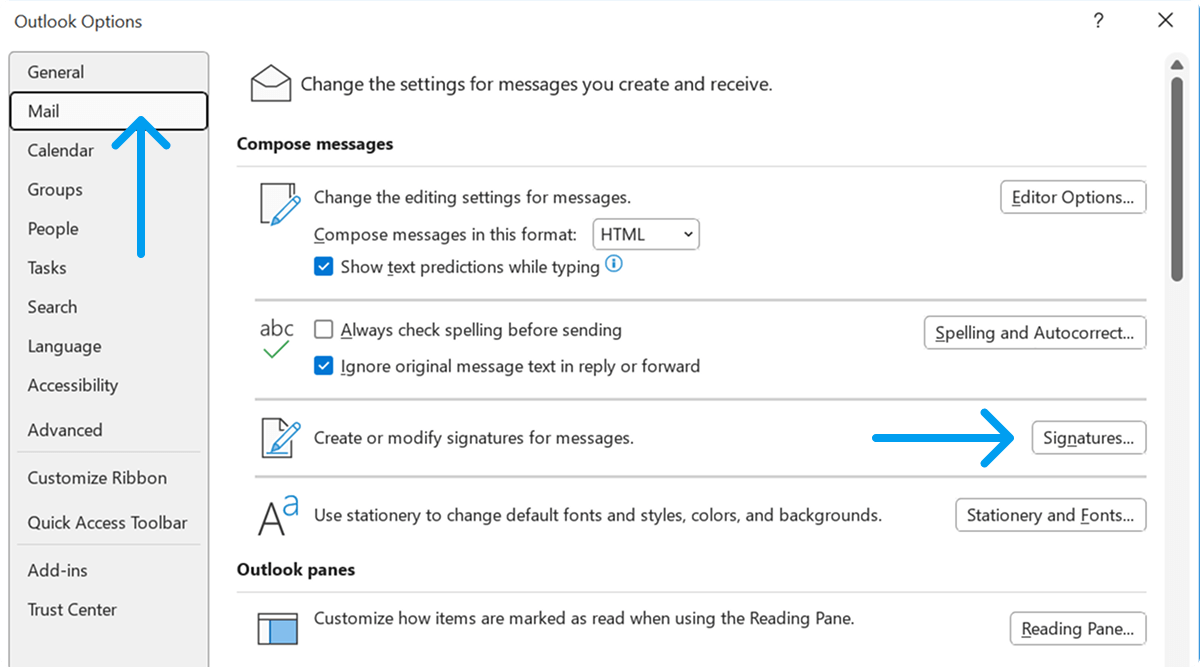
- Edit signature → click the image icon → choose your downloaded icon
- Select the image → Hyperlink → paste your Instagram social link
- Apply → OK
Add an Instagram Icon in Apple Mail
- Open Apple Mail → Preferences → Signatures
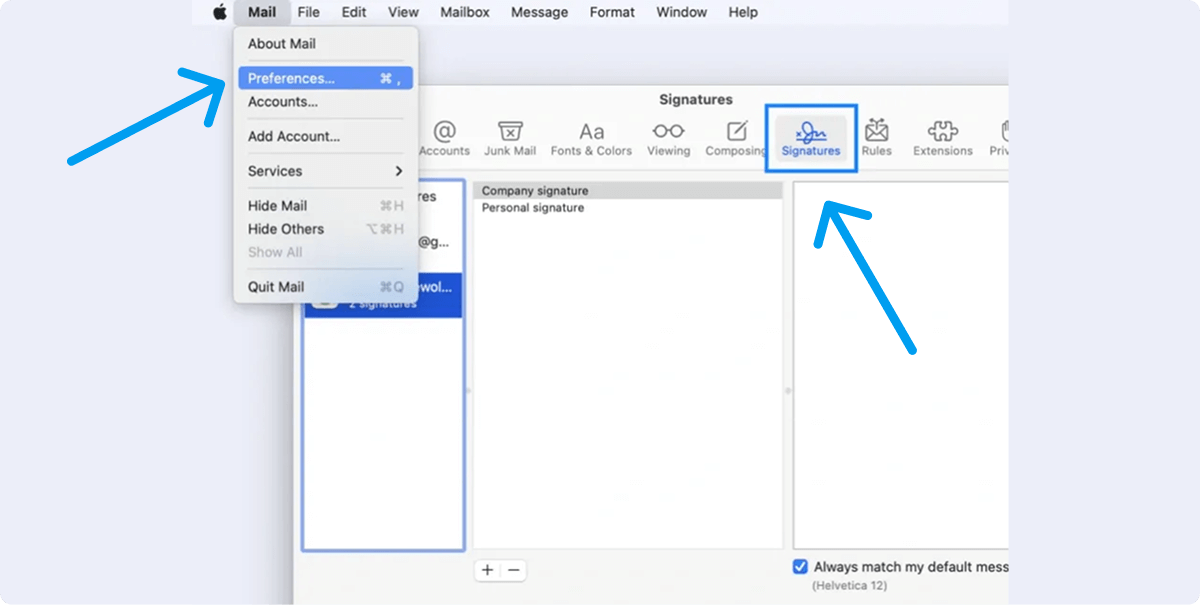
- Select your email address → click “+” to create or edit an existing signature
- Drag and drop your Instagram icon for email signature (PNG or SVG) into the signature area
- Select the icon → Format → Add Link → paste your Instagram URL
- Close and save
Add an Instagram Icon in Mobile Email Apps (iOS/Android)
iOS Mail & Gmail App
Copy your full signature (including the clickable Instagram icon) from desktop, then go to Settings → your email address → Signature → paste it (use “Per Account”, not “All Accounts” for better results).
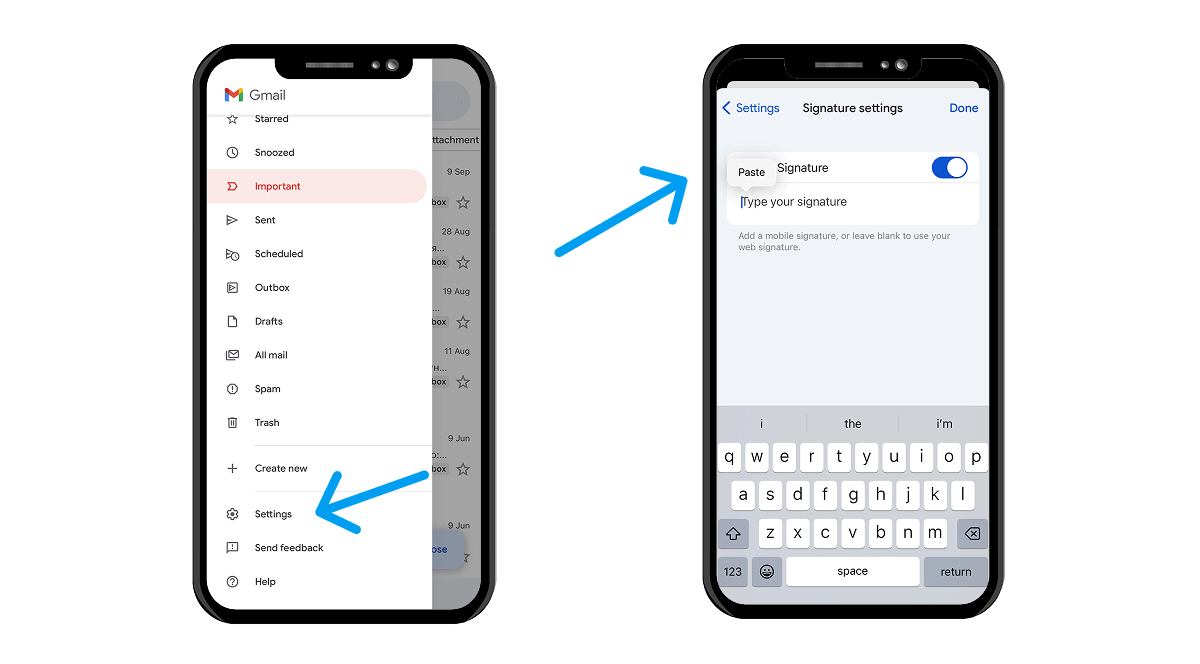
Android Gmail/Outlook App
Most mobile apps now support image signatures. Create the signature on the desktop first. It will sync, or manually add the image and make it clickable in the mobile signature editor.
Alternative Methods for Adding Instagram Icons
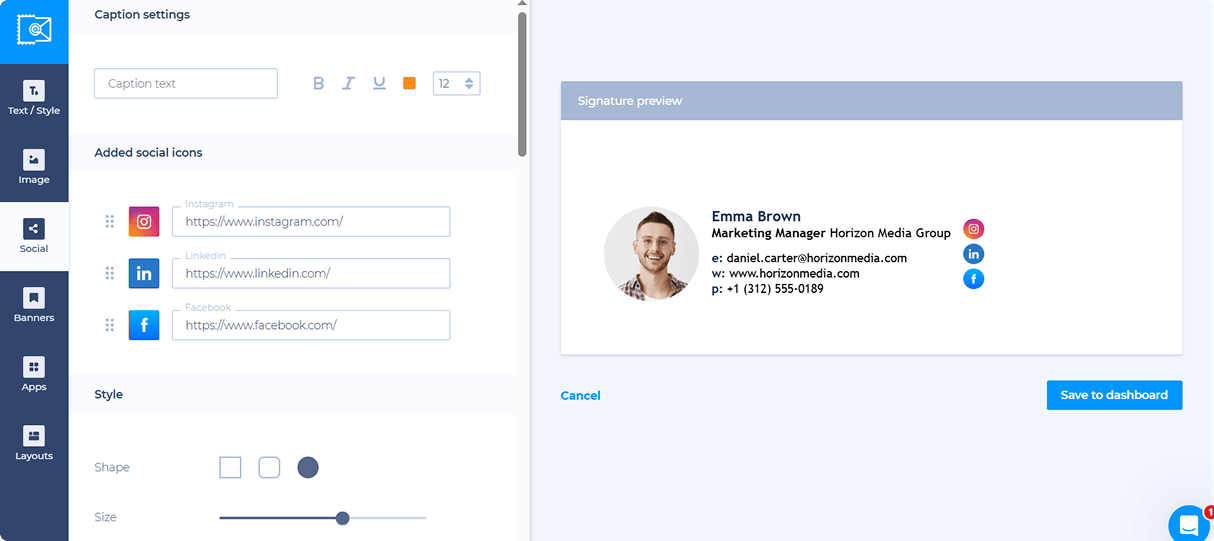
- Use a free email signature generator like Newoldstamp. → Choose a template → Add social media icons for email → Select Instagram → Enter your social media profile → The tool automatically adds a perfect clickable social media link → Copy and paste the ready HTML into any email client.
- Use direct HTML email code. Copy this simple code and paste it into the HTML section of your signature:
and type in your contact details. Keep it simple for small screens to avoid clutter.
<a href="https://www.instagram.com/yourusername/">
<img src="https://your-icon-url.com/instagram-icon.png" alt="Instagram" width="32" height="32" style="display:inline-block;">
</a>
Replace the URL and image link with your own. This method works perfectly in every email client.
Best Practices for Choosing Social Media Icon for Your Email Signature
When choosing the perfect social media icons for your email signature, it’s important to pick the right icon size and resolution so they look sharp on every device: go for 28–32 pixel icons for standard screens and 48–64 pixel versions for retina or high-DPI displays, and always use png or svg format because these stay crisp when the email client has to resize them.
To keep everything professional, use consistent color and style for all icons – whether you include Instagram, Linkedin, Youtube, Pinterest, or any other social media channel, make sure they are all the same (for example, all colored, all monochrome, all round, all square, all flat or all line style) so your signature looks clean and polished.

Always match the icon style to your brand identity: stick to the official brand logo colors when possible, or choose elegant monochrome versions that perfectly fit your personal or company brand. Don’t forget to ensure icons are correctly linked and trackable. Every link icon must be fully clickable and point to the correct social media profile or link. If you want to measure how many people click from your emails, simply add UTM parameters to the URL (for example, ?utm_source=email&utm_medium=signature).
Finally, optimize icons for dark and light mode email clients by either preparing two separate versions (one light, one dark) or, even better, using SVG files with a transparent background, which automatically adapt to the recipient's theme and always look perfect.
Common Problems When Adding Instagram Icons (and How to Fix Them)
The Icon Does Not Display Correctly
If the icon does not display correctly when someone receives your email, the most common reason is that you inserted the image as an attachment or as an embedded file. Many email clients automatically block locally stored or attached images for security and privacy reasons, so the recipient just sees a broken image or an empty box.
The fix is simple: always use an externally hosted image (upload your Instagram icon to Imgur, your own website, Google Drive with a public link, Dropbox, or any CDN) and then paste the direct URL when you insert the icon. This way, the picture loads reliably for almost everyone.
The Link to Instagram Isn’t Clickable
This usually means the hyperlink wasn’t added or the email client removed it during the saving process (this happens a lot in older versions of Outlook or mobile apps). Always double-check by selecting the image and looking for the little link icon in the editor, then send a test email to yourself or a colleague. If you can’t click it in the received message, go back and add the social media link correctly.
The Icon Looks Blurry or Pixelated
It’s almost always because the original file was too small or of low quality. Never use a tiny 16×16 pixel icon and expect it to look good when enlarged. Instead, download a high-resolution version (at least 64×64 pixels, or even better 128×128), upload it, and let the email client automatically resize it down to 32×32.
Icons Break the Layout of the Email Signature
Always force a fixed size by either setting width="32" height="32" in the HTML code or manually resize the image before uploading. Also, keep the entire signature under 650 pixels wide so it fits nicely even on small screens.
Instagram Icon Not Showing in Outlook or Mobile Apps
Microsoft Outlook (especially older desktop versions) blocks external images by default until the recipient clicks “Download images”. The best solution is to use a professional email signature generator that converts your social icons. With these tricks, your social media email icon will look perfect to everyone who opens your emails.
Start adding your Instagram icon for email signature today! It takes less than 5 minutes and works forever. Every email you send becomes a little social media email icon that brings new followers to your social media profile.