

How to Change Email Signature in Gmail: A Complete Step-by-Step Guide
|
Quick Overview
|
Your email signature adds professionalism and shares your contact details in every message you send. You can easily update your job title, add a new phone number, or redesign your signature in Gmail. If you want to learn how to change your email signature in Gmail, this guide shows you the steps to follow.
1. Why Update Your Gmail Signature?
2. Designing Your Signature First
3. How to Change Email Signature in Gmail on Desktop
4. Pro Tips for Better Gmail Signatures
5. FAQs
Why Update Your Gmail Signature?
An updated email signature gives recipients your current contact information and highlights your latest role or branding. Many people search for how to change their email signature in Gmail or where to find the signature settings, as they are not easy to locate in the menus.

Designing Your Signature First
Before you adjust your Gmail settings, create a professional email signature using an email signature generator is a great choice. You can design eye-catching signatures using email signature templates. Also, add social media icons, banners, clickable buttons, and company logos. Just enter your information, customize the layout and colors, and copy the ready-to-use HTML. This saves time and ensures your signature looks professional on all devices.
How to Change Email Signature in Gmail on Desktop
- Open Gmail in your browser and sign in to your account.
- Click the gear icon (Settings) in the top right corner.
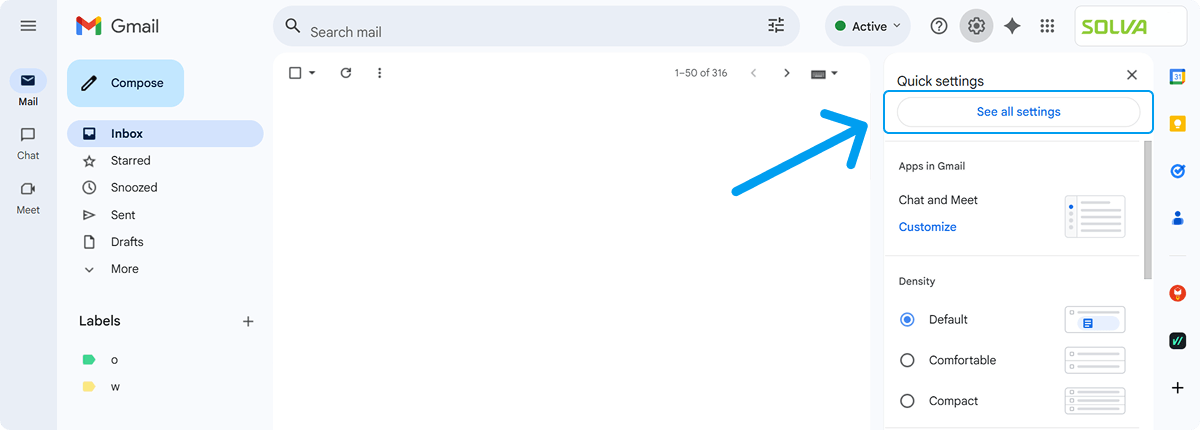
- Select "See all settings" from the dropdown menu.
- Stay on the General tab, which is the default setting.
- Scroll down to the Signature section. Here, you can see any existing signatures or create new ones.
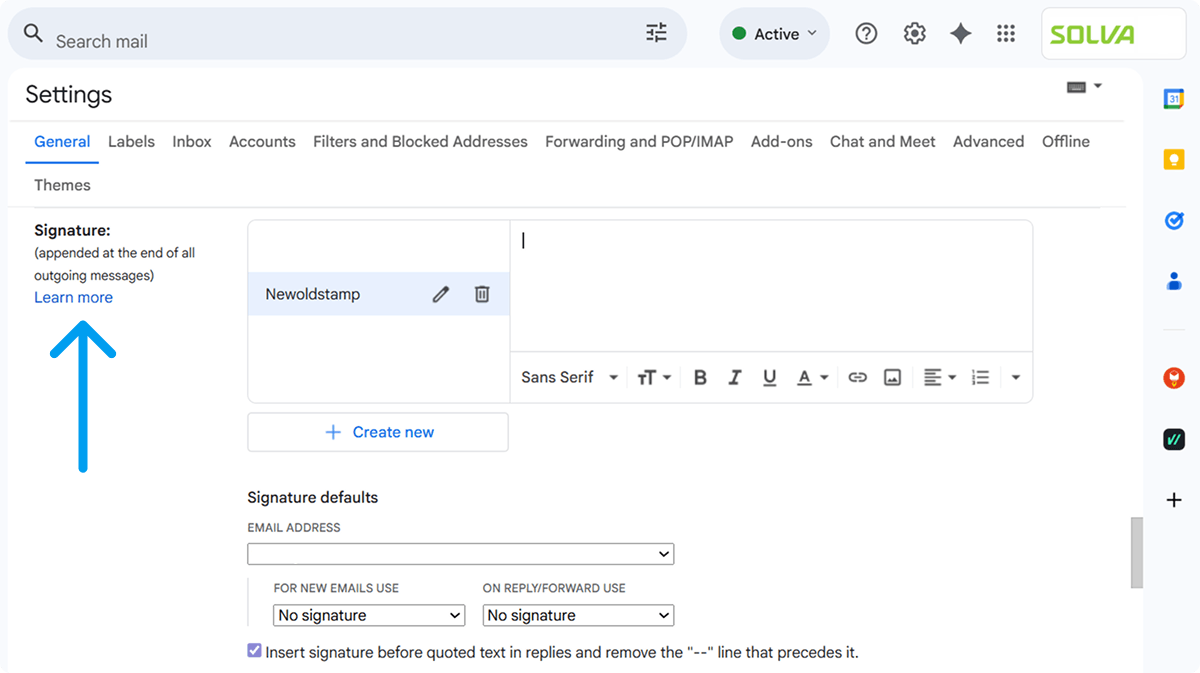
- Create or edit your signature:
- To create multiple signatures for different purposes, like work or personal use, click “Create New.”
- Name your signature clearly, such as “Work Signature” or “Default.”
- Paste your signature from Newoldstamp, or type your own signature, into the text box. You can format the text and add images, links, or your logo using the toolbar.
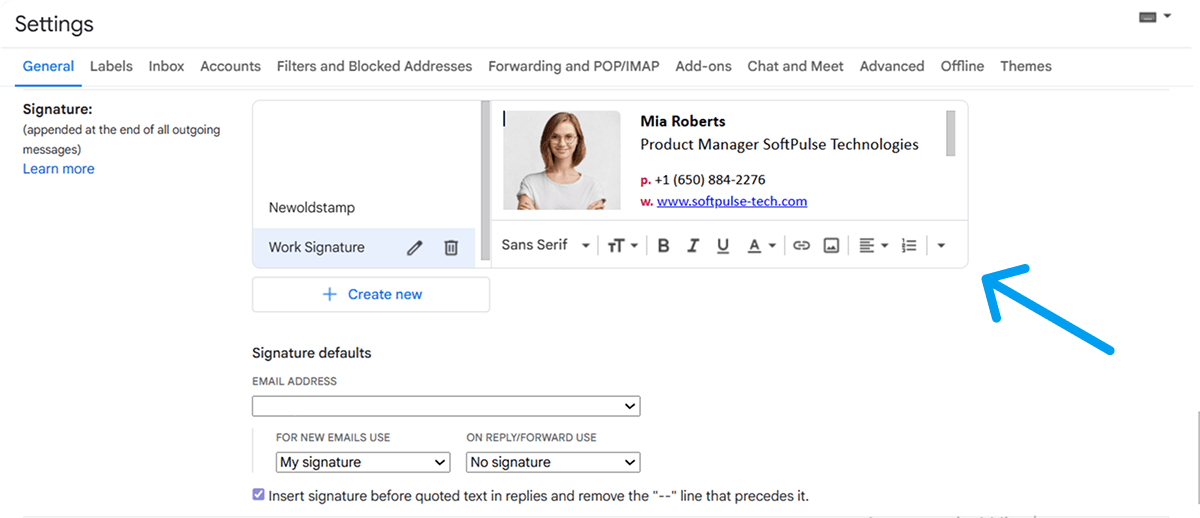
- Choose where you want your signature to show up: select whether it should be added to new emails, replies/forwards, or both.
- Scroll down to the bottom of the General settings page and click "Save Changes."
That's it! Your new signature will now appear automatically. This is the main guidance for anyone looking to change their email signature in Gmail.
You might also like: How to Add and Change Email Signature in the Gmail app on iPhone/iPad
Pro Tips for Better Gmail Signatures
Multiple Signatures
Gmail lets you create multiple email signatures. You can choose a signature each time you write a message, which helps switch between work, personal, or client emails. After you create your signatures in the settings, click the signature icon at the bottom of the compose window to select the one you want for your message.
Adding Images or Logos
In the desktop version, click the image icon in the signature editor to add your company logo, headshot, or promotional banner to your email signature. Keep the file size under 100KB to speed up loading for your recipients. This will make your signature more memorable and professional.

Including Disclaimers
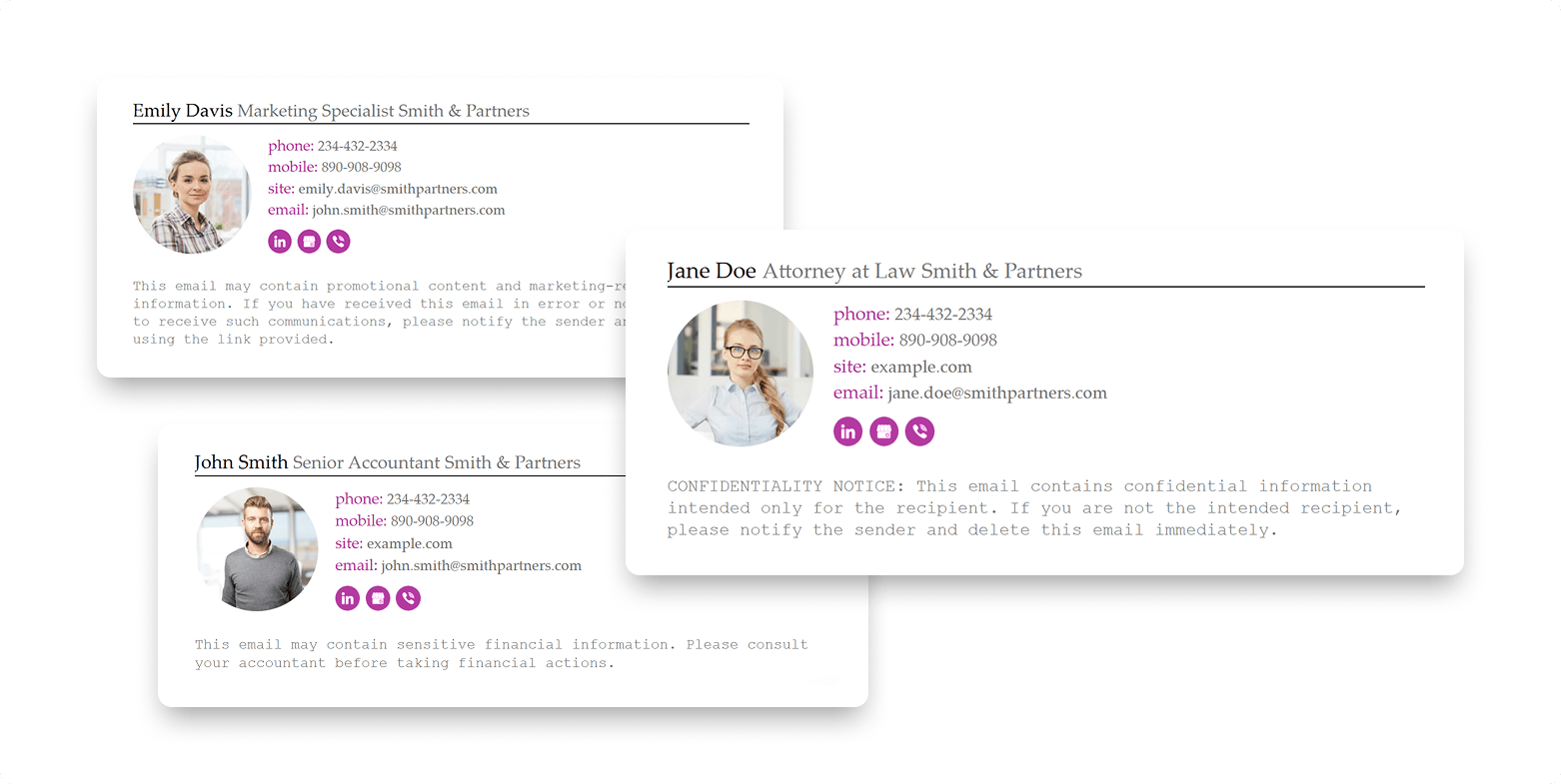
You can add legal or company-required disclaimers to your email signature. This may include confidentiality notices, marketing disclaimers, or data protection statements. Placing them here helps you meet legal requirements without overcrowding your main contact details.
Testing Your Signature
Always send a test email to yourself and to colleagues using different email clients. This helps you see how the email looks on different devices. What looks good on a desktop might not look right on a mobile device, so testing lets you find formatting issues early.
Using HTML Signatures
You can use HTML code in the signature box for advanced formatting. This allows you to create custom layouts, clickable phone numbers, styled social icons, and precise spacing that plain text cannot offer. Tools like Newoldstamp produce clean HTML that works well with Gmail.
Conclusion
Now that you know how to change your email signature in Gmail, you can make your emails look professional with just a few clicks. If the interface has changed since this guide was written, start by looking for the gear icon and the General settings area.

FAQs
Why isn’t my signature showing up?
Make sure you saved the changes and that the option “For new emails” is enabled. Also, check if you’re using the correct account. Read the article to find out more.
Can I set different signatures for different emails?
Yes, after creating multiple signatures, you can pick the right one while composing.
Does this work for Google Workspace accounts?
Absolutely. The steps are identical for both personal Gmail and Workspace (business) accounts.

