

Proper Email Signature: Format, Etiquette & Examples
A proper email signature is more than just your name at the end of an email. It is your digital business card that helps build trust and strengthen your brand. In daily business emails, a well-designed email signature makes it easier for people to communicate with you. It lets recipients quickly find your contact details, understand who you are, and take action, such as visiting your website or booking a meeting.
This guide shows you how to create a clear and proper email signature. You will learn the rules of professional email signature etiquette, how to choose the right format, and how to avoid common mistakes. You will also find practical examples, a list of do’s and don'ts, and step-by-step instructions for creating your email signature that looks perfect on your desktop and mobile devices.
|
Quick Overview
|
1. What Is a Proper Email Signature?
2. Why a Proper Email Signature Matters
3. Proper Email Signature Format: What to Include
4. Email Signature Etiquette: Key Rules to Follow
5. What Not to Include in a Professional Email Signature
6. Good vs Bad Email Signature Examples
7. How to Create a Professional Email Signature Step by Step
8. How to Use Your Email Signature as a Marketing Channel
9. FAQ
What Is a Proper Email Signature?
An email signature is a simple and organized section at the end of every email. It includes your name, contact information, job title, company details, and branding elements. A good email signature can help present this information clearly and professionally.
What makes a signature “proper”? It should be clear and consistent with your brand. It needs to be easy to read on any email client or mobile device and follow good email signature etiquette. Professionals use it to create a professional image, build trust, and make it easy for recipients to connect with them throughout email communication.
Create an email signature with email signature generators help you create professional email signatures easily. Newoldstamp offers ready email signature templates that work well with Gmail, Outlook, and other email platforms.
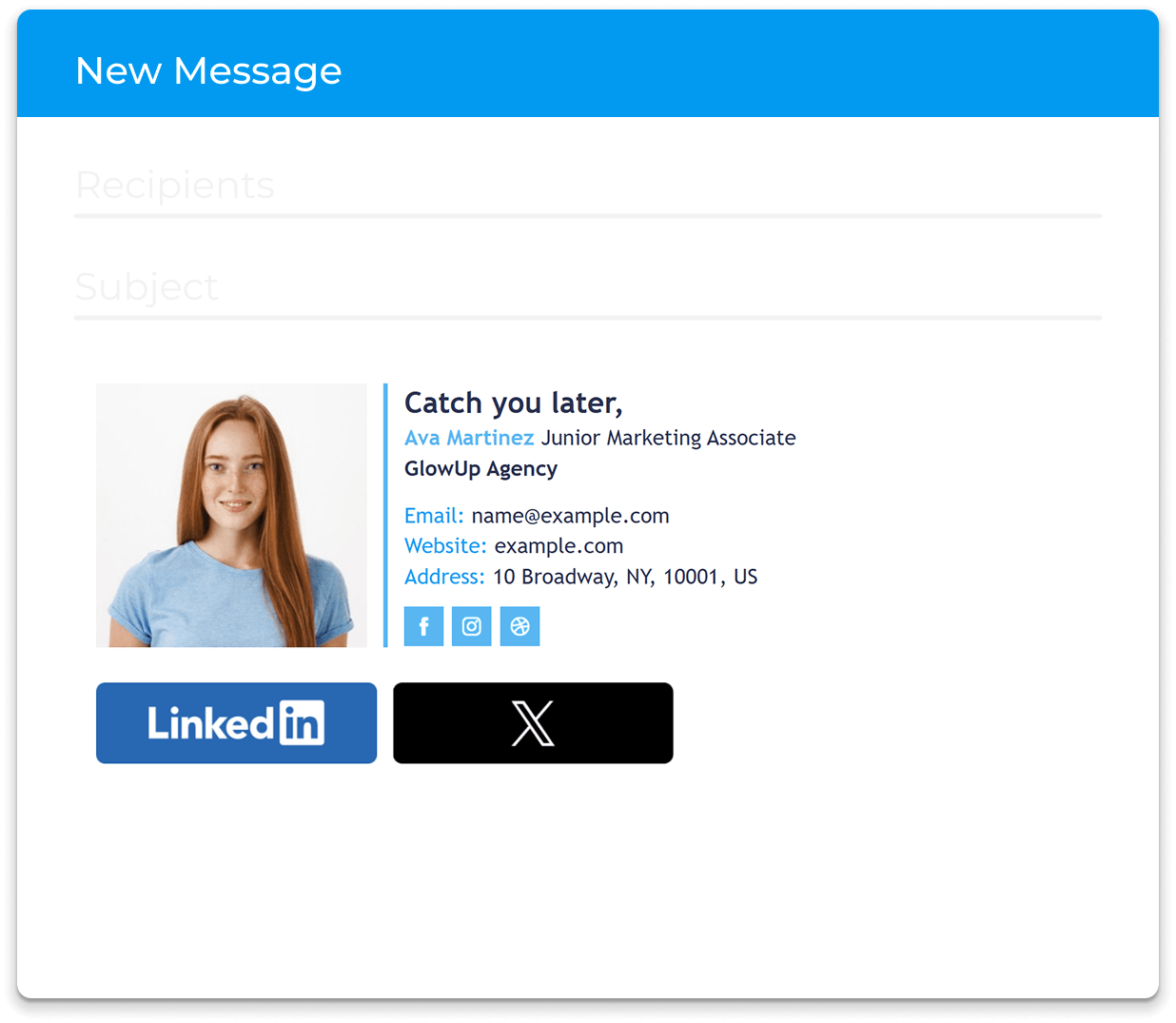
Why a Proper Email Signature Matters
Using a proper email signature has many benefits for professional email communication. Using an email signature helps promote your personal or company brand, gives quick access to your contact information, and turns every email into a marketing opportunity. A good email signature builds trust and credibility and makes it easier to follow up.
Key reasons to create a professional signature:
- Recipients can easily find your phone number, website, and social media links.
- It builds brand recognition by using elements of your signature like your company logo and consistent colors and fonts.
- A polished email signature might establish trust with your audience.
- It allows you to add calls-to-action (CTAs) without extra work.
- Use email signature to show that you pay attention to detail in every email you send.
Proper Email Signature Format: What to Include
The best email signature format is clear and easy to read, as you can see in these small business email signature examples. Keep it simple, and follow the structure so recipients can quickly find important information.
|
Element |
Purpose |
Required/Optional |
Best Practice |
|
Full Name |
Clear identification |
Required |
Bold for visual hierarchy |
|
Job Title |
Shows expertise and role |
Required |
Keep short and professional |
|
Company Name |
Brand reinforcement |
Highly recommended |
Link to the company website |
|
Phone Number |
Direct contact |
Recommended |
Include a mobile phone when relevant |
|
Email Address |
Convenience in forwards |
Optional |
Make clickable |
|
Website & Social Icons |
Additional connections |
Optional |
Professional profiles only |
|
Company Logo / Headshot |
Visual branding |
Optional |
Small, optimized size |
|
CTA Button |
Drive action |
Optional |
One clear and relevant call-to-action |
|
Email Disclaimer |
Legal protection |
As needed |
Short text at the very bottom |
Essential Email Signature Elements
Here is a clear overview of the basic elements for best email signature:
|
Element |
Why It Is Essential |
Best Practice Tips |
|
Full Name |
Lets recipients know exactly who sent the email |
Full first and last name, bold |
|
Job Title |
Shows your role and professional expertise |
Clear and concise |
|
Company Name |
Reinforces brand and credibility |
Link to company website |
|
Phone Number |
Provides immediate direct contact. |
Work or mobile phone |
|
Website |
Gives you easy access to more information. |
Company website link |
|
Corporate logo or Headshot |
Creates visual brand recognition |
Small size, high quality |
|
Social Links |
Allows professional networking |
Use icons for LinkedIn etc. |
|
CTA |
Encourages next step (meeting, demo, download) |
One clear CTA only |
Recommended Proper Email Signature Layout
Here is a professional email signature examples you can adapt. Your signature should include your name, job title, company name, and contact details. Make sure it looks the same on all devices.
A clear and organized signature makes your emails look professional and easy to read. It also ensures that your signature displays correctly on email platforms like Gmail and Outlook.
To create an effective signature that works on Gmail, Outlook, Google Workspace, and Microsoft 365, try using an email signature generator like Newoldstamp.

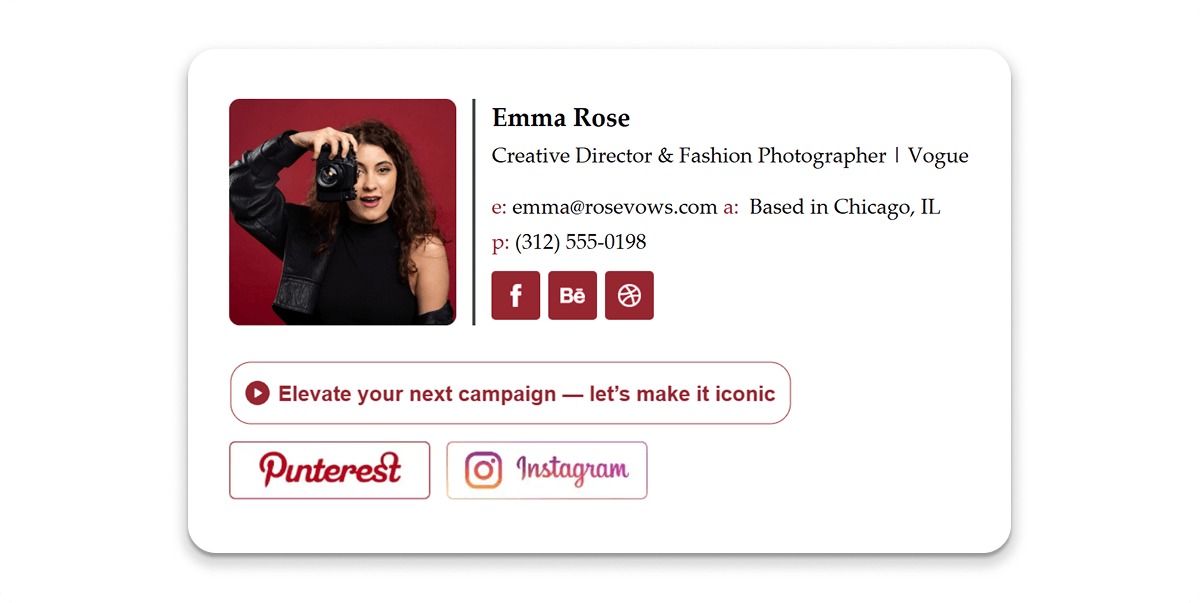

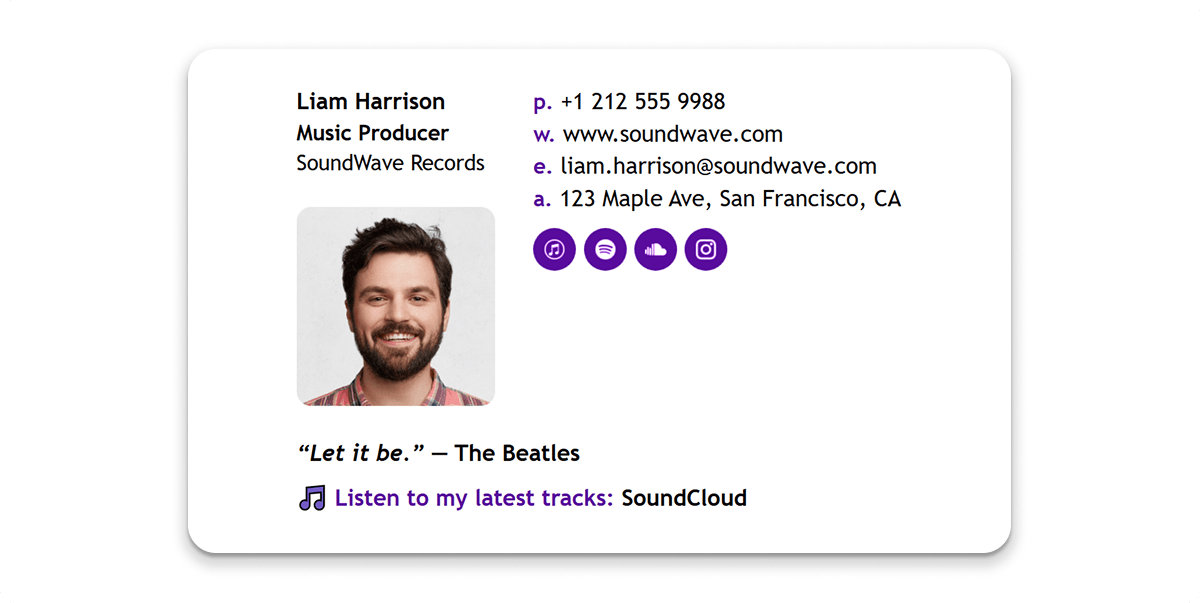

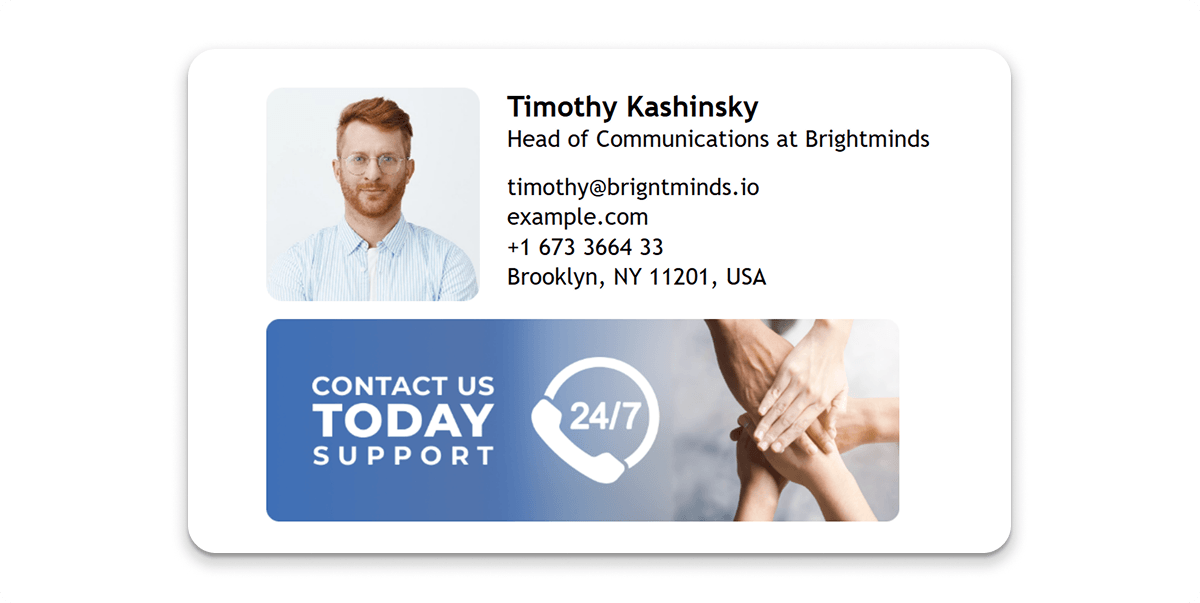
Created with a professional email signature generator
Email Signature Etiquette: Key Rules to Follow
Good email signature etiquette helps you showcase a professional image in emails each day.
Keep It Short and Useful
Keep your email signature short; 3 to 6 lines is best for most professionals. Don't let it turn into a long block of text that takes up half the email.
Use Professional Contact Details
Always include your work phone number, company website, and relevant professional profiles. Do not mix personal social media accounts unless they support your professional image.
Match Your Brand Style
Use your company's colors, fonts, and logo to create a consistent design. This is especially important for company email signatures, as they help present a unified brand.
Make Your Signature Mobile-Friendly
A good email signature should look good on mobile devices, since many people check email on their phones. Here are some tips to make it mobile-friendly:
- Do not use wide banners that make the screen scroll sideways.
- Use clear text with a large enough font size.
- Limit the number of images.
- Include a simple call-to-action (CTA) that is easy to tap.
- Always test your signature in Gmail, Outlook, and other mobile email apps.
What Not to Include in a Professional Email Signature
|
Avoid |
Why It Hurts Professional Communication |
|
Animated GIFs or large images |
Slow loading and poor mobile experience |
|
Multiple competing CTAs |
Overwhelms the recipient |
|
Personal quotes or jokes |
Reduces credibility and trust |
|
Too many social media icons |
Creates clutter and looks unprofessional |
|
Handwritten signature images |
Looks messy and loads slowly |
|
Personal phone for work emails |
Blurs boundaries between work and personal life |
Good vs Bad Email Signature Examples
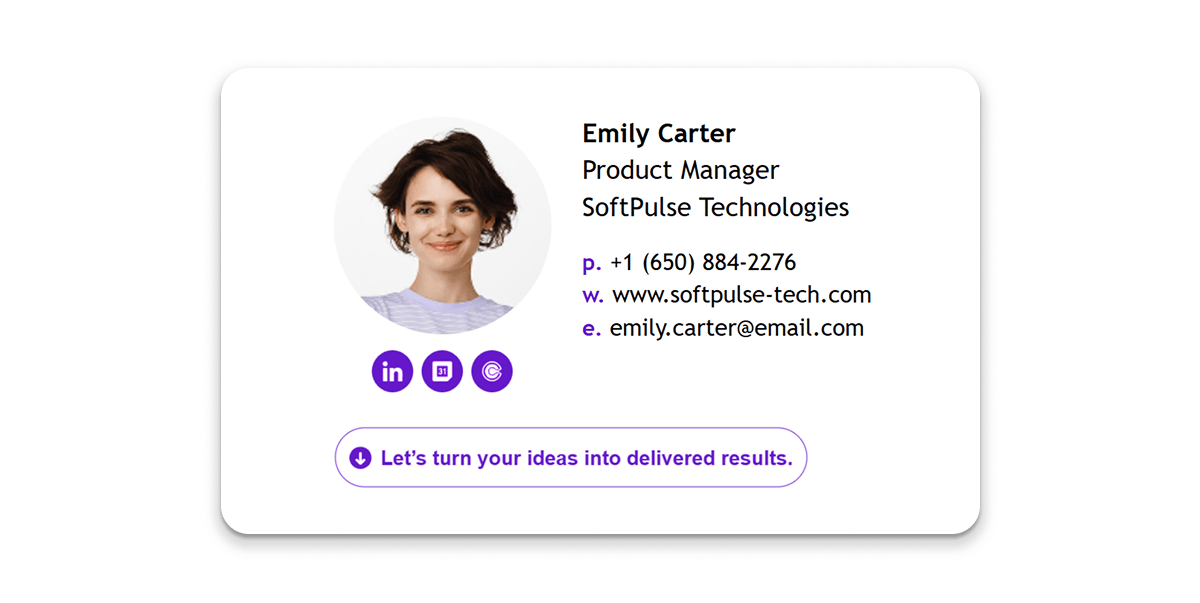
Simple Professional Email Signature Example
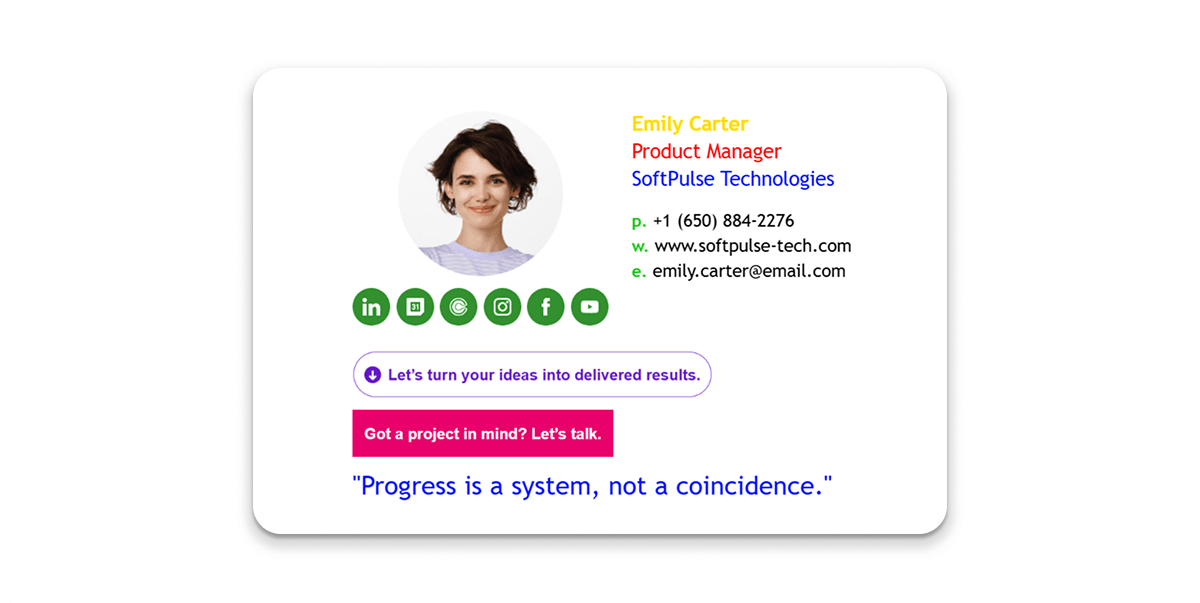
Bad Example: Long block of text with quotes, personal Facebook link, big photo, and multiple CTAs.
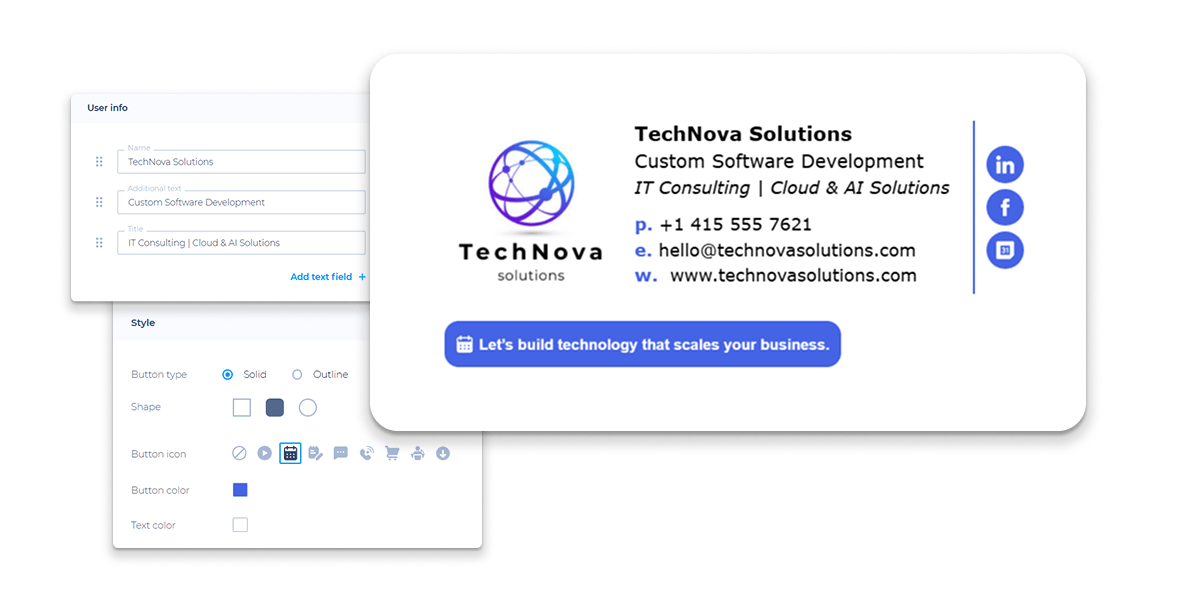
Branded Business Email Signature Example
This version includes the company logo, matching colors and fonts, social media icons, and a clear call to action, like “Schedule a Demo.” It is ideal for sales and marketing teams.
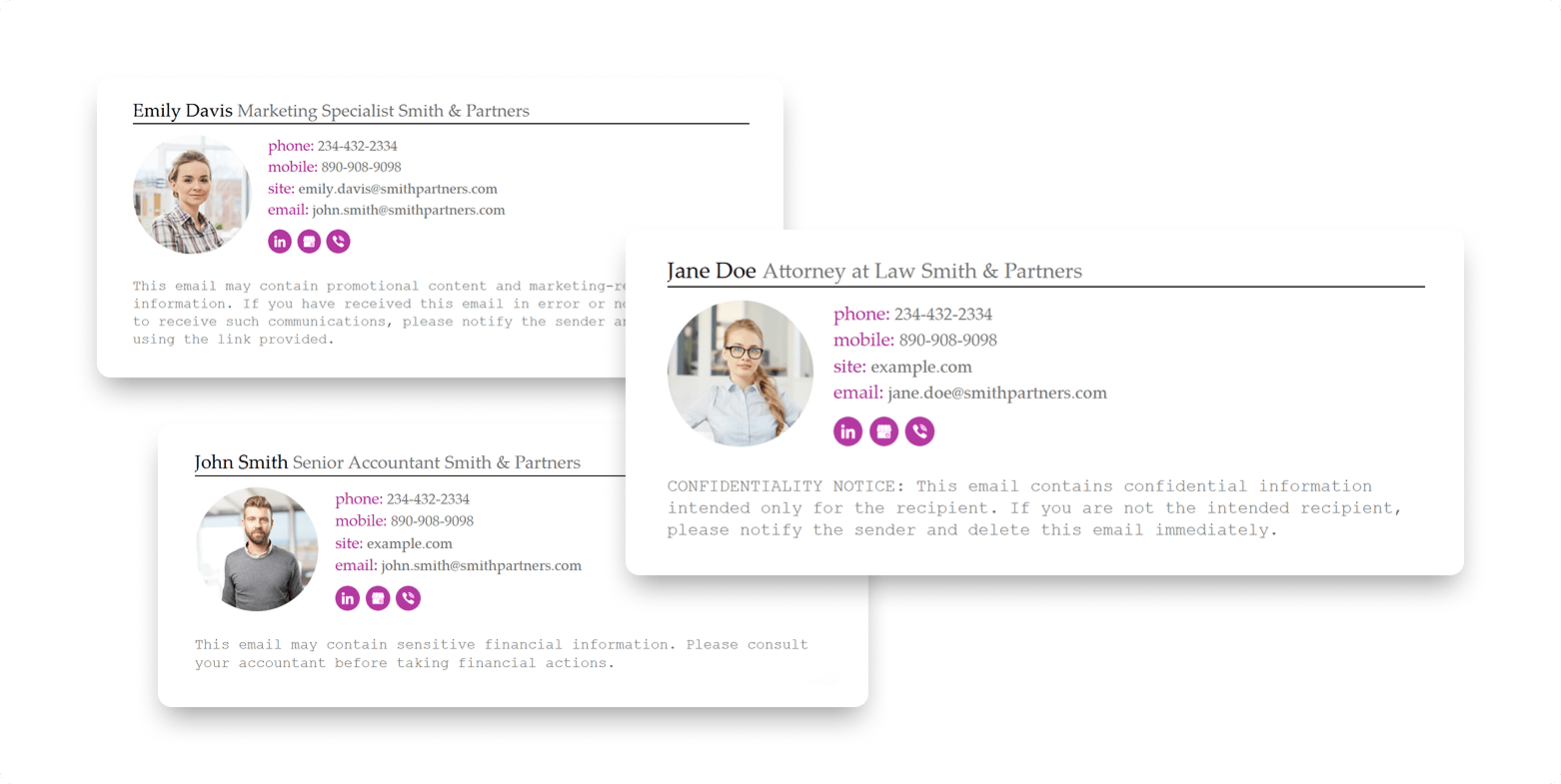
Team or Company-Wide Email Signature Example
All team members use the same email signature template, which includes their name, job title, and contact details. This keeps the look professional and consistent across the organization.
Centralized email signature management makes it easy to update information. Any changes, like new branding or contact details, are applied instantly to everyone’s signature. Newoldstamp allows for centralized team management and integrates easily with Google Workspace and Microsoft 365. This helps companies maintain professional email signatures for all employees.
How to Create a Professional Email Signature Step by Step
Step 1 - Choose the Purpose of Your Signature
Decide whether the focus should be on contact details, brand promotion, or encouraging specific actions.
Step 2 - Add the Essential Information
Use this simple checklist when creating your signature:
- Your full name
- Your job title or role
- Your company name
- Your website
- Your contact information (phone number and email)
- A call to action
Step 3 - Choose a Clean Design
Here are some straightforward design tips for a professional email signature:
- Use enough whitespace so the signature looks clean and not crowded.
- Choose easy-to-read fonts like Arial or Helvetica that work well in all email clients.
- Highlight your name with bold text and use proper spacing for clarity.
- Keep your logo small and well-optimized; it shouldn’t be too large.
- Make sure your call-to-action (CTA) is clear and noticeable without being overwhelming.
Step 4 - Add One Clear CTA
Examples: Book a demo, Schedule a call, View portfolio, Download guide, Start free trial, Visit our website.
Step 5 — Test It Across Devices and Email Clients
Check how your message looks in Gmail, Outlook, and mobile email. Also, see how it appears in dark mode and when someone replies to or forwards your message.
Proper Email Signature for Different Use Cases
You can create different templates or run banner campaigns for each department or role. This helps teams focus on the most important information while keeping the brand consistent.
|
Use Case |
What to Emphasize |
Recommended CTA |
|
Portfolio, personal brand, booking link |
View my work |
|
|
Meeting link, product demo |
Book a demo |
|
|
Company page, careers link |
View open roles |
|
|
Company credibility, media/profile link |
Learn more about us |
|
|
Campaign banner, new content |
Read our latest guide |
|
|
Brand consistency, disclaimer |
Visit the company website |
How to Use Your Email Signature as a Marketing Channel
A proper email signature should include more than just your contact information. Don’t be afraid to use it as an effective marketing tool to promote your offers, content, or meetings every time you send an email.
Make sure to keep it simple - just one relevant call-to-action (CTA) is enough. A well-placed CTA in your email signature can guide recipients to the next step, making your communication more effective. This approach works well, especially for different roles and departments.
Add a CTA Button
A clear call-to-action (CTA) button makes your signature a useful promotion tool. Here are some effective options:
- Book a meeting
- Try Now
- Download our guide
- Register for a webinar
- View a case study
- See pricing
Use Banners Carefully
Branded banners can grab attention, but use them wisely.
Do:
- Use lightweight, professional banners with one clear purpose and relevant messages.
- Keep banners small, mobile-friendly, and consistent with your brand.
Don’t:
- Avoid heavy, large, or animated banners that can slow down loading times or distract from the main message.
For teams, update banners in one place so that all employee signatures are consistent and up to date.
Track Performance
If you use your email signature for marketing, be sure to track clicks, banner performance, and overall engagement. This information shows you what works best and helps you improve your strategy over time.
FAQ
What is a proper email signature?
A professional email signature is important. It includes your contact information, branding elements, and optional calls to action (CTAs). Make sure to follow email signature etiquette.
What should a professional email signature include?
Include your full name, job title, company name, phone number, website, social media links, and one clear call to action. You can also add your company logo and an email disclaimer if needed.
What should I avoid in an email signature?
Avoid using large animated images, multiple calls to action, or personal content in your signature, as these features can make it hard to read on mobile devices.
What is the proper email signature format?
- Name and Job Title
- Contact Information
- Links
- Optional Visual Elements
- Disclaimer
An effective email signature can improve your professional communication. Whether you need a simple personal signature or a team email signature management system, focus on clarity, usefulness, and consistent branding.
Use signature generators and templates to save time and ensure your email signature looks great on all devices. Start now and make every email you send work harder for you!

