

How to Add an Image (or Logo) to Your Outlook Signature: Step-by-Step Guide in 2026
1. Preparation: Best Image Format and Size to Use for Outlook Signature
2. How to Add a Picture to Your Outlook Signature
3. New Outlook for Windows
4. Classic Outlook (2016, 2019, 2021, Microsoft 365)
5. Outlook on the Web (OWA / Outlook.com)
6. Outlook for Mac
7. Outlook on Mobile Devices (iOS and Android)
8. How to Add a Link to an Image in Your Outlook Signature (Make It Clickable)
9. How to Insert an HTML Signature with an Image in Outlook with Email Signature Generator
Knowing how to add an image to your Outlook signature can improve your email communication. A well-designed Outlook signature that includes your photo, company logo, or branded banner can boost your credibility and help recipients recognize your brand. It also encourages them to engage with your links. Whether you want to learn how to add a logo, picture, or photo to your Outlook signature, this complete guide for 2026 will help you.
This article gives simple and clear instructions for adding images to your Outlook signature on all major versions of Outlook. You will find steps for the new Outlook for Windows, classic desktop versions, Outlook on the Web, Mac, and mobile devices. The guide shows you how to add an image to your Outlook email signature. Let’s get started and create professional signatures that make a great impression.
|
Quick Overview
|
Preparation: Best Image Format and Size to Use for Outlook Signature
Before you begin the process of how to add a picture to a signature in Outlook, be prepared to get the best results. Many users end up with blurry images or slow-loading emails because they forget to optimize their pictures first.
Recommended Formats
- Use PNG files when you need a transparent background, perfect when you want to add a logo to Outlook signature.
- Choose JPEG files for photographs or detailed images where color quality is important.
Optimal Dimensions and File Size
When adding headshots or small logos to your Outlook signature, keep the size to a maximum of 150 x 150 pixels or up to 300 pixels wide. Create your image at a higher resolution, between 300 and 600 pixels, for a clear display on Retina and high-DPI screens, while allowing Outlook to show it at a smaller size.
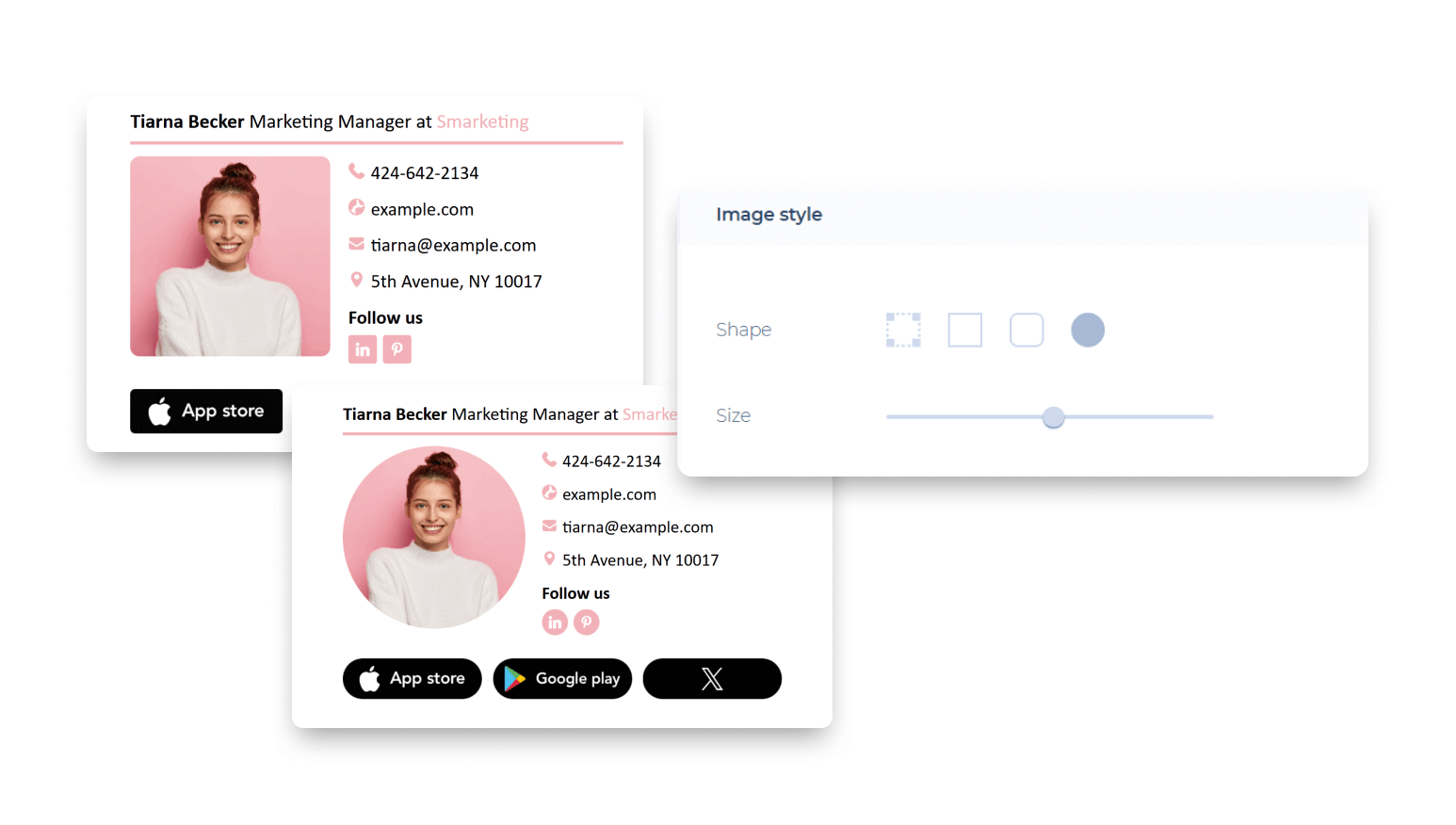
For banners or larger images, you can use a width of 400 to 600 pixels.
Make sure the file size is under 50 KB, and ideally below 20 KB, so it loads quickly in each recipient's inbox. Use tools like TinyPNG, ImageOptim, or Photoshop's "Save for Web" feature to optimize your images easily.
Taking time to prepare will help you avoid problems when you add picture to Outlook signature. This ensures your email signature looks good on all devices and email clients.
How to Add a Picture to Your Outlook Signature (Instructions for All Versions)
If you need help with adding a picture to your signature or your Outlook email signature, you’re in the right place. Below are clear instructions for each version of Outlook.
New Outlook for Windows
The New Outlook app has a simple layout that makes it easy to add an image to your signature.
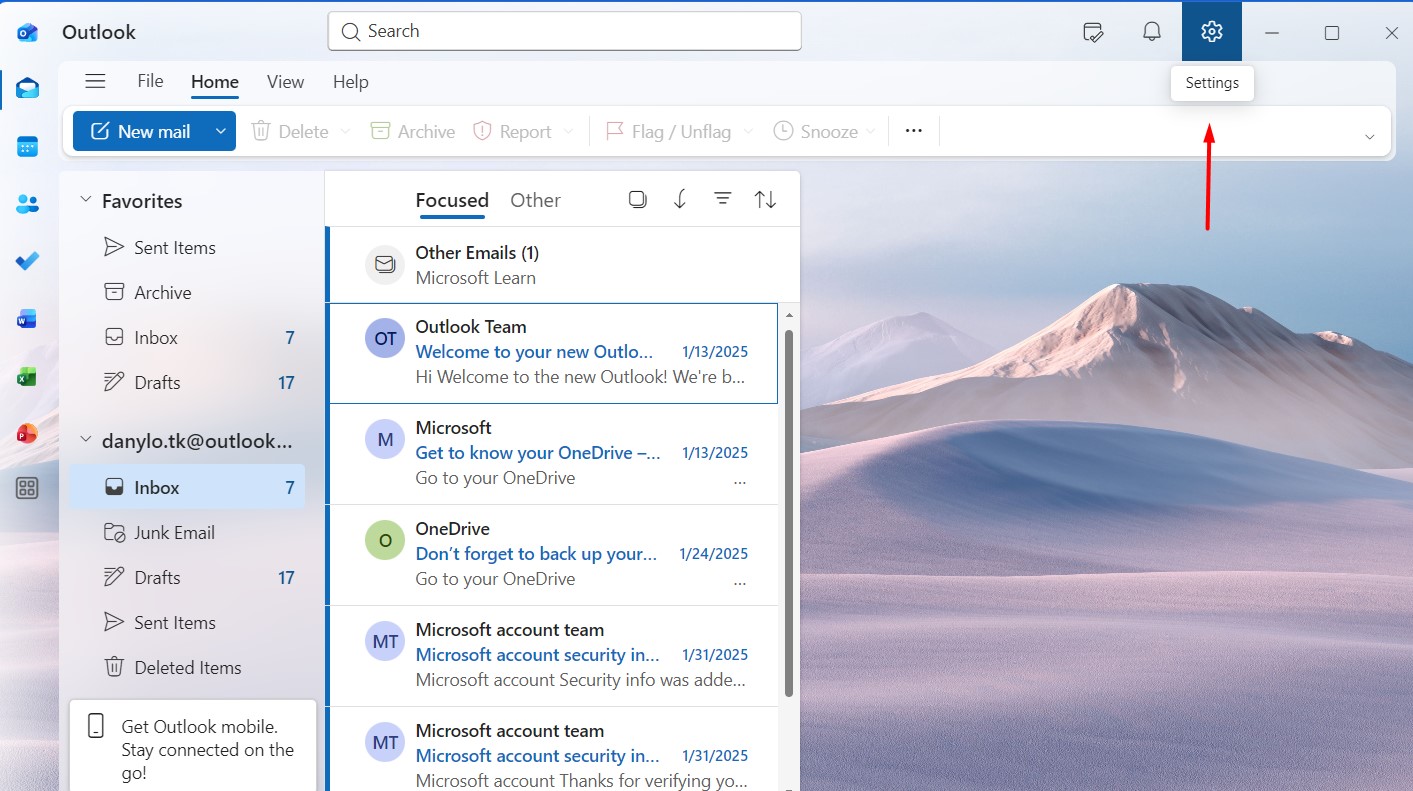
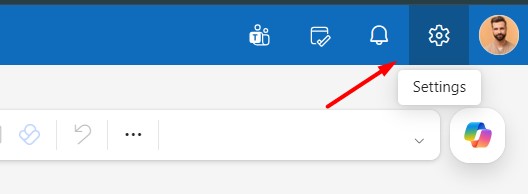
- To start, open the New Outlook application and click the gear icon in the top right corner to open Settings.
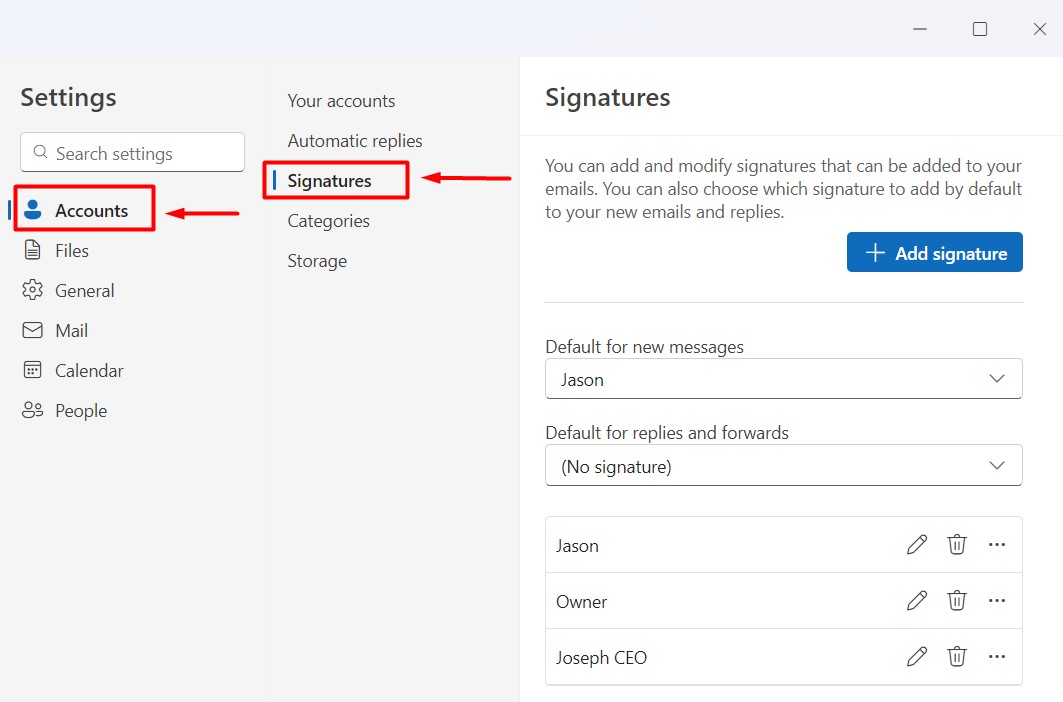
- Then go to Accounts > Signatures. You can create a new signature or edit one you already have.
- Place your cursor in the editor where you want the image to go. Find the "Insert Picture" icon in the formatting toolbar and choose your PNG or JPEG file. After inserting the image, you can resize it by dragging the corners.
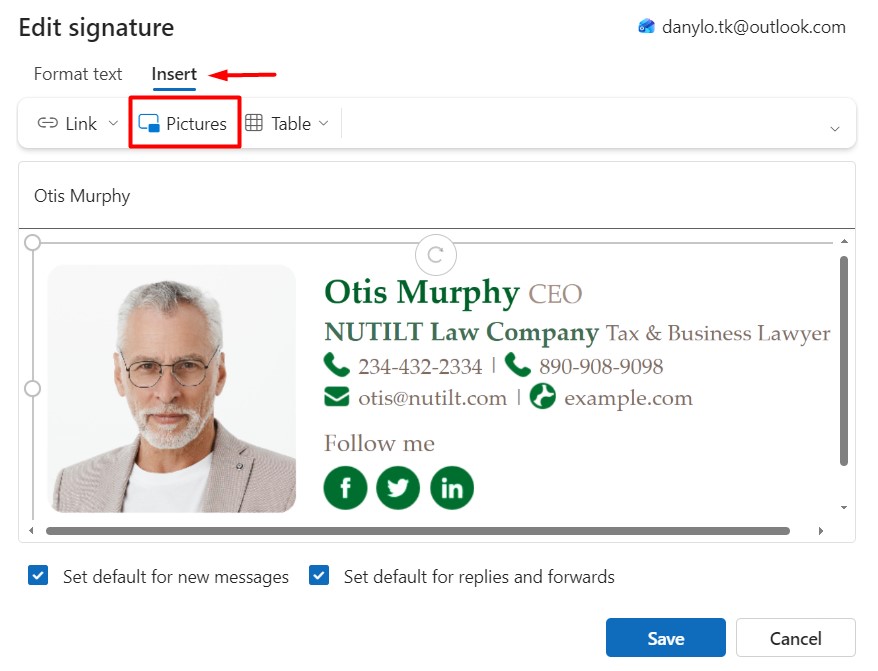
- Make sure to assign the signature for new emails, replies, and forwards before saving. This process shows you how to add a photo to your Outlook signature in the new interface.
Classic Outlook (2016, 2019, 2021, Microsoft 365)
To add a picture to your signature in the desktop version of Outlook, follow these simple steps:
- Open Outlook and go to File > Options > Mail > Signatures to open the signature editor.
- In the signature editor, click on the Insert tab and select Pictures (or Insert Picture Inline).
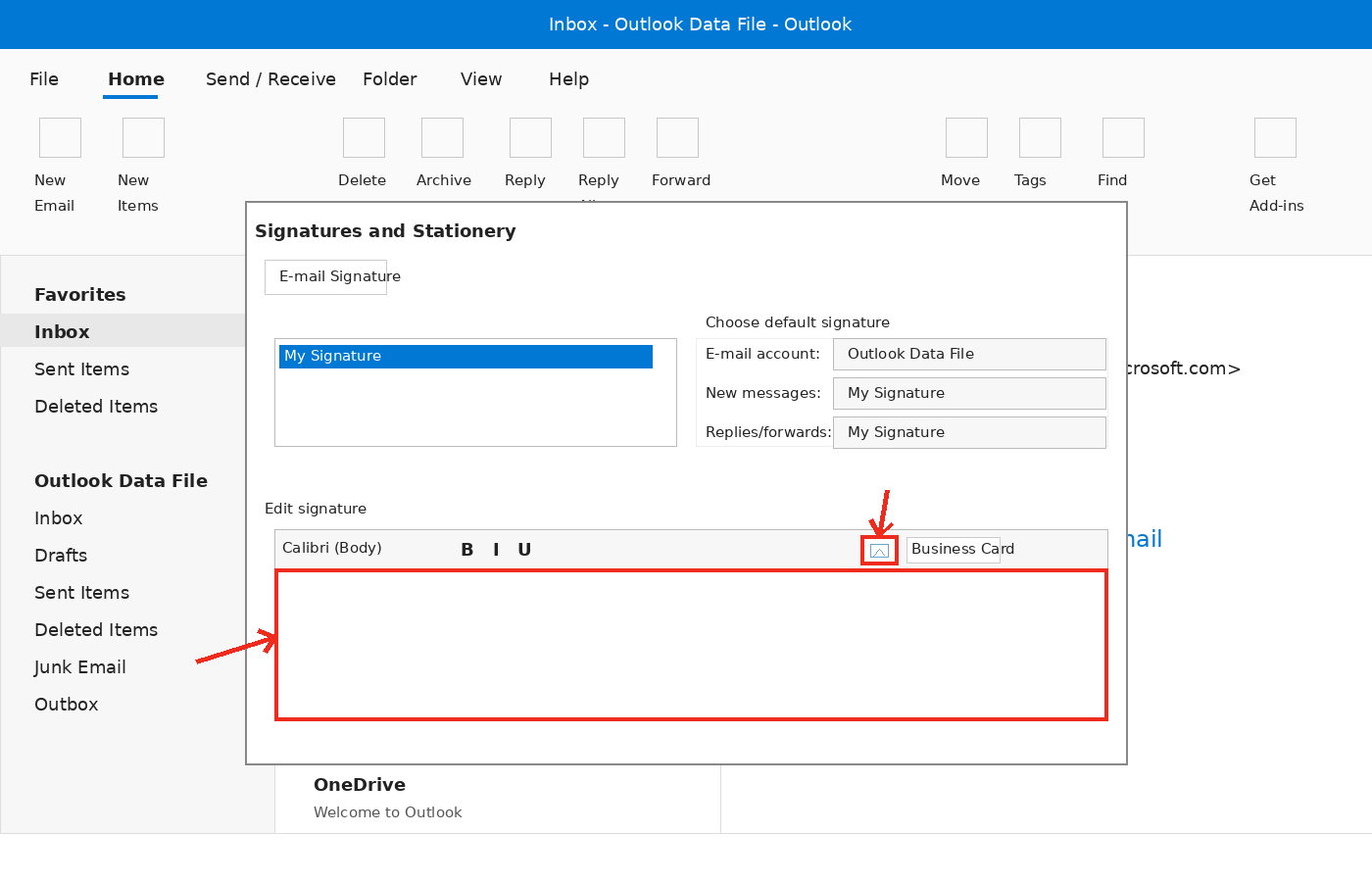
- Browse your computer to find the image you want to use, select it, and insert it.
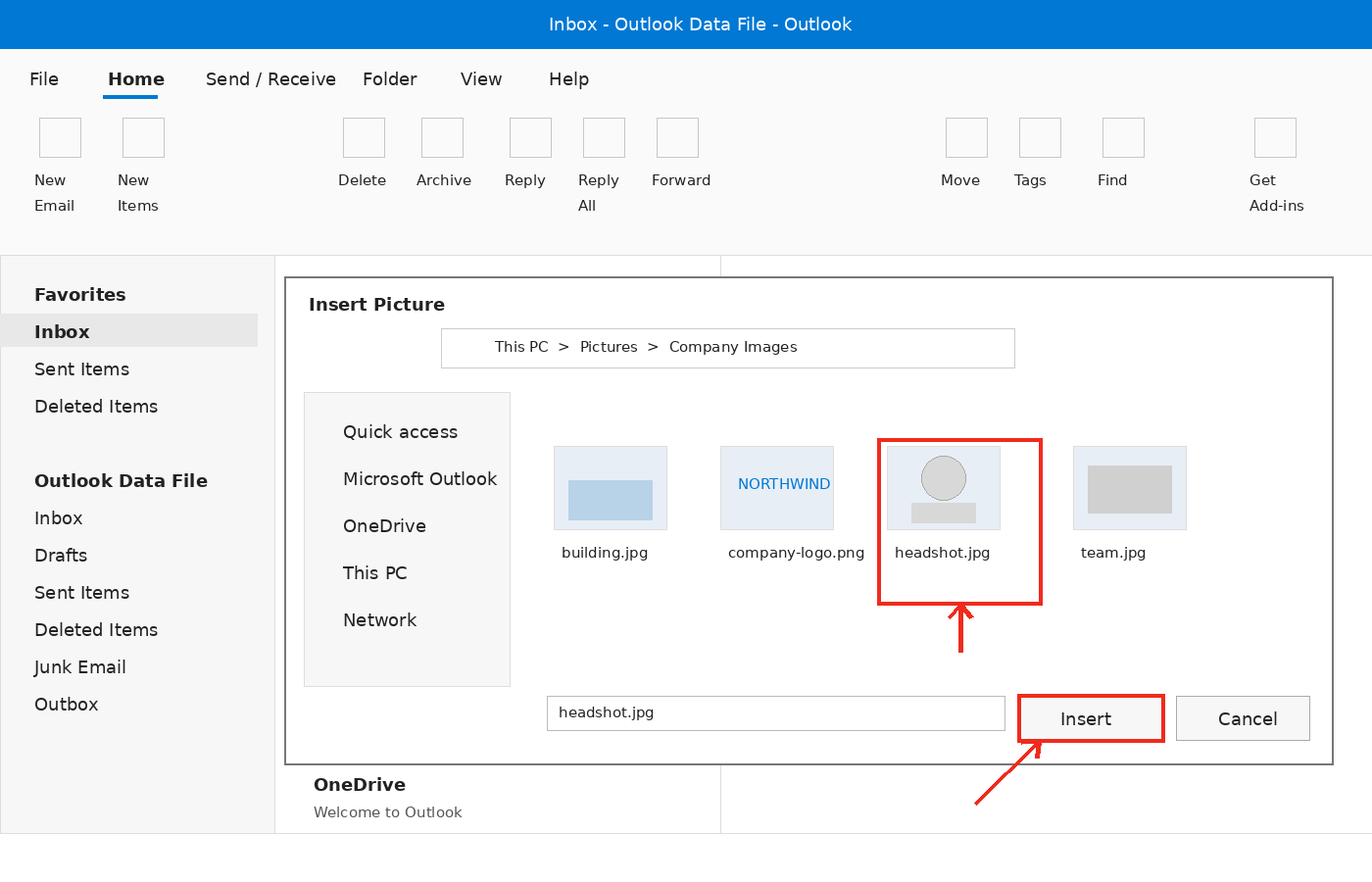
- You can adjust the image size by dragging its corners or right-clicking it to access the Format Picture options.
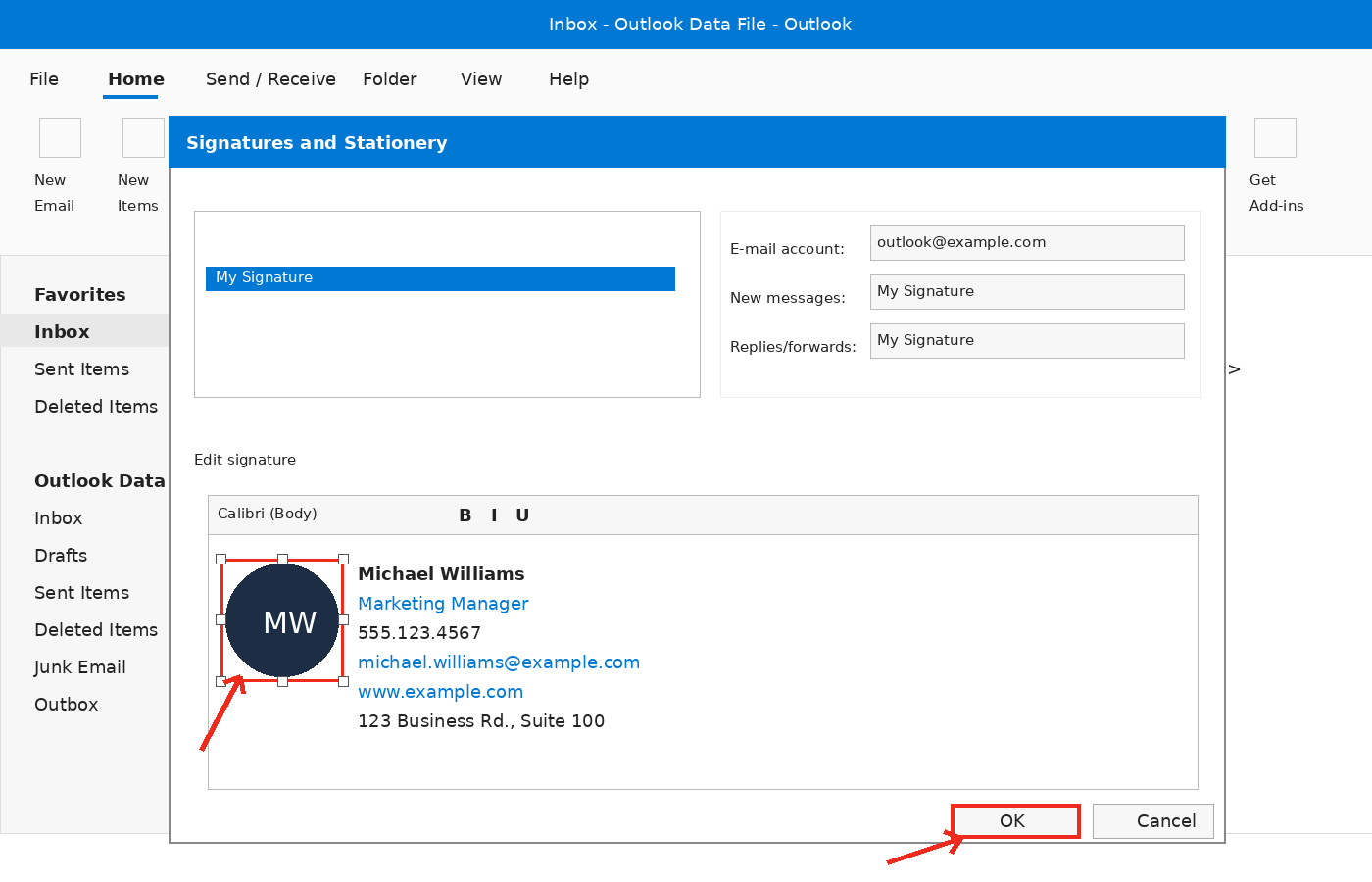
- Add your name, title, and contact details around the image.
- Click OK to save your changes.
This method will help if you wonder how to add a picture to a signature in Outlook on Windows desktops.
Outlook on the Web (OWA / Outlook.com)
If you are searching for how to add an image to a signature in Outlook, the steps are simple.
- First, click the Settings gear icon and select “View all Outlook settings.”
- Then go to Accounts > Signatures.
- In the rich text editor, click the "Insert" > "Pictures" button to upload your image. Position and adjust it as needed.
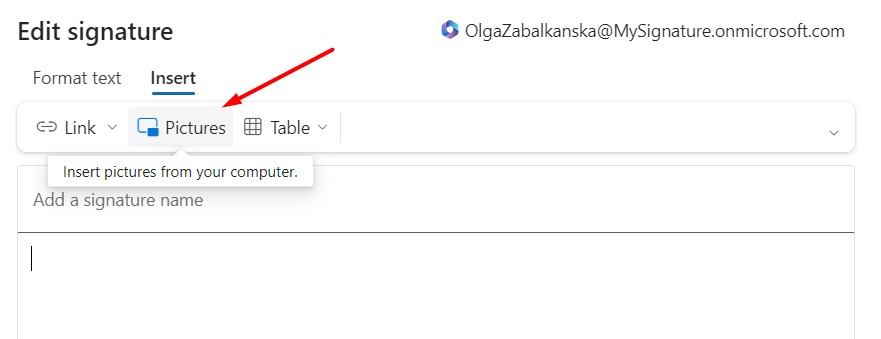
- Finally, save your changes. Your new signature will apply to outgoing messages. This method is a quick way to update your Outlook email signature.
Outlook for Mac
- On macOS, open Outlook and go to Settings. Click on Email and then Signatures. Here, you can create a new signature or select one you’ve already made.
_(1).png?1703802777)
- To insert an image, use the Pictures menu and select either Photo Browser or Picture from File.
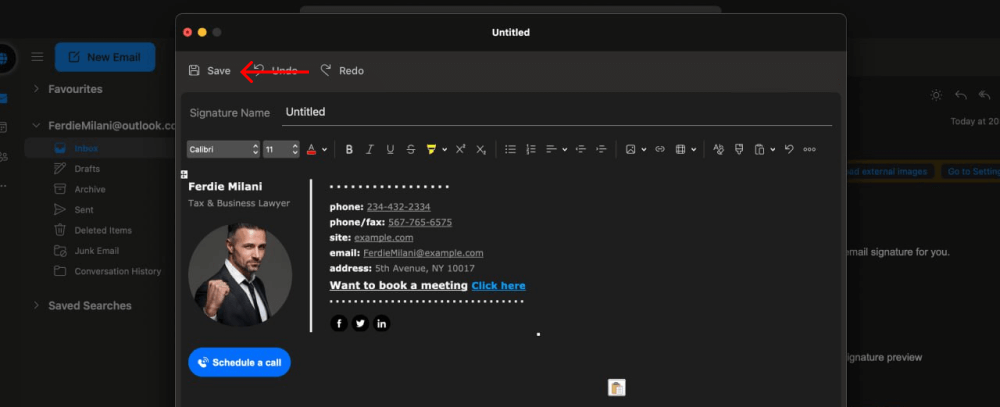
- Resize your image in the editor as needed, and make sure to save your changes. Many Mac users find this method easy for adding pictures to their Outlook signatures.
Outlook on Mobile Devices (iOS and Android)
Mobile signatures have limitations, but you can still improve them.
First, open the Outlook app and go to Settings > Signature to add text. Many professionals create detailed signatures on their desktop by adding an image to their Outlook signature, and then they sync their accounts. Some mobile versions do not allow direct image insertion, so it’s best to test your signature. Using the HTML method (described below) can help you add a photo to your Outlook email signature on your phone.
You might also like: “How to edit signature in Outlook”
How to Add a Link to an Image in Your Outlook Signature (Make It Clickable)
Making your logo or photo interactive is a powerful way to drive traffic. After inserting the image in an Outlook signature, select it, then click the Hyperlink (chain) icon in the toolbar, or right-click and choose Hyperlink. Paste your website URL, LinkedIn profile, or other destination, then confirm. This turns your ad logo in Outlook signature into a clickable call-to-action that boosts engagement.
How to Insert an HTML Signature with an Image in Outlook with Email Signature Generator
To create consistent designs on all devices, use HTML signatures. You can generate your code with an email signature generator. In Outlook, start a new signature and paste the HTML content directly into the editor. This way helps avoid compatibility issues and gives you control over adding an image to your Outlook signature. Images hosted online will load reliably, rather than being embedded as attachments.

Troubleshooting Common Issues with Signature Images
Even after following the steps to add a picture to your signature in Outlook, you may encounter some issues:
- Image appears as an attachment (paperclip icon)
This occurs when the image is attached instead of embedded. Always use the "Insert Picture" function or utilize hosted links for HTML signatures.
- Image becomes blurry or loses quality
To prevent this, resize the image to the exact dimensions needed before inserting it, rather than scaling it within Outlook. Additionally, check the DPI settings; a standard range is 72–96 DPI.
- The image doesn’t display for recipients
This issue is often caused by external image blocking or missing image hosting. Make sure to use publicly accessible image URLs and test your signature by sending emails to various clients, such as Gmail.
- Additional tips
Keep your Outlook version updated, clear the cache regularly, and verify that the settings for new emails are separate from those for replies and forwards.
These solutions address the most common issues when managing your email signature in Outlook.
How to Automate Signatures for the Whole Company
Updating email signatures by hand across teams is not efficient. Newoldstamp allows you to manage logos, banners, disclaimers, and social icons from one place. This helps you create consistent and professional Outlook signatures for your entire organization. With automatic updates and simple rules for different departments or accounts, it's easy to keep everyone on the same page.

Conclusion
Learning how to add an image, logo, or picture to your Outlook signature can make your emails more effective for branding. Start by following the steps for your version of Outlook. Make sure to optimize your images and consider using HTML for better reliability. This will help your emails look more professional.
FAQ
Can I add a GIF animation to my Outlook signature?
Animated GIFs do not work well in many email clients and may show up as static images. For the best results when adding images to your Outlook signature, use optimized PNGs or JPEGs.
Where are the signature settings in the New Outlook?
Go to the Settings gear > Accounts > Signatures.
Can I use different signatures with different logos for multiple accounts?
Outlook lets you create different email signatures for each account. This makes it easy to add logos and images for work, personal, or client emails.
How do I save my changes after adding a picture?
Always click Save or OK in the signature dialog box after editing.

