
How to Edit Email Signature in Outlook: Step-by-Step Guide
1. Why You Should Regularly Edit Email Signature in Outlook
2. Designing Your Signature First (Recommended)
3. How to Edit Email Signature in Outlook on Desktop (Windows/Mac)
4. How to Edit Email Signature in Outlook on the Web (Outlook.com or Microsoft 365)
5. How to Edit Email Signature in Outlook Mobile App
6. Pro Tips for Better Outlook Signatures
7. Common Issues and Troubleshooting
|
Quick Overview
|
Your email signature is like a digital business card. It gives your contact details, job title, and branding to everyone you email. It's important to know how to edit your email signature in Outlook, whether you want to update your phone number, add a new role, or change the design. If you want to learn how to edit your email signature in Outlook, this guide will help you with the steps for desktop, web, and mobile.
Why You Should Regularly Edit Email Signature in Outlook

Keeping your signature up to date builds your credibility and ensures your contact information is correct. It also helps strengthen your personal or company brand. Outdated information can confuse people. A well-designed signature makes it easy for others to reach you or find out more about your business.
Designing Your Signature First (Recommended)
For the best results, use a professional email signature generator to design your signature before adding it to Outlook. Newoldstamp let you design email signature templates that work well on different devices. You can include your logo, social icons, banners, and clickable elements. After designing your signature, copy the HTML and paste it directly into Outlook.
How to Edit Email Signature in Outlook on Desktop (Windows/Mac)
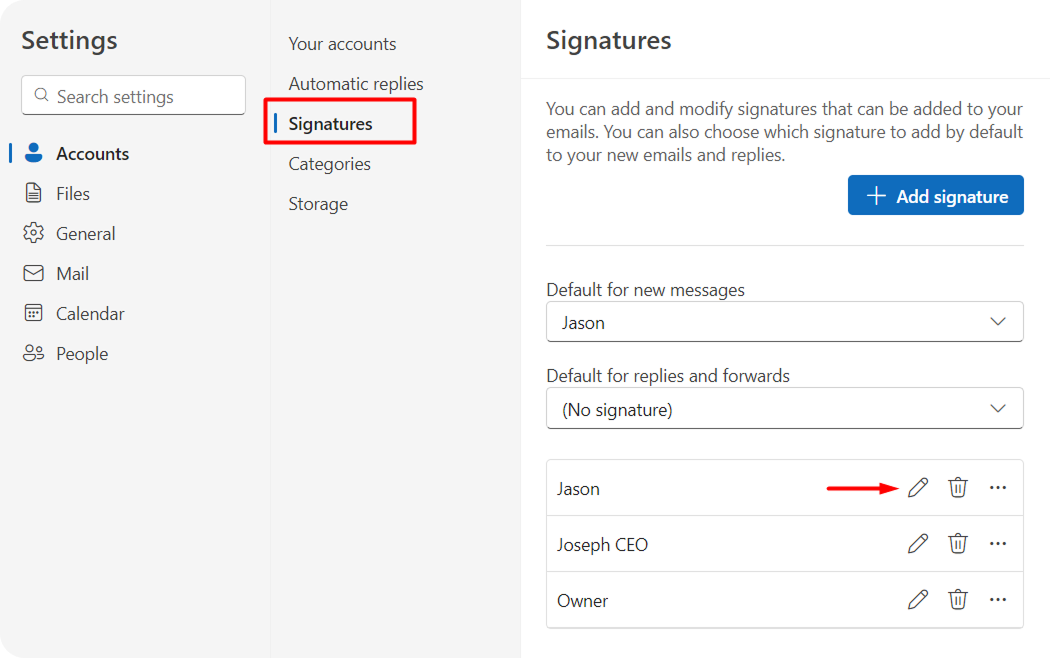
To edit a signature, follow these steps:
- Select the signature you want to change from the list.
- Make your changes in the editing box by adding or updating text and adjusting formatting.
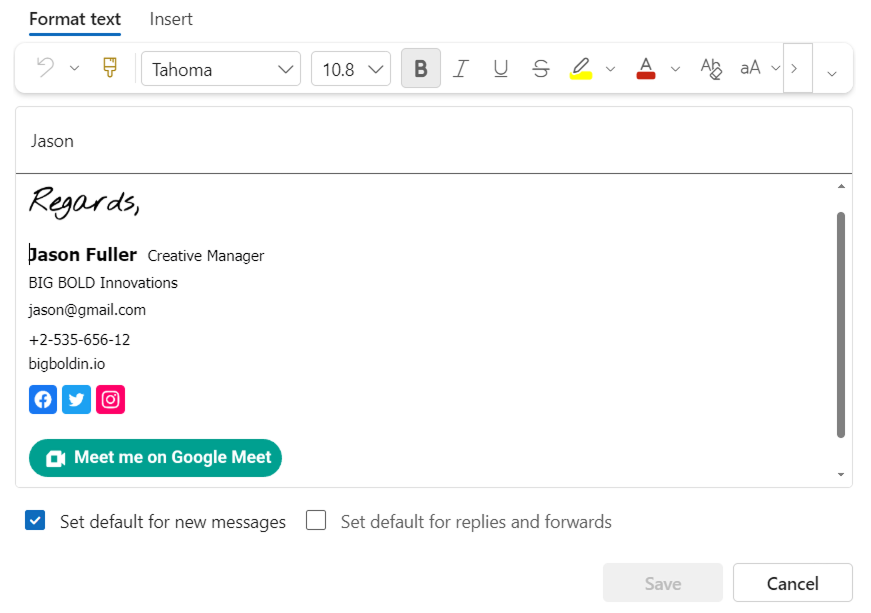
- Use the toolbar to bold text, change colors, add links, or insert images.
- After editing, choose your default settings for which signature to use in new messages and replies/forwards.
- Click OK to save your changes.
How to Edit Email Signature in Outlook on the Web (Outlook.com or Microsoft 365)
- Go to outlook.live.com or open your Microsoft 365 Outlook and sign in.
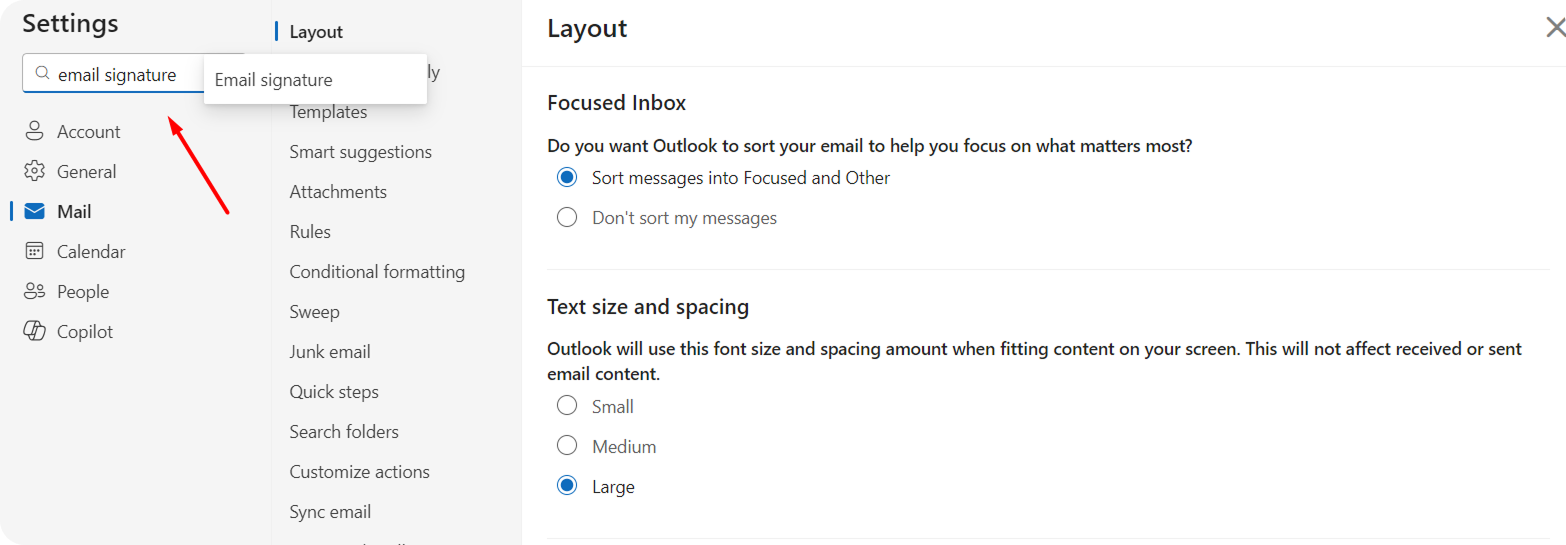
- Click the gear icon (Settings) in the top right corner.
- Type “Email signature” in the search bar and select it from the results.
- Edit your signature in the text box.
- Use the toolbar to add formatting, links, or images.
- Click "Save" at the bottom to keep your changes.
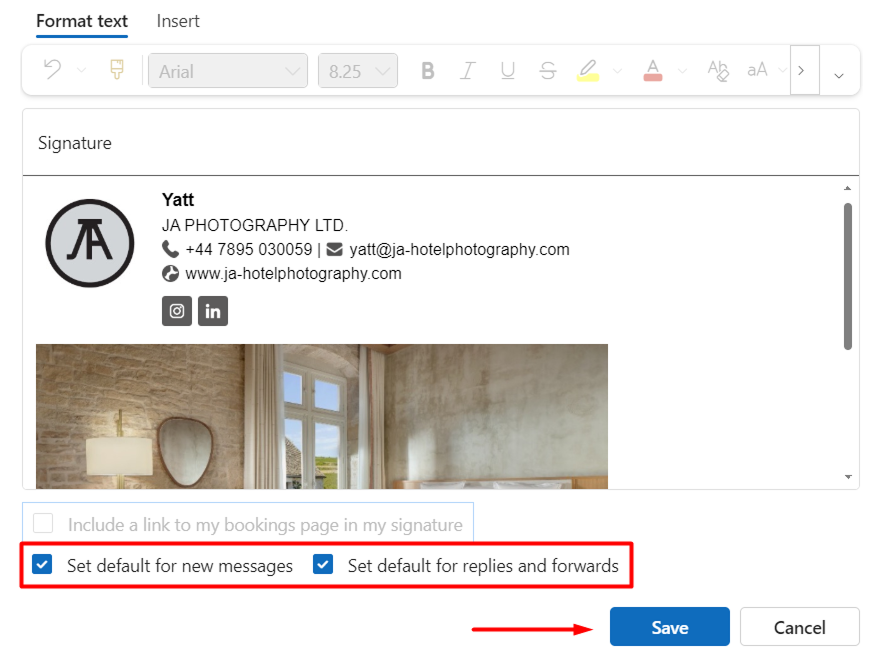
This method is great for quickly editing your email signature in Outlook using any browser.
How to Edit Email Signature in Outlook Mobile App
- Open the Outlook app on your Android or iOS phone.
- Tap your profile picture or the menu icon.
- Go to Settings and select your email account.
- Find the Signature option (it might be in "Mail" or account settings).
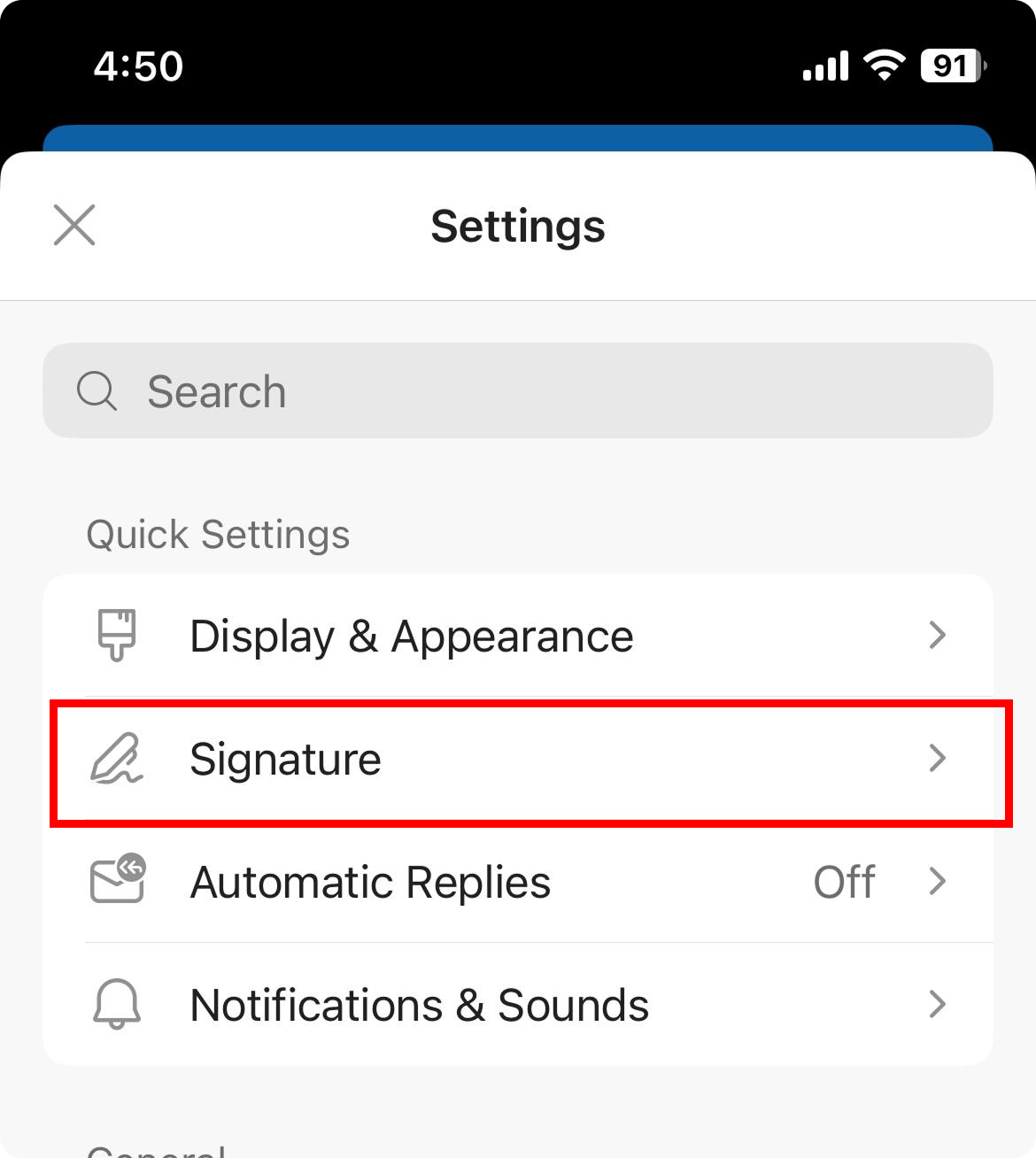
- Edit or replace the current text and tap save.
Note: Signatures on mobile devices are usually simpler than those on your desktop.
Pro Tips for Better Outlook Signatures
Optimizing Images and Logos
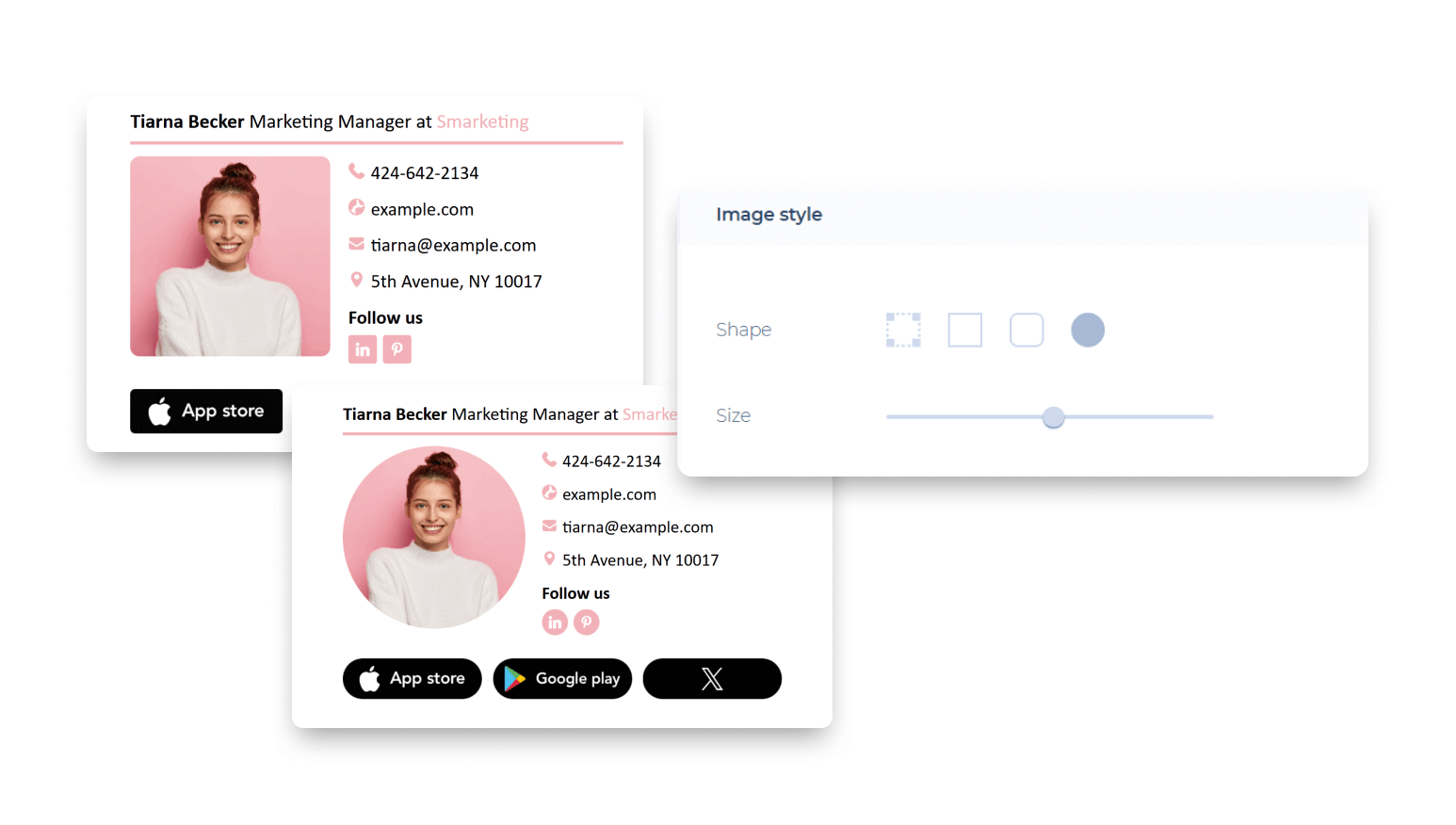
Add your company logo or a professional photo to your signature. Always compress images before adding them. This helps your emails load quickly and keeps their size manageable.
Using Clickable Links Effectively
Make your phone number, website, and social media profiles icons in your email signature. This makes your signature an interactive mini-website that encourages engagement and helps people connect with you easily.
Previewing and Testing Thoroughly
After you make edits, send test emails to yourself and your colleagues. Check how the signature displays on mobile phones, tablets, and different email services. This will help make sure it looks good everywhere.
Common Issues and Troubleshooting
- Signature not showing up: Check your settings for new messages and replies to ensure your signature is set up correctly.
- Formatting Breaks: Don’t copy text from Word or complicated web pages. Use plain text or simple HTML instead.
- Changes Not Saving: Always click "OK" or "Save" before you close the window.