
Create a Right Email Signature for the Occasion in Spark
1. How to install an email signature in Spark for macOS
2. How to add an email signature in Spark for Windows
3. Adding an email signature to Spark on iOS
4. Can you use an email signature in Android Spark app?
|
Quick Overview
|
Not all email clients allow you to create several email signatures. For instance, Gmail doesn't. Although it is a nice feature that could be available in all email clients, it is not a principal need. But for a person who uses emails as the main tool of communication with customers, an absence of this feature may become one of their pet peeves.
Furthermore, a classic email signature with a hint of color will represent a manager of the company much better than some boring plain text. But there are occasions where a representative of the company may need to switch from a corporate email signature to a casual signature, considering the recipient of the email.

Thankfully, owners of Apple and Android devices will not face such inconveniences with Spark. It is a nifty email client that was developed specifically for iPhones and Mac OS, and now it works on Android as well. The email client has a lot of handy features that you will like, and won't find anywhere but in Spark.
How to install an email signature in Spark for macOS
Spark was planned as an app for Mac in the first place. It has a simple and intuitive design on macOS, so it is really easy to install an email signature there.
- Choose the "Signatures" tab.
- Click the + icon to add a new signature.
- Copy/paste your signature into the "Edit Signature" box (Ctrl+V or Command+V)
- Make an email signature "Default" for one of your email clients. You can close the window now.
How to add an email signature in Spark for Windows
Spark is also available for Windows, so you can use the same clean email experience on your desktop. Adding a signature in Spark for Windows is quite simple, especially if you already have a ready-made HTML signature.
Open Spark on your Windows device and go to Settings.
Choose Composer, then open the Signatures section.
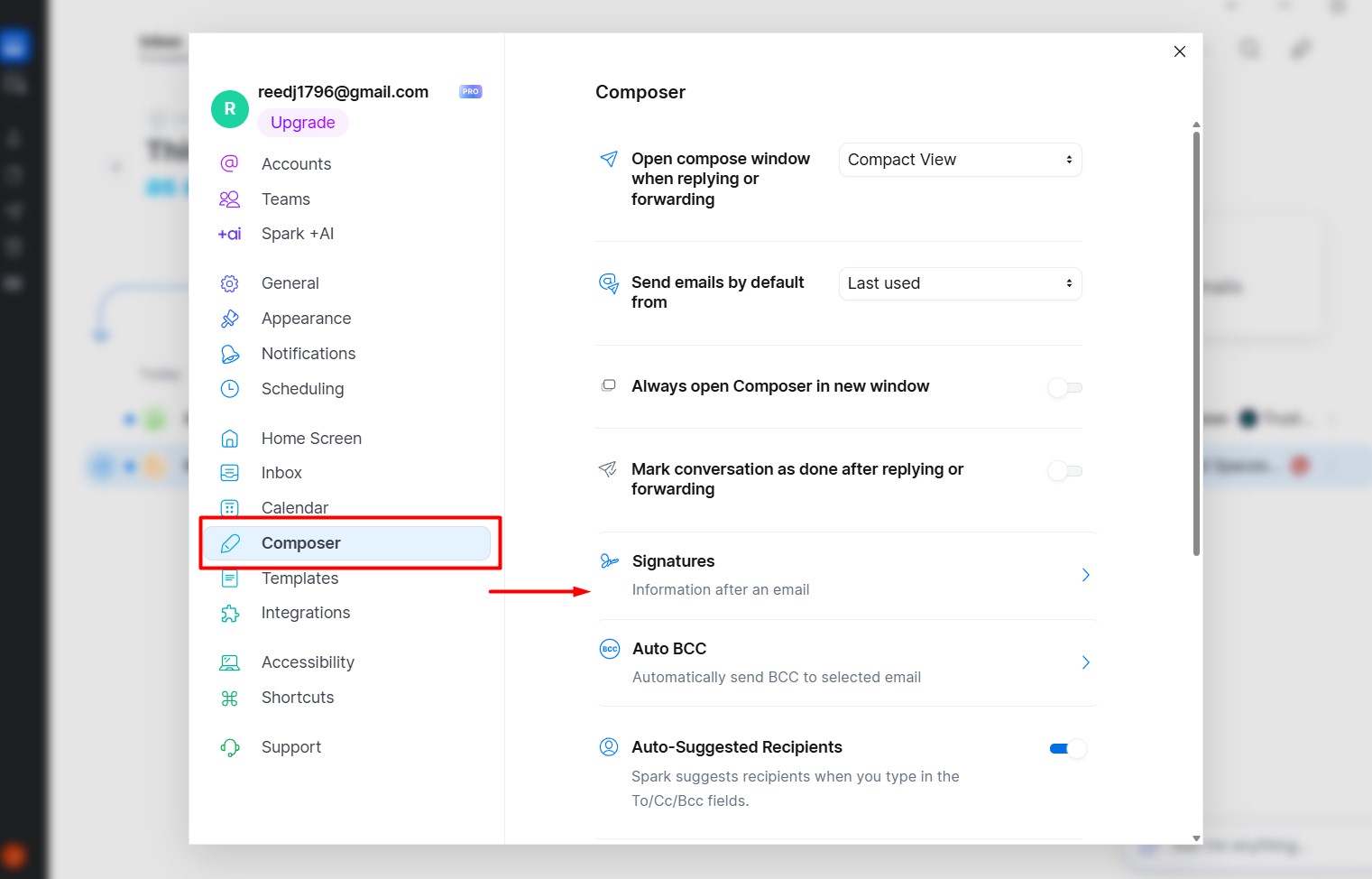
Click Create Signature in the top-right corner.
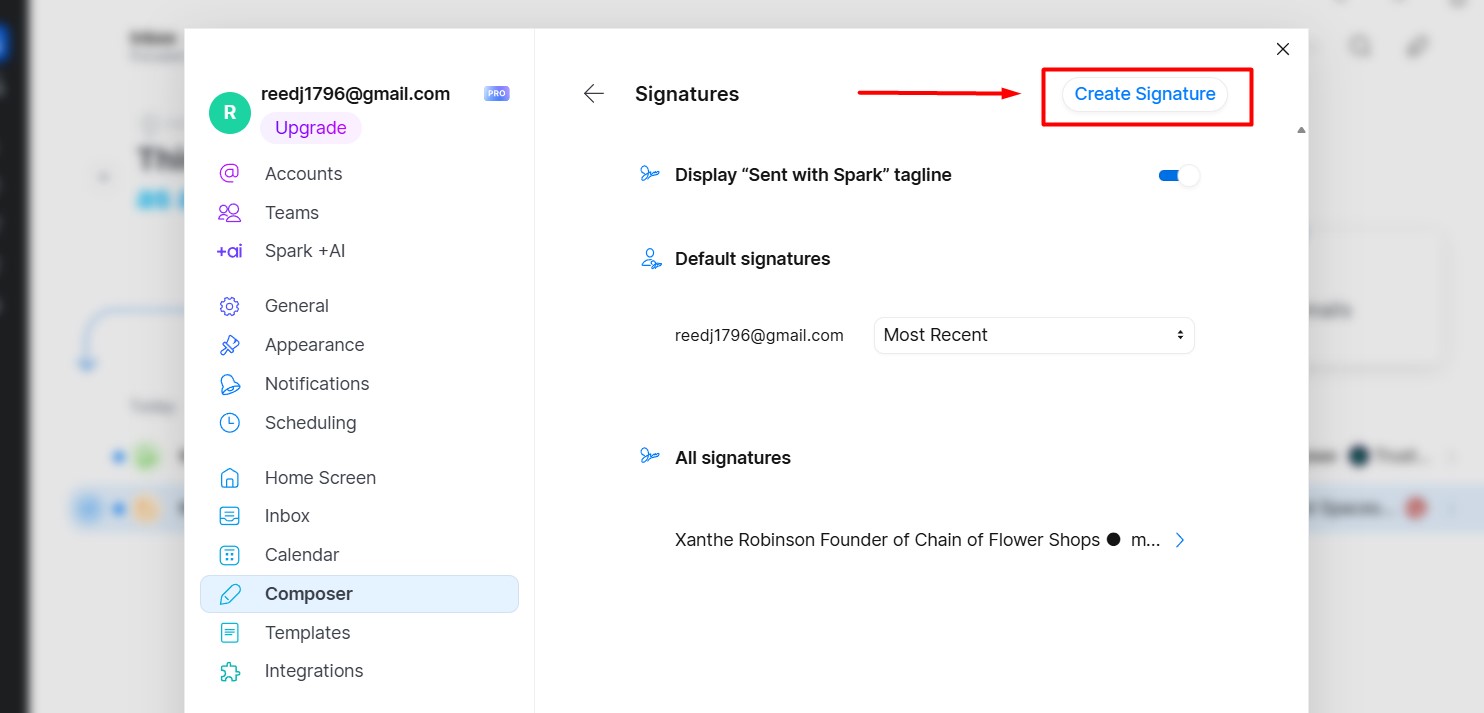
Type your signature text or paste your ready email signature into the editor. If you use an HTML signature, click HTML at the bottom right and paste the HTML code there.
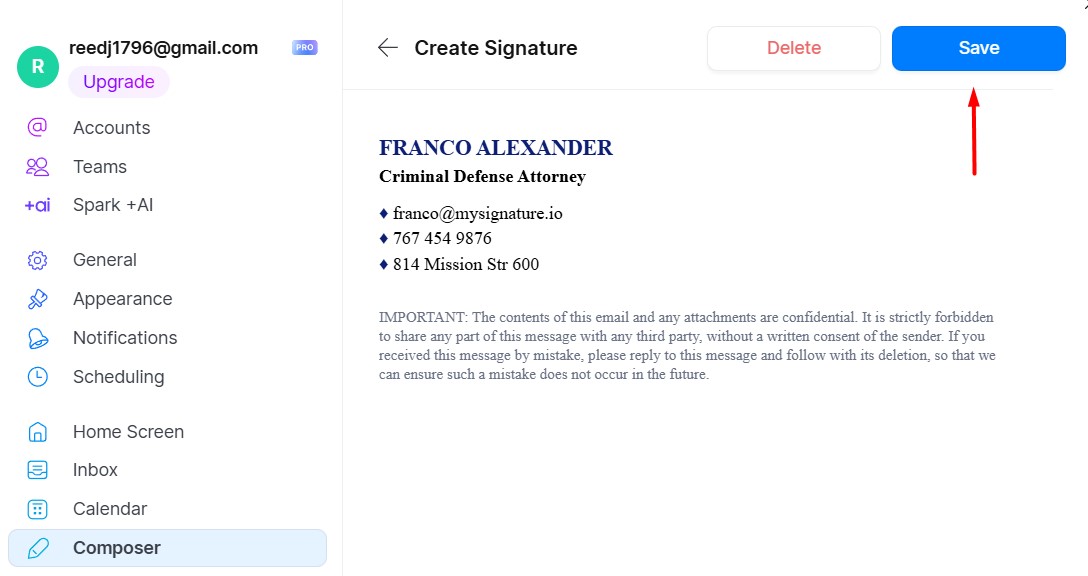
Click Save.
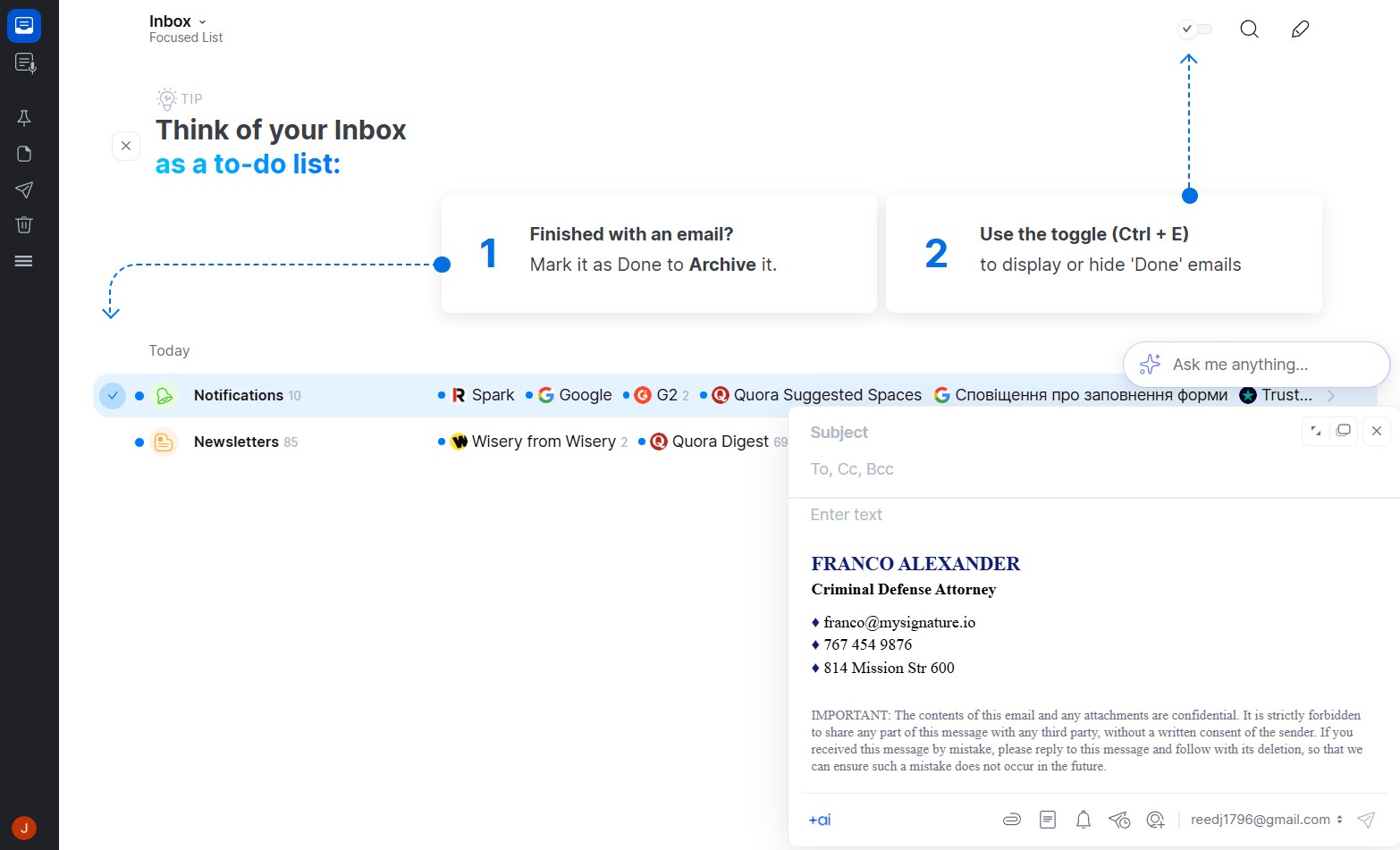
After that, you can set this signature as the default one for one of your email accounts. This is useful if you manage several inboxes and need different signatures for work, personal emails, support messages, or sales communication.
Adding an email signature to Spark on iOS
In addition to macOS, you can use a synchronized account on your iPhone or iPad. Installing a signature there is just as simple.
- In the Spark app, swipe left and go to "Settings." Then choose "Signatures."
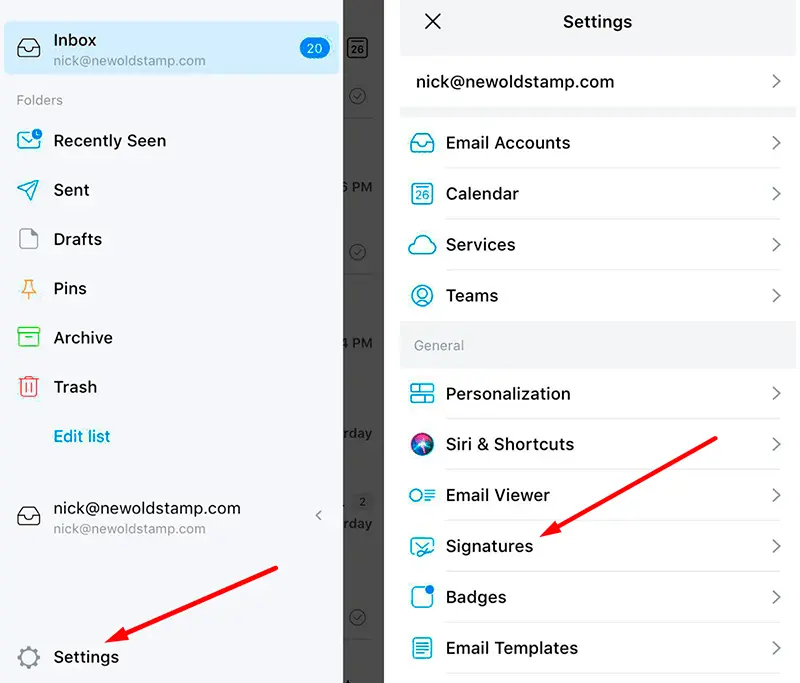
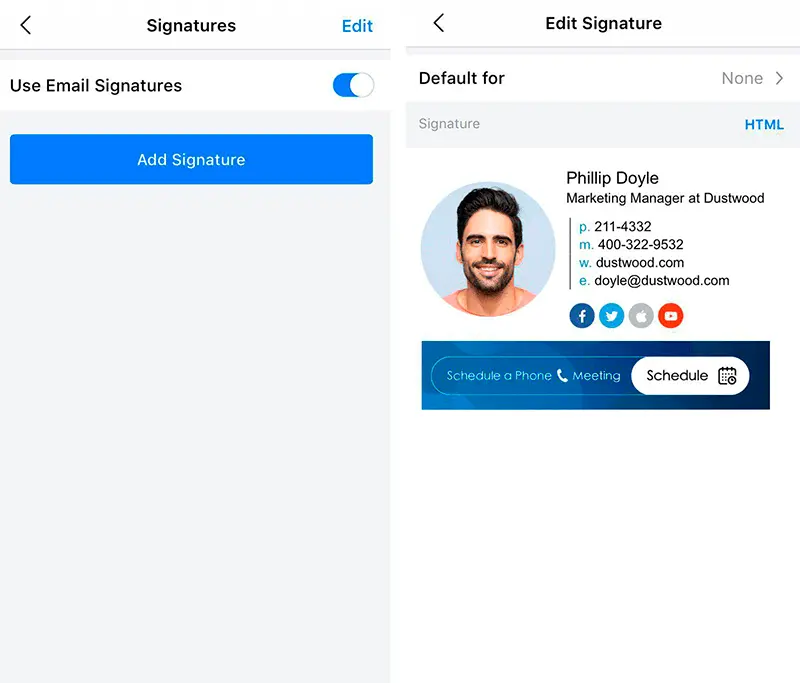
- Make sure "Use Email Signatures" is turned on. Choose "Add Signature."
- Paste your email signature in the text field or paste HTML code. Make sure you choose what email address to use it as "Default for." That's it.
Can you use an email signature in Android Spark app?
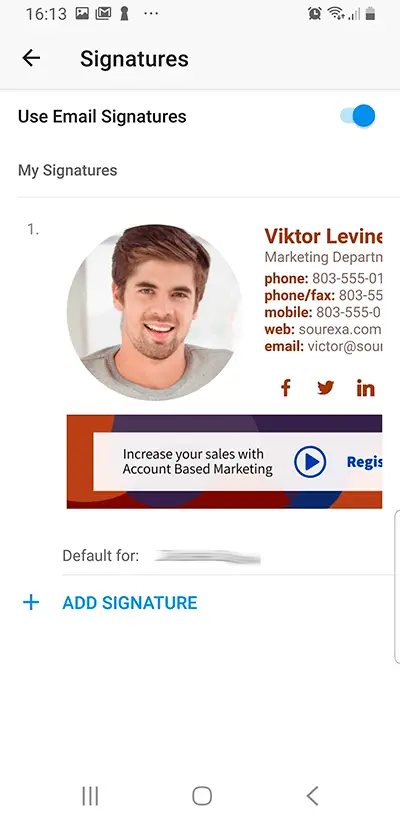
Spark is one of the few apps that allow using email signatures in Android.
- In the Spark app, go to "Settings." Then choose "Signatures."
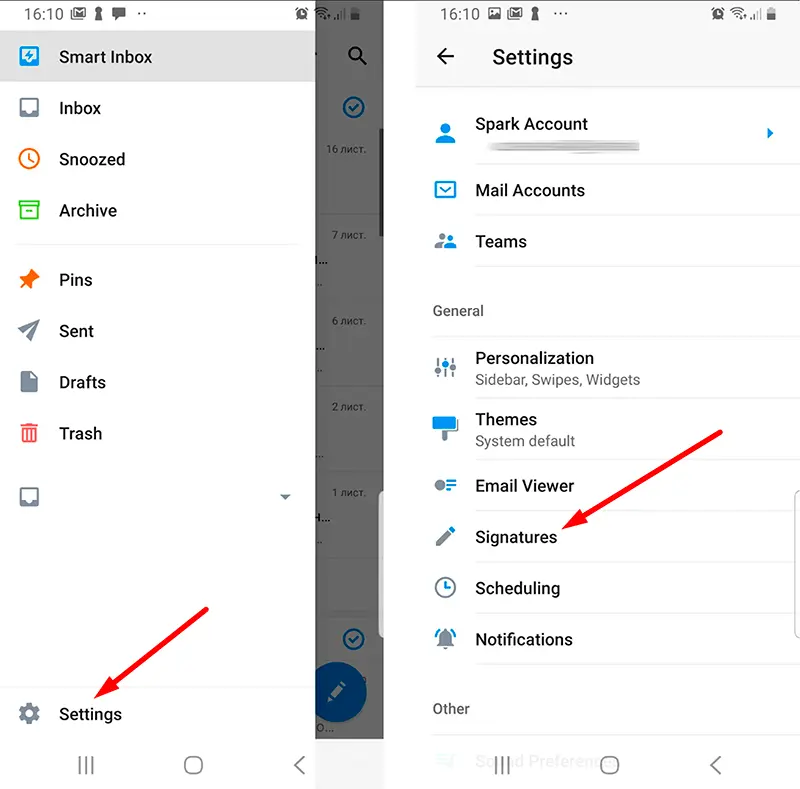
- Choose “Add Signature” and paste it into the field.
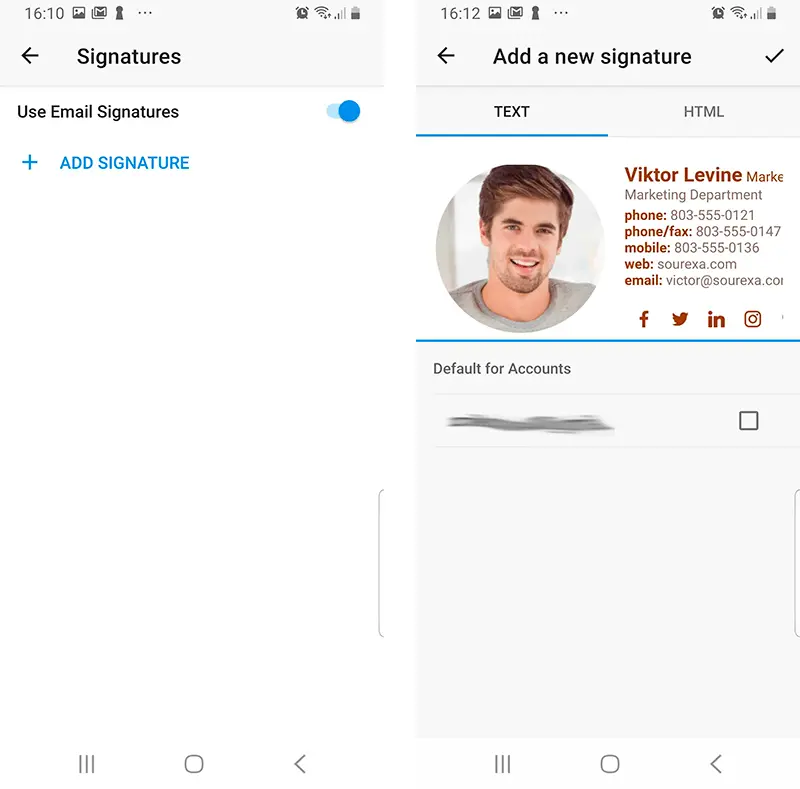
- Make the “Use Email Signatures” option is selected.
If you want to create a professional email signature for Spark email and just copy-paste it right into your account, use Newoldstamp. The email signature generator allows you to choose and edit an outstanding email signature for you and your team in minutes.